Connecting to External Devices
3.
Select Sound > Audio Output, and choose ARC (eARC) option. If the device supports eARC function,
press / button and select Settings icon on the Home screen, then select Sound > Audio
Output Settings > HDMI-eARC to set HDMI-eARC to On.
Note:
• Audio receiver must support ARC/eARC function.
• If the device has an Input Selector feature, then make sure to change it to TV.
• When this port is used for ARC/eARC function, it can be used as signal input when a DVD is connected to
an amplifier and the amplifier is connected to the TV at the same time. Some amplifiers may not support
series connection.
•
5.1 CH (channel) audio is available when the TV is connected to an external device that supports 5.1
channel surround sound. You can press / button and select Settings icon on the Home screen,
and select Sound > Audio Output Settings > Digital Audio Output Format to choose Dolby Audio -
Dolby Digital Plus to receive the 5.1 channel audio.
Related information
Select Speakers on page 52
Connecting a PC or mobile device
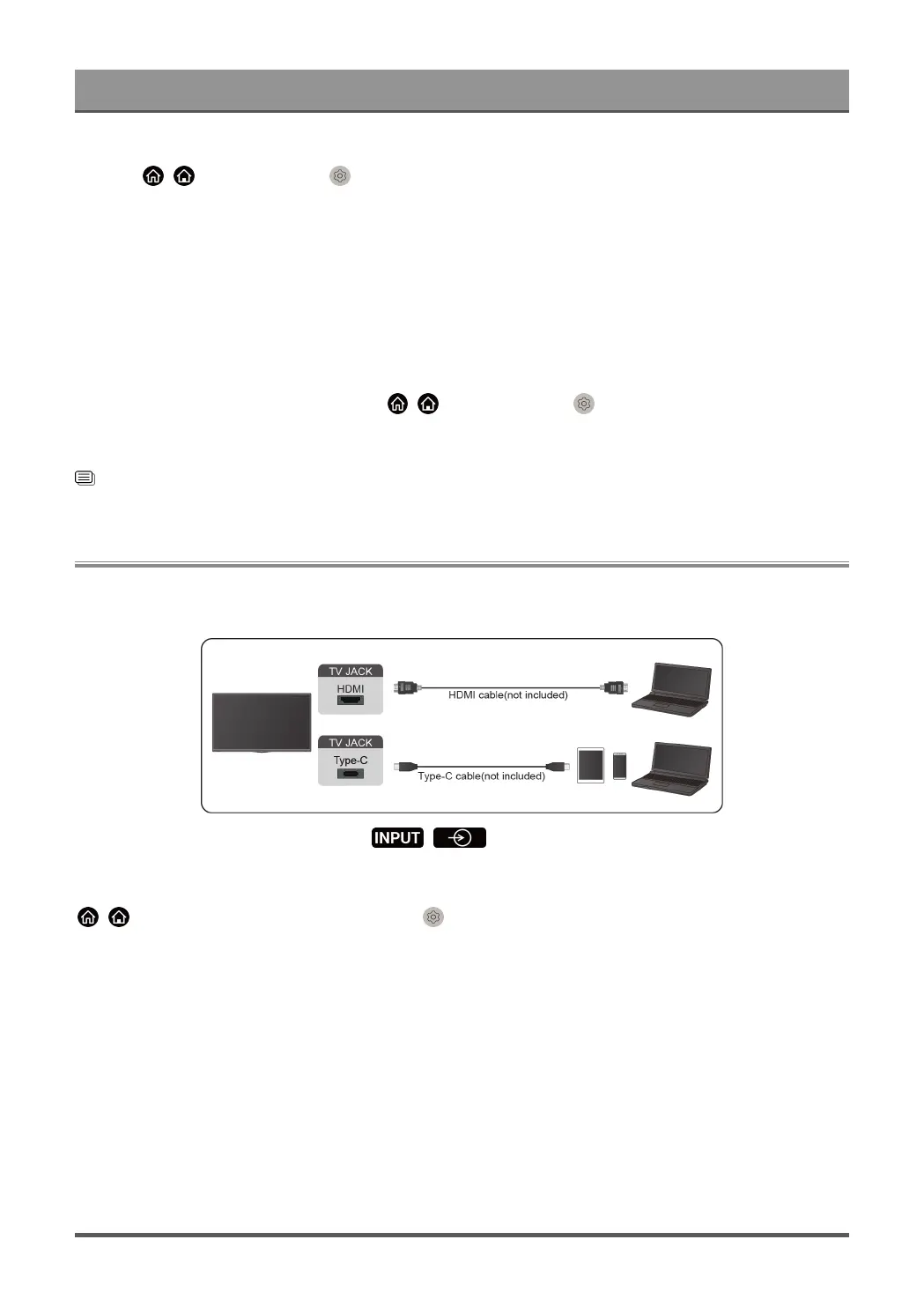
You can connect a PC or mobile device to the TV with a HDMI cable or Full-Featured Type-C standard cable
to use your TV as a monitor.
When the connection is completed, press / button and select the connected device (HDMI or
Type-C) as the input source.
For Type-C supported models, after connecting the PC or mobile device with a HDMI or Type-C port, press
/ button on your remote control and select Settings > Picture > Picture Mode > PC.
Note:
• Type-C port may not be supported in some models.
• When you connect the TV to your PC via HDMI, for better image quality, set the PC's resolution to a format
which is supported by the TV.
• If there is no sound from your TV, change the device's audio settings.
• If you want to connect your PC and TV wirelessly, please refer to Benefits of Smart TV > Content Sharing
or Connecting to External Devices > Sharing your Smart Phone/Computer Screen on the TV in this
manual.
45


 To Next Page