uuDisplay AudiouAudio/Information Screen
272
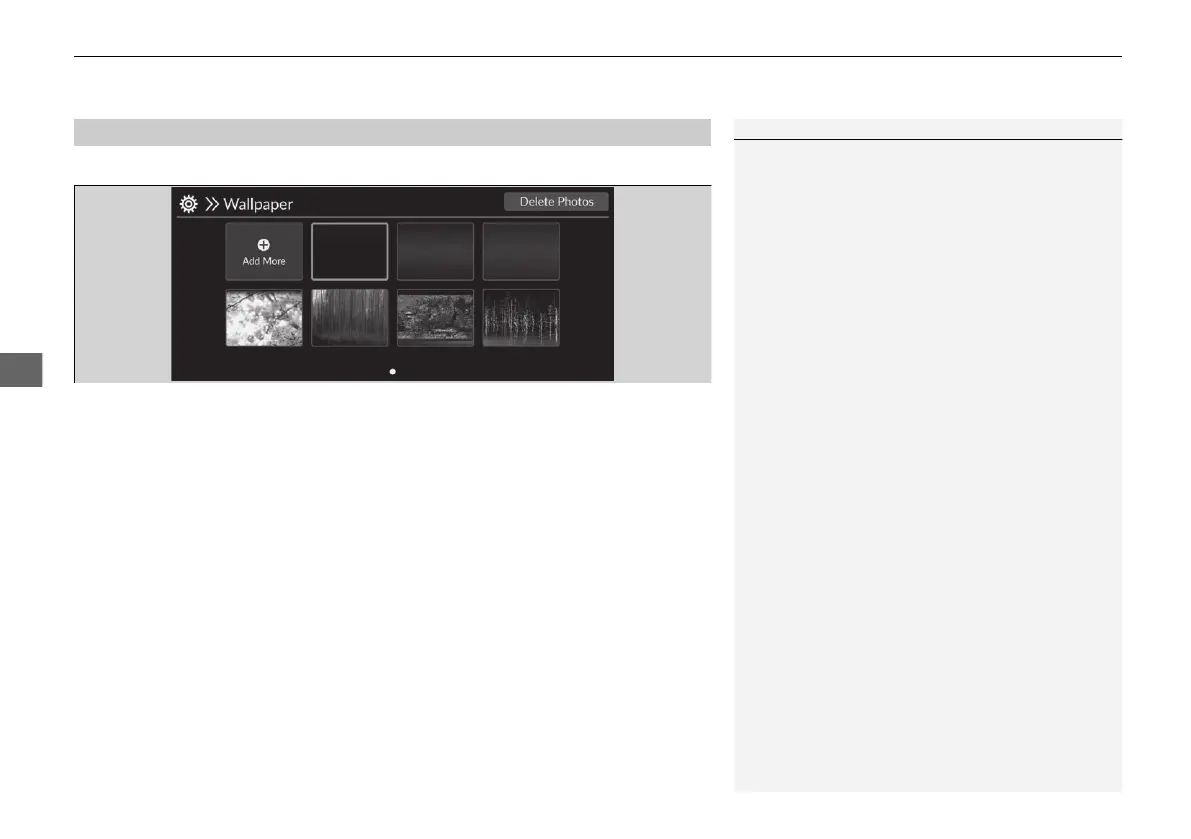
You can change, store, and delete the wallpaper on the audio/information screen.
■
Import wallpaper
1. Connect the USB flash drive to the USB port.
2 USB Ports P. 259
2. Select General Settings.
3. Select Display.
4. Select Wallpaper.
5. Select Add More.
u The image of the pictures stored in the USB flash drive are displayed on the list.
6. Select a desired picture to import.
u Multiple pictures can be selected at the same time.
7. Select OK.
u The selected pictures are displayed.
8. Select Transfer.
u It will return to the wallpaper setting screen.
■
Wallpaper Setup
1Wallpaper Setup
The wallpaper you set up on Wallpaper cannot be
displayed on the driver information interface.
• When importing wallpaper files, the image must be
in the USB flash drive’s root directory.
Images in a folder cannot be imported.
• The file name must be less than 64 bytes.
• The file format of the image that can be imported
is BMP (bmp) or JPEG (jpg).
• The individual file size limit is less than 10 MB.
• If the USB flash drive does not have any pictures,
the message appears.
• Up to 16 pictures can be imported.
• The maximum image size is 4,096 × 2,304 pixels. If
the image size is less than 1,280 x 720, the image
is displayed in the middle of the screen with the
extra area appearing in black.
• If the size of the added picture is larger than the
screen area, it will maintain the aspect ratio of the
picture data and be reduced to fit the screen area.
20 2EX JSS (KE KG)-32TYF6000.book 272 ページ 2020年3月6日 金曜日 午後6時58分







 To Next Page