TuxedoW Home Automation and Security System User Guide
33
Excluding a Door Lock
1. On the Home screen, press the Devices and then
Setup icons to display the Z-Wave Device
Management screen
2. Highlight the lock in the list of devices and select
REMOVE DEVICE
3. On the door lock, press the Function button to remove
the device from the keypad.
• Remove Device clears the node from the keypad and
restores the device to its default settings.
• If Exclusion fails (or to remove a defective device), refer
to the Z-Wave Troubleshooting section on page 41.
• When Excluding a door lock, the user code associated with
that lock will remain in the system. For more information,
refer to the TuxedoW Installation and Setup Guide, Resideo
document
.
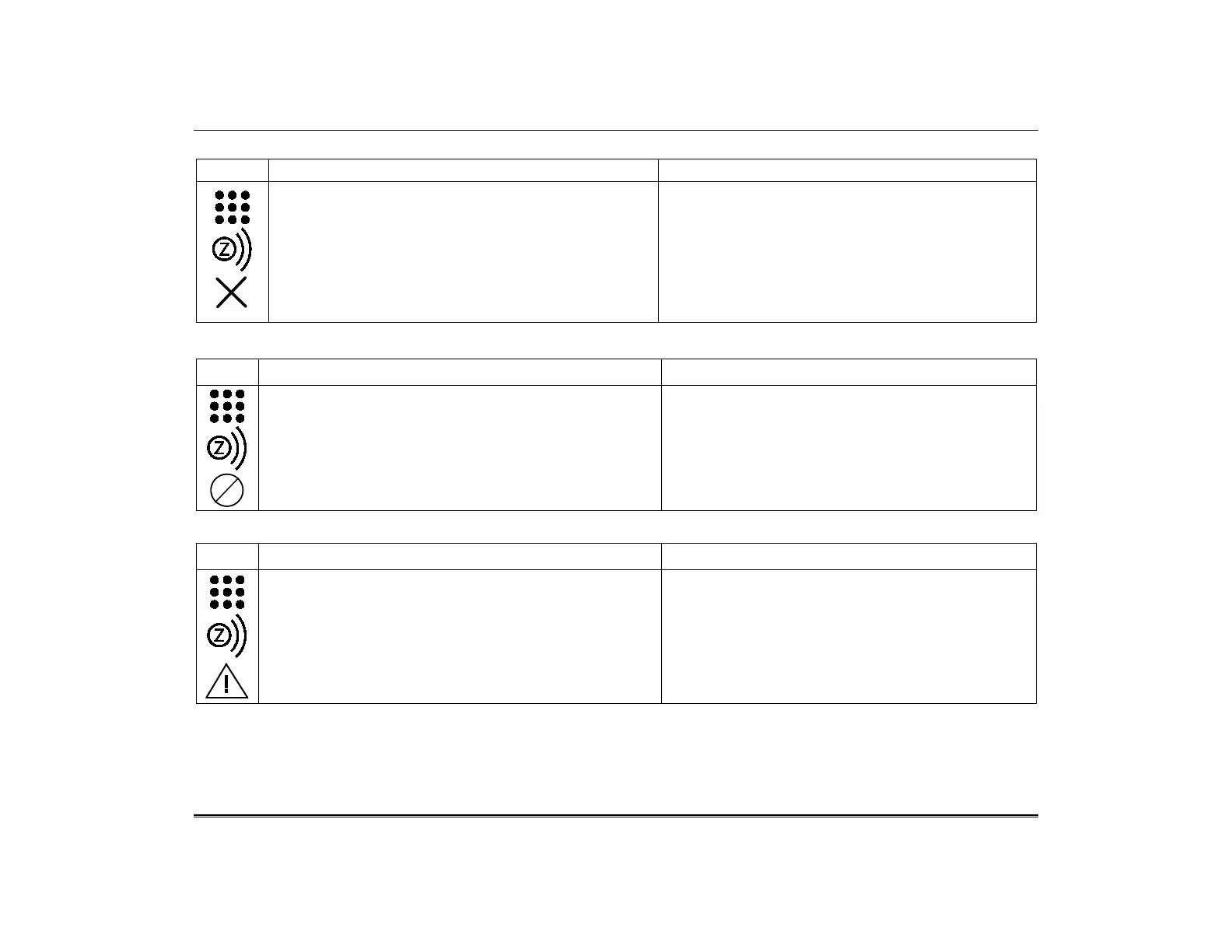
Abort a Z-Wave Action
ICON ACTION NOTES
1. On the Home screen, press the Devices and then Setup
icons to display the Z-Wave Device Management screen
2. Select the device name from the list and touch the
ABORT OPERATION icon to stop the process.
Use the ABORT OPERATION option if you
mistakenly make the wrong selection (Add,
Delete or Remove Failed Device)
Remove Failed Devices
ICON ACTION NOTES
1. On the Home screen, press the Devices and then Setup
icons to display the Z-Wave Device Management screen
2. Touch the Remove Failed icon
This option removes any Z-Wave device that has failed
from the list.



 To Next Page
 Loading...