EasyManua.ls Logo

Honeywell Home TUXEDOW - User Manual

Honeywell Home TUXEDOW
56 pages
Print Icon
To Next Page IconTo Next Page
Loading...
TuxedoW Home Automation
and Security System
User Guide
800-25177B 4/19 Rev. B

Table of Contents

Other manuals for Honeywell Home TUXEDOW

Questions and Answers

Honeywell Home TUXEDOW Specifications

General IconGeneral
BrandHoneywell Home
ModelTUXEDOW
CategorySecurity System
LanguageEnglish

Summary

Introduction

Navigating the TuxedoW Interface

Home Screen Navigation

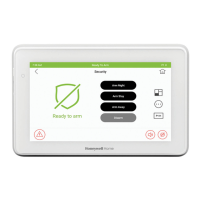
Describes the main interface and its key functions like security and multimedia.

Weather Forecast Display

Explains how to view and set the weather forecast on the home screen.

Compatible Wi-Fi Cameras

Lists compatible camera models for the TuxedoW system.

Icons and Their Meanings

System Trouble Icons

User Codes, Status LED, and Safe Mode

User Codes Explained

Explains user codes for system access and authority levels.

Status LED Indicators

Describes the LED indicator colors and their meanings for system status.

Safe Mode Operation

Explains the backup operation mode for system control during communication loss.

Operating Your Security System

Security System Arming Modes

Details the three arming modes: Away, Stay, and Night, with their functions.

How to Arm the Security System

Step-by-step instructions on how to arm the security system.

Displaying and Handling System Faults

Procedure to view and correct system faults or bypass zones.

How to Bypass Zones

Clearing Bypassed Zones

Steps to manually un-bypass zones that were previously bypassed.

How to Disarm the Security System

Checking Partition Status

Fire and Carbon Monoxide Alarm Operation

Fire Alarm Procedures

Describes actions to take during a fire alarm event.

Clearing Fire;CO Alarms

Procedure for silencing and clearing fire or carbon monoxide alarms.

Advanced System Choices

Managing Control Panel Messages

Procedure to manage and clear messages from the control panel.

Accessing Advanced Features

Overview of advanced features accessible via Console Emulation or alpha keypad.

Console Emulation Mode Usage

Explains how to use the touchscreen as a standard alpha keypad.

Initiating Console Emulation Mode

Step-by-step guide to accessing Console Emulation Mode.

Event Log and Emergency Messages

Viewing the Event Log

Instructions to view recorded system events, including alarms and troubles.

Sending Emergency Messages

Procedure for sending fire, police, or medical emergency signals.

System Setup and Configuration

System Information Details

Details on system software, firmware, and internet connection.

System Setup Menu

Accesses various system configuration functions like time, user, and advanced settings.

System Wi-Fi and Account

System Wi-Fi Connectivity

Instructions for connecting the TuxedoW to a Wi-Fi network.

User Account Setup

Details on setting up user accounts for remote access and web browser control.

Display and Audio Settings

Brightness, Volume, and Multimedia

Brightness and Volume Adjustment

Adjusts screen brightness and voice/chime volume levels.

Multimedia Application Overview

Overview of multimedia features accessed via the icon, including slideshows and videos.

Setting Up Slideshows

Setting Up Videos

Time;Date Setup

Daylight Savings Time Configuration

Procedure to enable and configure automatic Daylight Savings Time adjustments.

CS Setup and User Management

User Setup and Authority

Details user categories, authority levels, and code management.

User Authority Levels Explained

Defines different user roles and their system access privileges.

User Management Procedures

Adding New Users

Step-by-step guide to adding new users and assigning their access levels.

Deleting Users

Procedure for removing a user from the system.

Editing User Information

Instructions on modifying existing user settings and access levels.

Advanced Setup

Power Mode Settings

Configures power-saving features like network turn-off and display settings.

Night Mode Setup

Allows configuration of arming modes for the NIGHT setting.

Keypad Reset Procedure

Procedure to reset the TuxedoW and download system information.

System Defaults and Safe Mode

End-User License Agreement (EULA)

Provides access to the Privacy Statement and End-User License Agreement (EULA).

Restoring Factory Defaults

Restores the keypad to its original factory settings, erasing all configurations.

Safe Mode Operation and Exit

Explains how to manually initiate or exit Safe Mode for system operation.

Automation

Z-Wave Icons Guide

Description of icons used for Z-Wave device management and automation.

Including Z-Wave Devices

Including Z-Wave Light Modules

Step-by-step guide to adding Z-Wave light, switch, or outlet modules.

Adding Z-Wave Devices

Including Resideo Thermostats

Procedure for adding Resideo Wi-Fi thermostats to the Z-Wave network.

Including Z-Wave Door Locks

Steps to enroll Z-Wave door locks into the system.

Wi-Fi Thermostat and Association Management

Wi-Fi Thermostat Programming

Instructions for enrolling and managing Wi-Fi thermostats with Total Connect.

Removing Thermostat Associations

Procedure to disconnect a Wi-Fi thermostat or remove account association.

Excluding Z-Wave Devices

Excluding Z-Wave Light Modules

Guide to removing Z-Wave light, switch, or outlet modules from the system.

Excluding Resideo Thermostats

Steps to remove Resideo thermostats from the Z-Wave network.

Z-Wave Device Actions

Excluding Z-Wave Door Locks

Procedure for removing a Z-Wave door lock from the system.

Aborting Z-Wave Actions

How to stop an ongoing Z-Wave device add, delete, or remove process.

Removing Failed Z-Wave Devices

Procedure to remove devices from the list that have failed enrollment.

Device Management

Device Setup and Editing

Instructions for editing device names, display icons, and associations.

Replacing Failed Z-Wave Devices

Walkthrough for replacing a malfunctioning Z-Wave device.

Z-Wave Controller Management

Defaulting the Z-Wave Controller

Procedure to reset the Z-Wave controller to factory defaults.

Troubleshooting Z-Wave Issues

Common Z-Wave issues and their solutions, like enrollment failures.

Scene Setup and Rules

Setting Up Scenes

Guide to creating and configuring scenes for automating device actions.

Scene Rules and Logic

Details triggers, actions, and conditions for scene creation.

Scene Configuration Options

Sample Scene Example

Example scenario for setting up lights to turn on when the system is disarmed at night.

Configuring Scene Options

Defines criteria for scene conditions, triggers, and actions like time, security mode, and device status.

Scene Triggers and Actions Explained

Compatible Z-Wave Devices List

Wireless Range and Routine Care

Understanding Wireless Range

Factors affecting RF range and considerations for optimal wireless performance.

Routine Care and Maintenance

Guidelines for cleaning and maintaining the keypad and sensors.

Product Warranty Information

FCC and IC Compliance Statements

Related product manuals