68 RP-2002 Series Manual — P/N 53039:E6 1/26/2017
Programming Master Programming Level
Time-Date
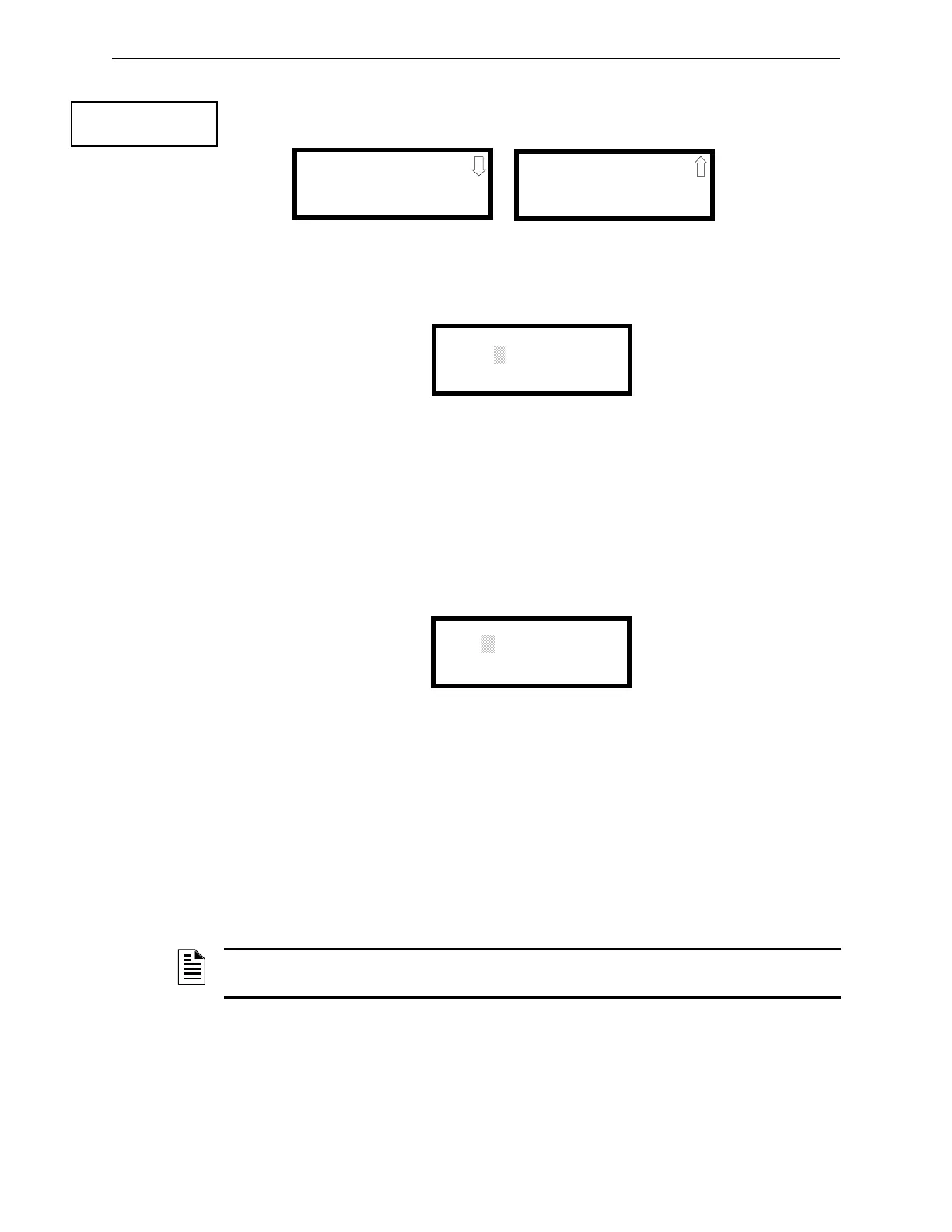
The control panel time and date can be changed by pressing 1 while viewing the System Setup
Screen #2. The following screen will be displayed:
Time
To change the time, press 1 while viewing the Time-Date Screen. The following screen will be
displayed:
A flashing cursor is located toward the top left of the display. Below the cursor is the current time.
To change the time, enter the two-digit hours followed by the two-digit minutes. The cursor will
move one position to the right each time a digit is entered. After the last minutes digit is entered, the
cursor will again move one position to the right. At this point enter 1 for AM or 2 for PM. The
display will then return to the Time-Date Screen which will show the new time entry. If an error is
made while entering a digit, press the CLR key to delete the entire entry and begin again.
Date
To change the date, press 2 while viewing the Time-Date Screen. The following screen will be
displayed:
A flashing cursor is located toward the top left of the display. Below the cursor is the current date.
To change the date, enter the two-digit month followed by the two-digit day and then the two-digit
year (14 for 2014, 15 for 2015, etc.). The cursor will move one position to the right each time a
digit is entered. After the last year digit is entered, the display will return to the Time-Date Screen
which will show the new date entry. If an error is made while entering a digit, press the CLR key to
delete the entire entry and beginning again.
Clock Format
The clock can be configured to display 12 hour (AM & PM) or 24 hour (military) time. Pressing 3
while viewing the Time-Date screen will cause the display to toggle between 12HR and 24HR.
Select 12HR for 12 hour display or 24HR for 24 hour display.
SYSTEM SETUP
1=TIME-DATE
2=TROUBLE REMIND
3=CHARGR DISABLE
System Setup Screen #2
TIME AND DATE
1=TIME 10:00A
2=DATE 09222014
3=CLOCK FORMAT 12HR
Time-Date Screen #1
TIME AND DATE
1=DAYLIGHT SAVINGS
Time-Date Screen #2
ENTER TIME AS 12HRS
:
1=AM 2=PM
Time Screen
ENTER DATE
✱✱-✱✱-✱✱✱✱
MONTH DAY YEAR
09-22-2014
Date Screen
NOTE: If the clock is changed to 24 hour (military) format, the date will change to the European
standard of Day-Month-Year (for display purposes only).


 To Next Page
 Loading...