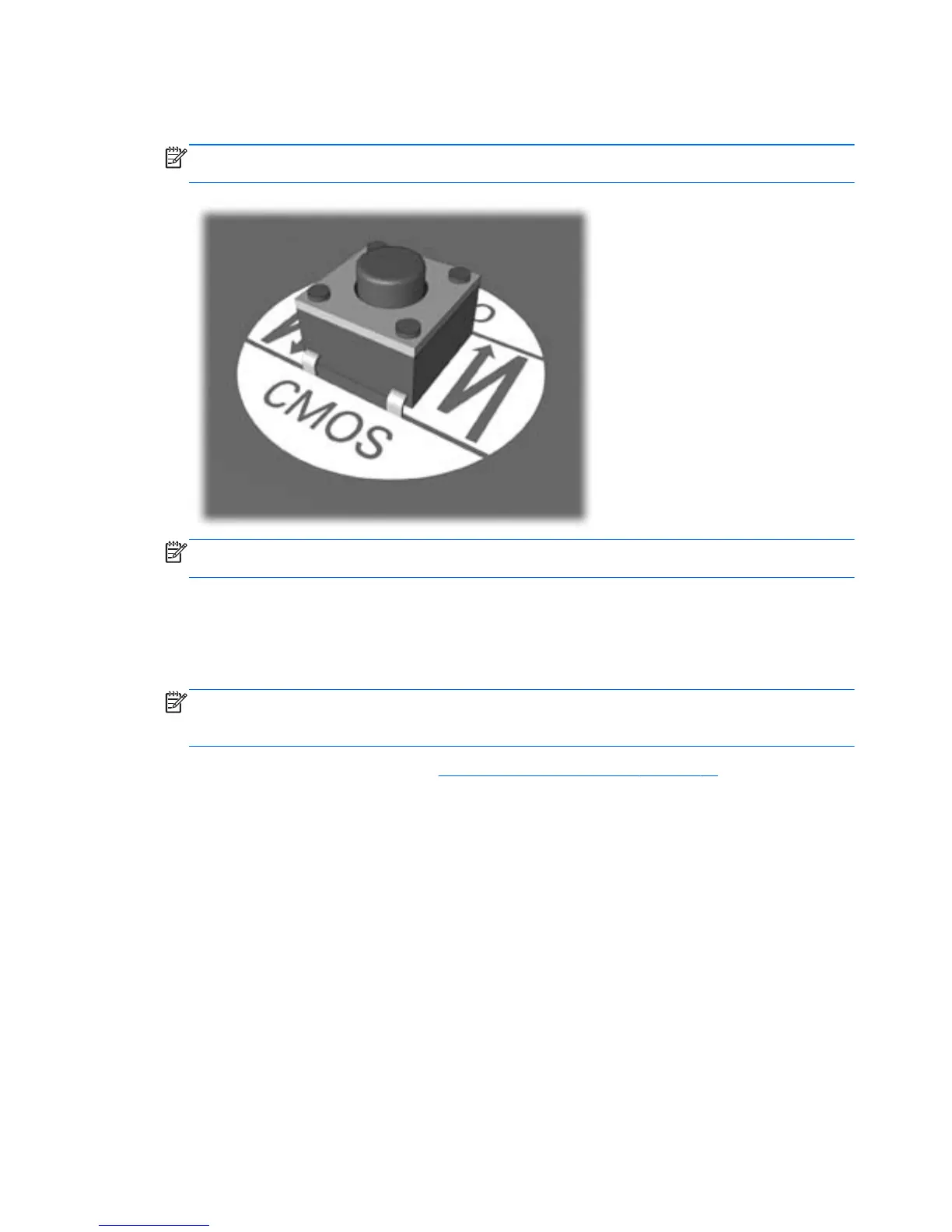
5. Reach in, press, and hold the CMOS button in for five seconds. You can access the CMOS
button after removing the memory door.
NOTE: Make sure you have disconnected the AC power cord from the wall outlet. The CMOS
button will not clear CMOS if the power cord is connected.
NOTE: For assistance locating the CMOS button and other system board components, see the
Illustrated Parts & Service Map (IPSM) for that particular system.
6. Close the memory door and replace the rear cover.
7. Reconnect the external devices.
8. Plug in the computer and turn on power.
NOTE: You will receive POST error messages after clearing CMOS and rebooting advising
you that configuration changes have occurred. Use Computer Setup to reset any special system
setups along with the date and time.
For instructions on Computer Setup, see Computer Setup (F10) Utility on page 69.
102 Appendix F Password security and resetting CMOS




 To Next Page