EasyManua.ls Logo

HP rp5800 - User Manual

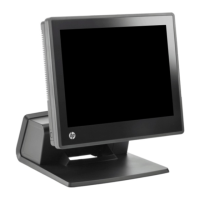
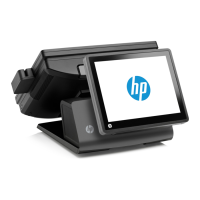
HP rp5800
185 pages
Print Icon
To Next Page IconTo Next Page
Loading...
Maintenance & Service Guide
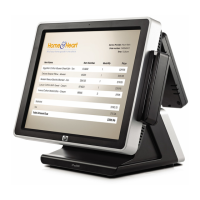
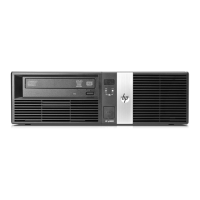
HP rp5800 Retail System

Table of Contents

Other manuals for HP rp5800

Questions and Answers

  • G
    Gregory Roberson Jr.Aug 17, 2025
    What to do if HP Touch terminals seem to be locked up?
    • J
      Jeffrey MartinezAug 18, 2025
      If your HP Touch terminal seems locked up because a program has stopped responding, try the normal Windows “Shut Down” procedure. If that doesn't work, press and hold the power button for at least four seconds to turn off the power. Then, press the power button again to restart the computer.
  • G
    Glenn CarsonAug 20, 2025
    What to do if HP Touch terminals will not respond to USB keyboard or mouse?
    • C
      christopherhinesAug 20, 2025
      If your HP Touch terminal computer will not respond to a USB keyboard or mouse, first, try pressing the power button or any key to resume from standby mode. If that doesn't work, unplug and plug in the device to reset its power. As a last resort, restart the computer.
  • B
    brian96Aug 22, 2025
    What to do if the HP Touch terminals computer appears locked up and will not turn off when the power button is pressed?
    • P
      Pamela RichardsAug 22, 2025
      If your HP Touch terminal computer appears locked up and will not turn off when you press the power button, press and hold the power button for at least four seconds until the computer turns off. Then, disconnect the power cord from the electrical outlet.
  • H
    hannah53Aug 25, 2025
    Why is my HP rp5800 Touch terminals experiencing poor performance?
    • U
      umitchellAug 26, 2025
      If you're experiencing poor performance on your HP Touch terminal, ensure that airflow to the computer is not blocked by leaving a 10.2-cm (4-inch) clearance on all vented sides. Also, check that the fans are connected and working properly, and that the processor heat sink is installed correctly. Consider transferring data to free space if the hard drive is full, adding more memory if it's low, defragmenting the hard drive, restarting the computer to release reserved memory, running a virus protection program, and closing unnecessary applications.
  • M
    Matthew PetersonAug 27, 2025
    What does it mean if my HP rp5800 Touch terminals computer powered off automatically and the Power LED flashes Red two times?
    • L
      lmyersAug 28, 2025
      If your HP Touch terminal computer powered off automatically and the Power LED flashes Red two times, once every second, followed by a two second pause, and the computer beeps two times, it means that the processor thermal protection has been activated. Ensure that the computer air vents are not blocked and the processor cooling fan is running. If the processor fan is not spinning, make sure the fan's cable is plugged onto the system board header. If fan is plugged in, but is not spinning, then replace the heat sink/fan assembly.
  • O
    Oscar RogersAug 30, 2025
    How to fix incorrect date and time display on HP rp5800 Touch terminals?
    • M
      murraymichelleAug 30, 2025
      If your HP Touch terminal computer date and time display is incorrect, first, reset the date and time under Control Panel (Computer Setup can also be used to update the RTC date and time). If the problem persists, replace the RTC battery.
  • E
    erin40Sep 2, 2025
    What to do if HP Touch terminals system does not power on?
    • A
      Anthony ChristensenSep 2, 2025
      If your HP Touch terminal system does not power on and the LEDs on the front of the computer are not flashing, press and hold the power button for less than 4 seconds. If the hard drive LED turns green, then check if a device is causing the problem by removing ALL attached devices. Replace the device that is causing the failure.
  • C
    Charles BeckerSep 4, 2025
    How to fix 'Unable to connect to the Internet' on HP rp5800 Touch terminals?
    • S
      Stephanie MaysSep 4, 2025
      If you are unable to connect to the Internet on your HP Touch terminal, verify your Internet settings or contact your ISP for assistance. Also, reconnect the modem and verify the connections using the quick setup documentation. Finally, verify that the Web browser is installed and set up to work with your ISP.
  • M
    Michael AllenSep 6, 2025
    Why is there no sound or sound volume is too low on my HP rp5800 Touch terminals?
    • M
      Michelle McmillanSep 6, 2025
      If there is no sound or the sound volume is too low on your HP Touch terminal, check the F10 BIOS settings to make sure the internal system speaker is not muted. Also, ensure that the external speakers are properly connected and powered on, and that the speakers' volume control is set correctly. Finally, use the system volume control available in the operating system to make sure the speakers are not muted or to increase the volume.
  • P
    paula08Sep 9, 2025
    Why does the F1 prompt display every time my HP rp5800 Touch terminals computer is powered on?
    • K
      Keith LoveSep 9, 2025
      If your HP Touch terminal F1 prompt displays every time the computer is powered on, it may be because the computer is configured with a 50°C thermal kit, and a non-compliant component has since been added. Remove the non-compliant component.

Summary

Installing and Customizing the Software

Installing the Windows Operating System

Step-by-step instructions for automatically installing the operating system.

Downloading Microsoft Windows Updates

Procedure to download and install Windows updates via Internet Explorer.

Installing or Upgrading Device Drivers (Windows systems)

Guidance on installing optional hardware device drivers after OS installation.

Computer Setup (F10) Utility

Computer Setup (F10) Utilities

Overview of the functions available within the Computer Setup utility.

Using Computer Setup (F10) Utilities

Steps to access and navigate the Computer Setup Utilities menu.

Computer Setup-File

Details on the 'File' options within Computer Setup, including system information.

Computer Setup-Storage

Configuration options for storage devices within Computer Setup.

Computer Setup-Security

Security settings available in Computer Setup, including passwords and device security.

Computer Setup-Power

Power management settings within Computer Setup.

Computer Setup-Advanced

Advanced configuration options for system setup.

Computer Diagnostic Features

Hewlett-Packard Vision Diagnostics

Overview of the HP Vision Diagnostics utility for hardware testing.

Accessing HP Vision Diagnostics

Instructions on how to access the HP Vision Diagnostics utility.

Survey Tab

Displays system configuration information within HP Vision Diagnostics.

Test Tab

Allows selection of system parts, test types, and testing modes.

Illustrated Parts Catalog

Computer Major Components

Identification and spare part numbers for main computer components.

Drives

List of available hard drives and optical drives with spare part numbers.

Expansion Cards

Identification and spare part numbers for various expansion cards.

Serial and Parallel ATA Drive Guidelines and Features

SATA Hard Drives

Characteristics and specifications for SATA hard drives.

SATA Hard Drive Cables

Details on SATA data and power cable pin assignments.

Identifying the Chassis, Routine Care, and Disassembly Preparation

Electrostatic Discharge Information

Information on preventing damage from static electricity.

Routine Care

Guidelines for maintaining and cleaning the computer system.

Service Considerations

Important considerations for performing service on the computer.

Removal and Replacement Procedures

Preparation for Disassembly

Initial safety procedures and steps before disassembling the computer.

Access Panel

Procedure for removing and installing the computer access panel.

Memory

Information on memory modules, installation, and specifications.

Expansion Cards

Procedures for installing various types of expansion cards.

Drives

Procedures for installing and removing hard drives and optical drives.

Heat sink

Procedure for removing and installing the CPU heat sink.

Processor

Procedure for removing and installing the computer processor.

Power Supply

Procedure for removing and installing the computer power supply.

System Board

Procedure for removing and installing the computer system board.

50°C Configuration Components

50°C Thermal Kit

Components included in the 50°C thermal kit.

50°C Radial Fan

Procedure for replacing the radial fan assembly for 50°C configuration.

50°C Heat Partition

Procedure for replacing the heat partition for 50°C configuration.

Appendix A Connector Pin Assignments

Keyboard

Pin assignments for keyboard connectors.

Mouse

Pin assignments for mouse connectors.

USB

Pin assignments for USB connectors.

PCI Express, Pin A

Pin assignments for PCI Express connector Pin A.

Appendix C POST Error Messages

Power-On Self-Test (POST)

Overview of the Power-On Self-Test diagnostic process.

POST Numeric Codes and Text Messages

List of POST error codes and associated recommended actions.

Interpreting POST Diagnostic Front Panel LEDs and Audible Codes

Guide to understanding front panel LED and audible diagnostic codes.

Appendix E Troubleshooting Without Diagnostics

Before You Call for Technical Support

Steps to isolate problems before contacting technical support.

Helpful Hints

General suggestions for resolving computer, monitor, or software problems.

Solving General Problems

Common causes and solutions for general computer problems.

Solving Power Problems

Common causes and solutions for power supply issues.

Solving Hard Drive Problems

Common causes and solutions for hard drive errors.

Solving Display Problems

Common causes and solutions for monitor and display issues.

Solving Software Problems

Common causes and solutions for software-related issues.

HP rp5800 Specifications

General IconGeneral
ProcessorIntel Core i3-2120 (3.3 GHz, 3 MB cache, 2 cores)
Memory4 GB DDR3
Storage500 GB SATA (7200 rpm)
Operating SystemWindows 7 Professional (64-bit)
PortsVGA, DisplayPort, serial, parallel, audio in/out, RJ-45
Power Supply240W

Related product manuals