Output
a
Sequence
of
Signals
3-5
0
1
2
3
Copy the
Off
Time
1
.o
1
.o
0.8
2.0
1.5
0.8
3.0 2.0
0.8
4.0
2.5
0.8
5.
Press the blue
SHIFT
key and the
14
0
f
f
T
i
ril
e
softkey.
You
have copied the displayed Off Time
(0.8
ms) to each of the
HP
8904As
15 other Tone Registers. This function is useful when
you wish to have the same Off Time for all of your tones. In this
demonstration, the tones you configure will all have the same
Off
Time but will each have a different On Time. (For your own
applications, note that the displayed On Time can also be copied
by pressing the blue
SHIFT
key and the
12
0
t-i
T
1
fit
e
softkey.)
Configure Tone Register
7
6.
Press the
fl
T
I:!
t-i
e
1.4
1-1
rii
kl
e
t-
softkey
and
then press
0
key to
access Tone Register
1.
The Tone Number shown in the display
indicates which Tone Register is currently being displayed.
7.
Press the
FREQ
key and enter
2
kHz.
8.
Press the
f2
0
t-i
T
i
riI
e
softkey and enter
1.5
ms.
Configure Tone Register
2
9.
Press the
11
TI:#
t-le tJuriibet-
softkey and then the
2
key.
You
can access the various Tone Registers by using either the
0
or
0
keys or by directly entering the number of the register you desire.
10.
Press the
FREQ
key and enter
3
kHz.
11.
Press the
f2
0
t-1
T
i
rii
e
softkey and enter
2
ms.
Configure Tone Register
3
12.
Press the
11
T
1-1
t-i
e
t.4
1-1
ri!
kl
e
t-
softkey and then the
0
key to
access Tone Register
3.
13.
Press the
FREQ
key and enter
4
kHz.
14.
Press the
12
0
t-i
T
i
rii
e
softkey and enter
2.5
ms.
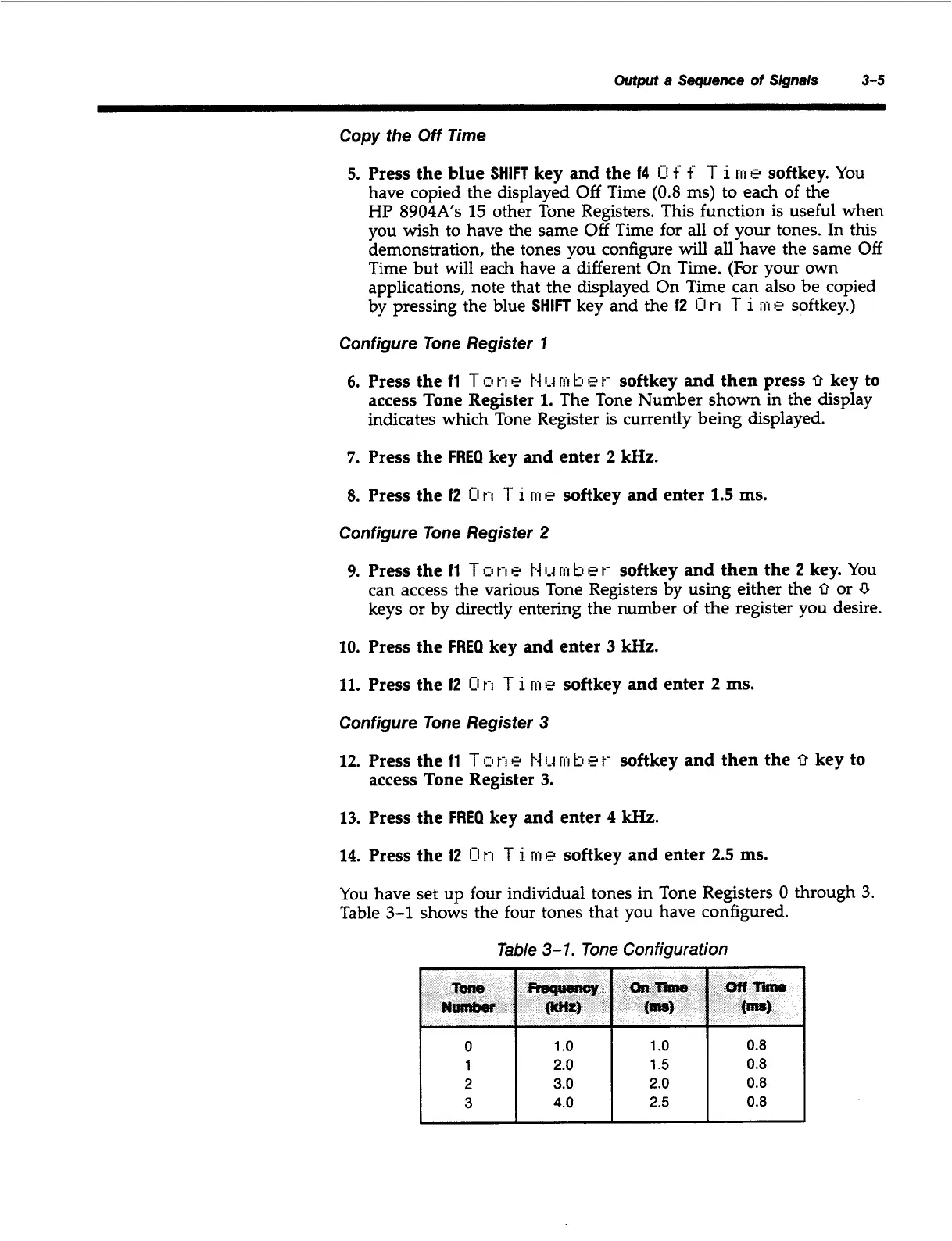
You have set up four individual tones in Tone Registers
0
through 3.
Table 3-1 shows the four tones that you have configured.
Table
3-1.
Tone Configuration
Artisan Technology Group - Quality Instrumentation ... Guaranteed | (888) 88-SOURCE | www.artisantg.com


 To Next Page