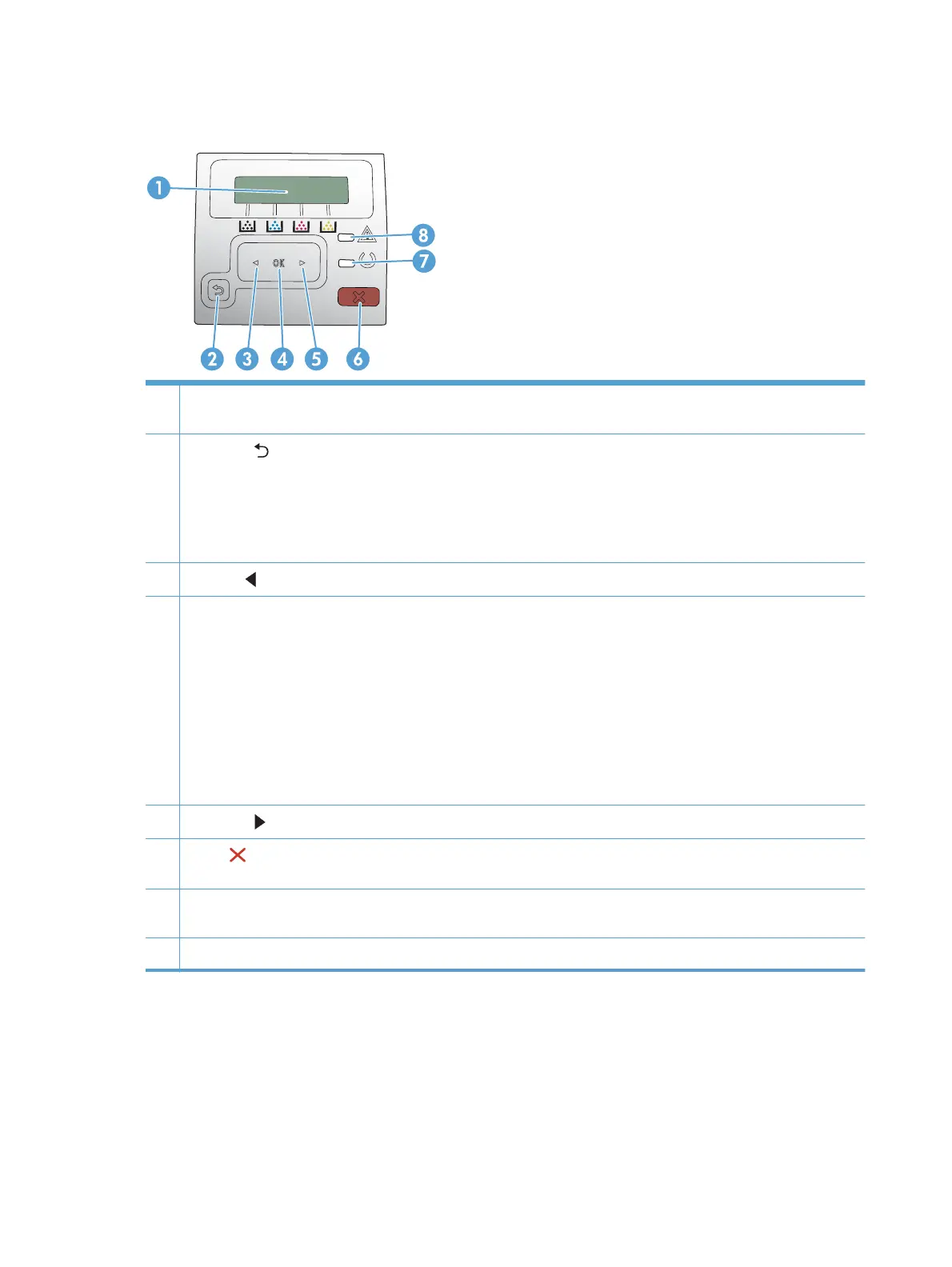
Control panel layout
1 Control-panel display: The display provides information about the product. Use the menus on the display to establish
product settings.
2
Back arrow
button: Use this button for the following actions:
●
Exit the control-panel menus.
●
Scroll back to a previous menu in a submenu list.
●
Scroll back to a previous menu item in a submenu list (without saving changes to the menu item).
3
Left arrow
button: Use this button to navigate through the menus or to decrease a value that appears on the display.
4 OK button: Press the OK button for the following actions:
●
Open the control-panel menus.
●
Open a submenu displayed on the control-panel display.
●
Select a menu item.
●
Clear some errors.
●
Begin a print job in response to a control-panel prompt (for example, when the message Press [OK] to continue
appears on the control-panel display).
5
Right arrow
button: Use this button to navigate through the menus or to increase a value that appears on the display.
6
Cancel
button: Press this button to cancel a print job whenever the attention light is blinking or to exit the control-
panel menus.
7 Ready light (green): The Ready light is on when the product is ready to print. It blinks when the product is receiving print
data.
8 Attention light (amber): The Attention light blinks when the product requires user attention.
4 Chapter 1 Product basics ENWW



 To Next Page