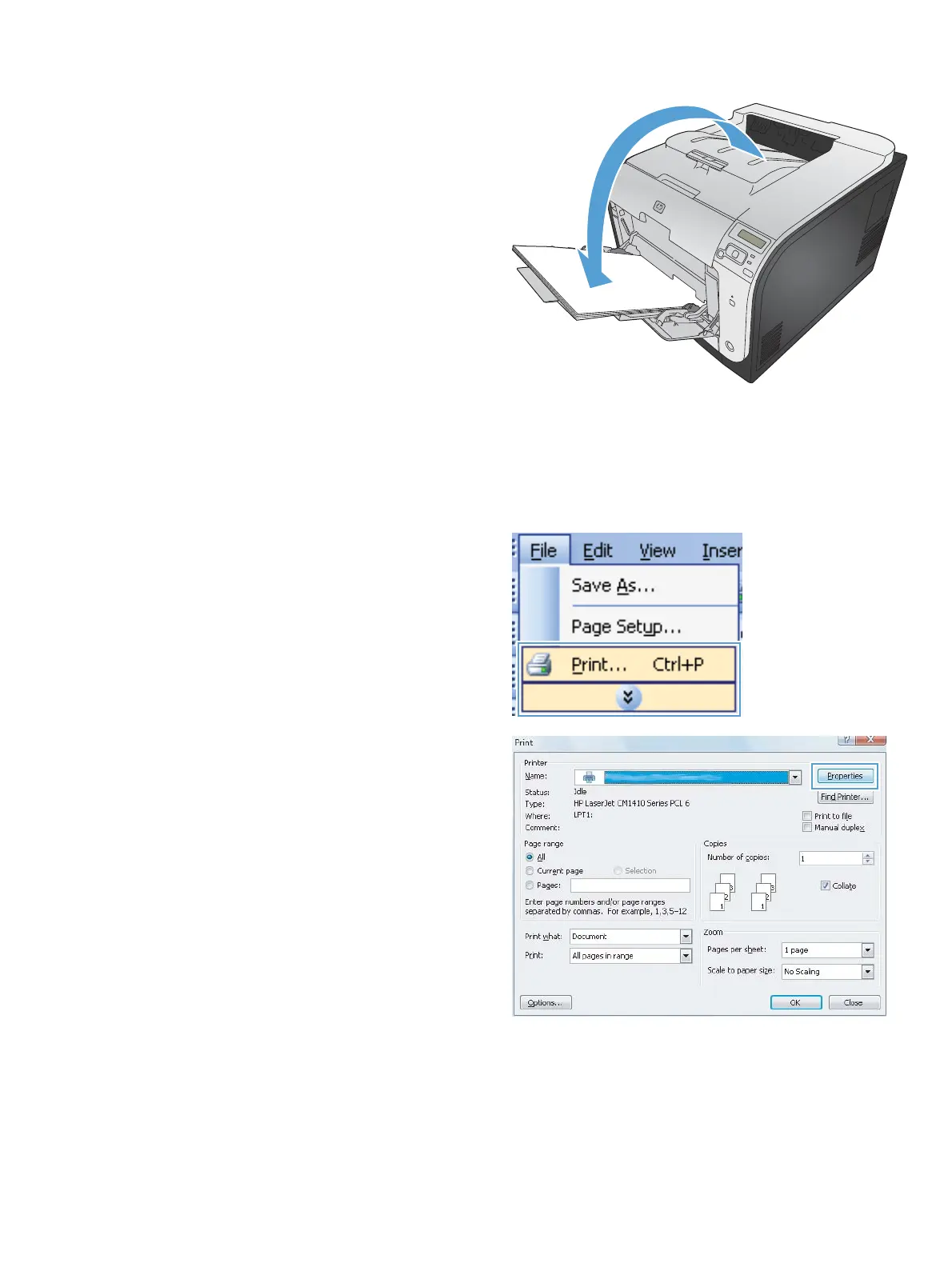
5. Retrieve the printed stack from the output bin,
and maintaining the same orientation, place it
with the printed side facing down in Tray 1.
6. On the control panel, press the OK button to
print the second side of the job.
Automatically print on both sides with Windows
1. On the File menu in the software program,
click Print.
2. Select the product, and then click the
Properties or Preferences button.
ENWW
Basic print tasks with Windows
59



 To Next Page