Accessing apps in the Library
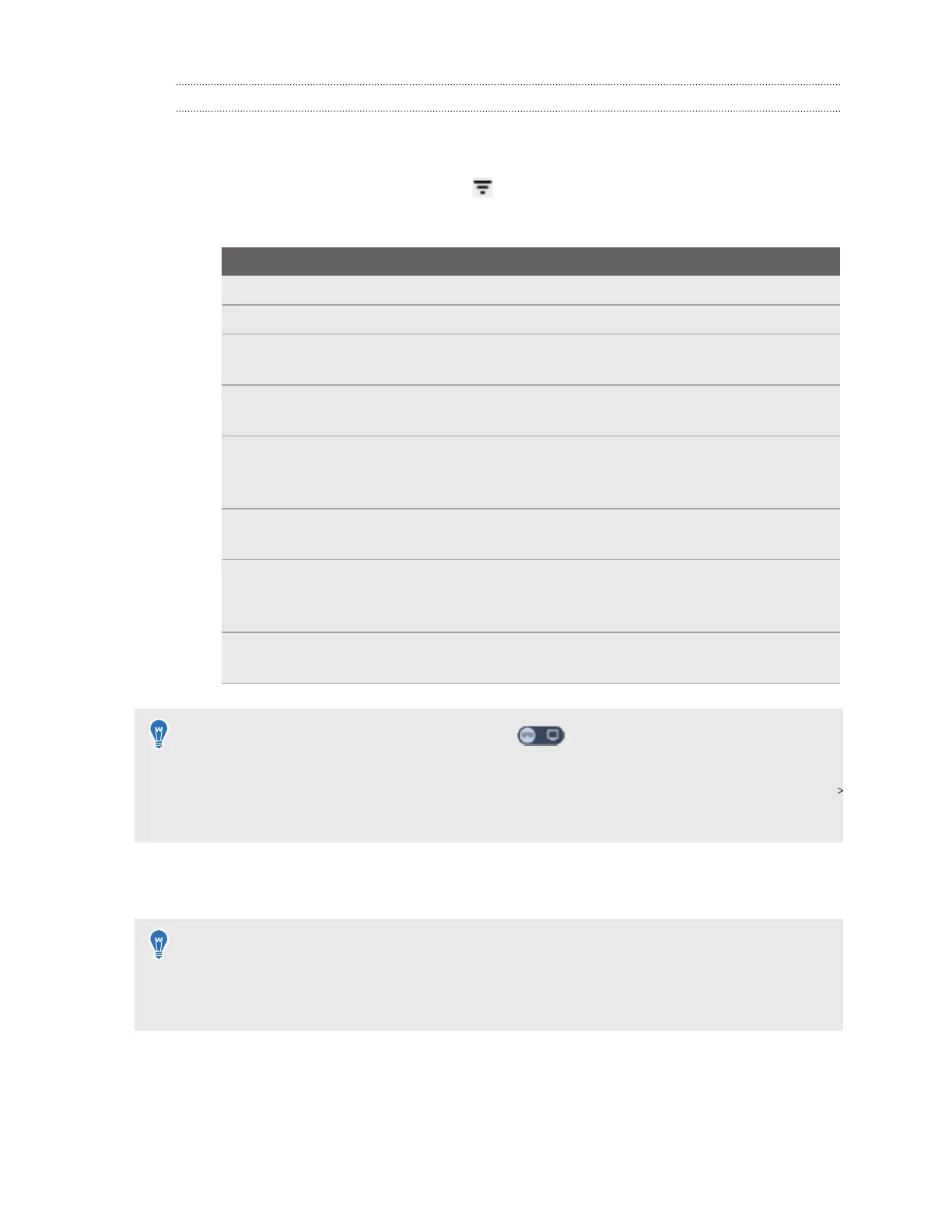
The Library has a filter you can use to find apps more easily. Here's how to filter apps in the
Library:
1. In the Library, select the filter button in the upper right.
The Library filters apps into the following categories:
Category Description
My apps Displays both Installed and Not installed VR apps in your account.
Installed Displays VR apps that you can use on the headset.
Not installed Displays VR apps that can be downloaded and installed on the
headset. Also displays VR apps that have been uninstalled.
Updates Displays VR apps on the headset that have new updates you can
install.
Unknown source Displays VR apps that have been manually installed on the headset
using APK files. For details, see Installing APK files on the headset on
page 48.
Downloading Displays VR apps that are currently being downloaded to the headset
for installation or updates.
PC VR apps Displays PC VR apps that you can stream from your PC to your
headset. For details, see Streaming PC VR apps to the headset on
page 65.
2D apps Displays Android mobile apps that have been installed using APK
files. For details, see Installing APK files on the headset on page 48.
§ You can also use the toggle in the upper right to quickly switch between on-device VR
apps and PC VR apps that are installed on your PC.
§ To set the Library to display your PC VR apps by default, go to Settings, select Connectivity
Computer connection, and then turn on Set "PC VR apps" as the default Library filter.
2.
Select an installed app to launch it.
To close the current app, open the VIVE Menu, and then select Quit.
§
You can only open and use one app at a time. Your headset will prompt you to close the
current app before launching another app.
§ The Library filter you choose will stay applied even when you leave and come back.
34 Getting started


 To Next Page