iDirect Satellite Router Installation and Commissioning Guide 21
iDX Release 3.3
4 Loading Packages with
iSite
This chapter describes how to load the board support package (BSP) and remote image file on
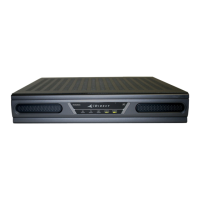
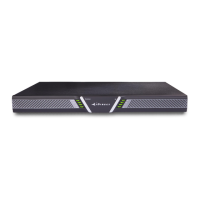
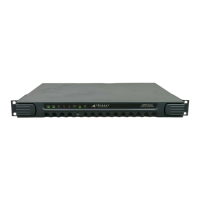
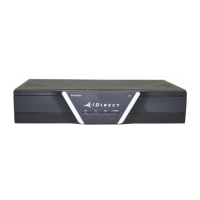
an Evolution X3, X5 or e8000 Series Satellite Router using iSite.
This chapter includes the following sections:
• “Logging In to iSite” on page21
• “Loading BSP and Remote Images” on page23
Note: This chapter does not apply to Evolution
X1, X7, or
e150 Satellite Routers. See
“Connecting with Web iSite” on page41 for details.
4.1 Logging In to iSite
Perform the steps in the following section to establish communication with the Satellite
Router using iSite.
To Log In to iSite:
1. Confirm that the LAN
port of the local PC is connected to the LAN port of the Satellite
Router with a crossover LAN cable, and that power is applied to the Satellite Router.
2. Launch iSite with the shortcut created e
arlier, or by clicking iSite.exe in the iSite folder
created during the unzip operation. The iSite welcome screen opens.
3. Create a logical remote in iSite by right-clicking the Globe icon (iD
irect) in the iSite Tree
View displayed in the left-hand viewing pane.
4. Click New to add an
“unknown” element to the iSite Tree (Figure 12).
5. Right-click the
new element and select Login to open the Login dialog box (Figure 13).
6. Enter the Satellite
Router IP address. See “IP Address” on page13.
7. Enter the default administrator password, iDirect
. In some cases the default admin
password may be P@55w0rd!.
8. Under Login As, select
Admin and Secure Connection. See Figure 13.
9. Click OK.
Upon successful login,
the Remote
configuration screen opens in the right-hand viewing pane.


 To Next Page