Analogue threshold display DP2200
21
9 Parameter setting
During parameter setting the unit remains in the operating mode. It continues its monitoring
functions with the existing parameters until the parameter setting has been completed.
9.1 Parameter setting in general
Each parameter setting consists of 6 steps:
Step Button
1 Change from operating mode to parameter setting mode. [●]
2 Select the required parameter: [SP1], [dr1], … [▲] or [▼]
3 Change to the programming mode of the parameter. [●]
4 Select or change the parameter value. [▲] or [▼] > 2 s
5 Acknowledge the set parameter value. [●]
6 Return to the operating mode. [esc]
9.2 Example [ou1] ─ output function for OUT1
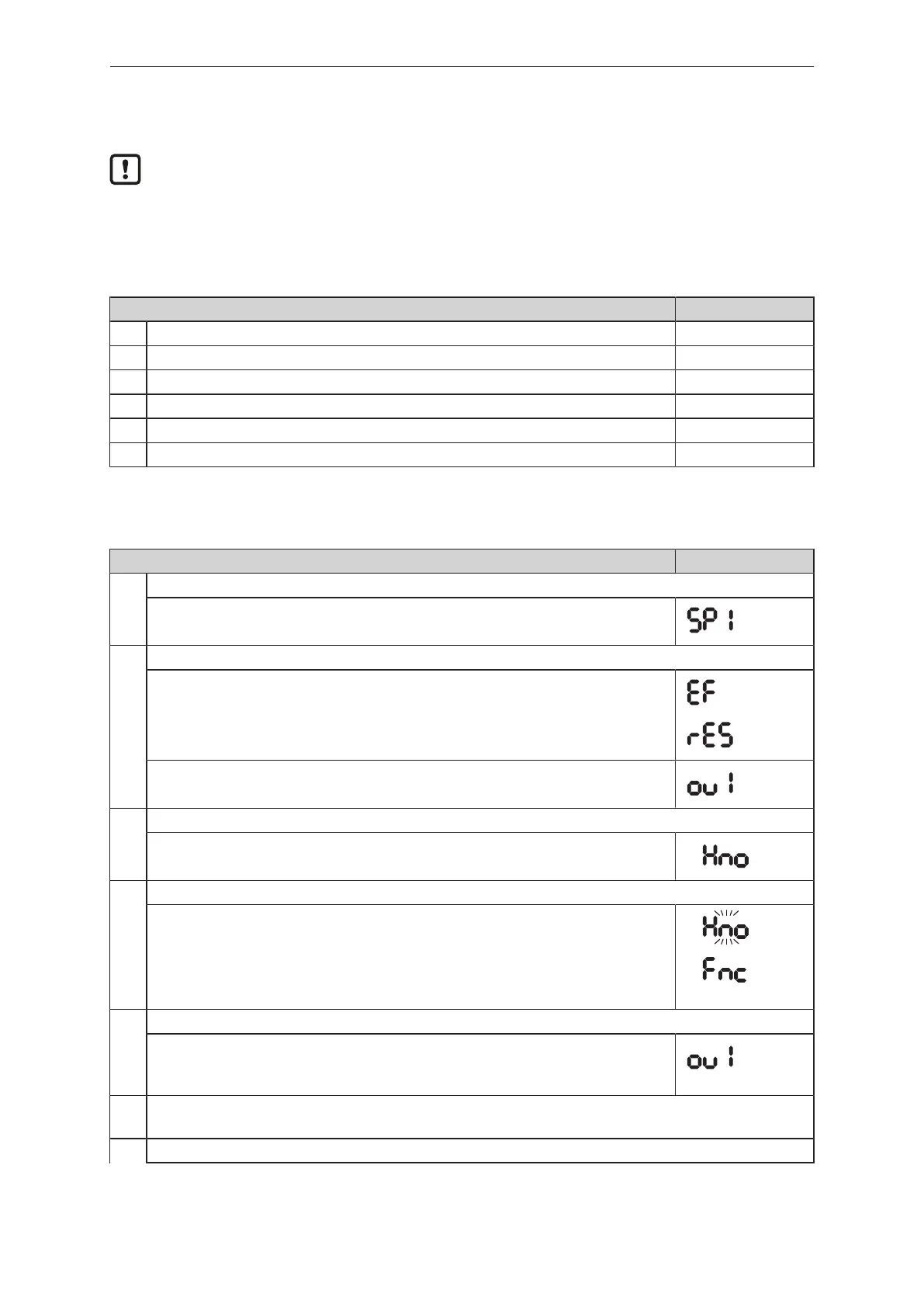
Step Display
1 Change from operating mode to parameter setting mode.
u Press [●] to get to the menu.
w The first parameter is displayed.
2 Select the requested parameter, here [ou1].
u Press [▼] until [EF] is displayed.
u Press [●] to get to the extended functions menu.
w The first parameter of the extended functions is displayed.
u Press [▼] until the requested parameter [ou1] is displayed.
3 Change to the programming mode of the parameter.
u Press [●] to change to the programming mode.
w The currently set parameter value is displayed.
4 Select or change the parameter value, here e.g. [Fnc].
u Press [▼] or [▲] for at least 2 s.
w The currently set parameter value flashes, here e.g. [Hno].
w After 2 s.:
- Value is changed continuously by keeping the button pressed.
- Value is changed incrementally by pressing the button once.
See: Numerical entries with [▼] or [▲] (Ò/22)
5 Acknowledge the set parameter value.
u Briefly press [●].
w The parameter is displayed again.
w The new setting value is saved.
Setting of other parameters:
u Press [▼] or [▲] until the requested parameter is displayed.
6 Return to the operating mode.


 To Next Page