4 The PROFview XL Application Software User Manual PROFview XL
4.4.1 Menu bar
The menu bar contains the main menus "File", "Measure", "View", "Tools" and "?". Use the "File" menu to
open, save, export and print PBT documents. The "Measure" menu provides the functions required to control
measuring processes ("Start" and "Stop"). Use the "View" menu to switch between the individual measuring
views and to hide/unhide the DMF information window. The Settings dialog can be found in the "Tools" menu;
it can be used to configure the PBT application software and the PBT itself. The last menu item "?" contains
the electronic manual, as well as program and device information.
4.4.2 Toolbar
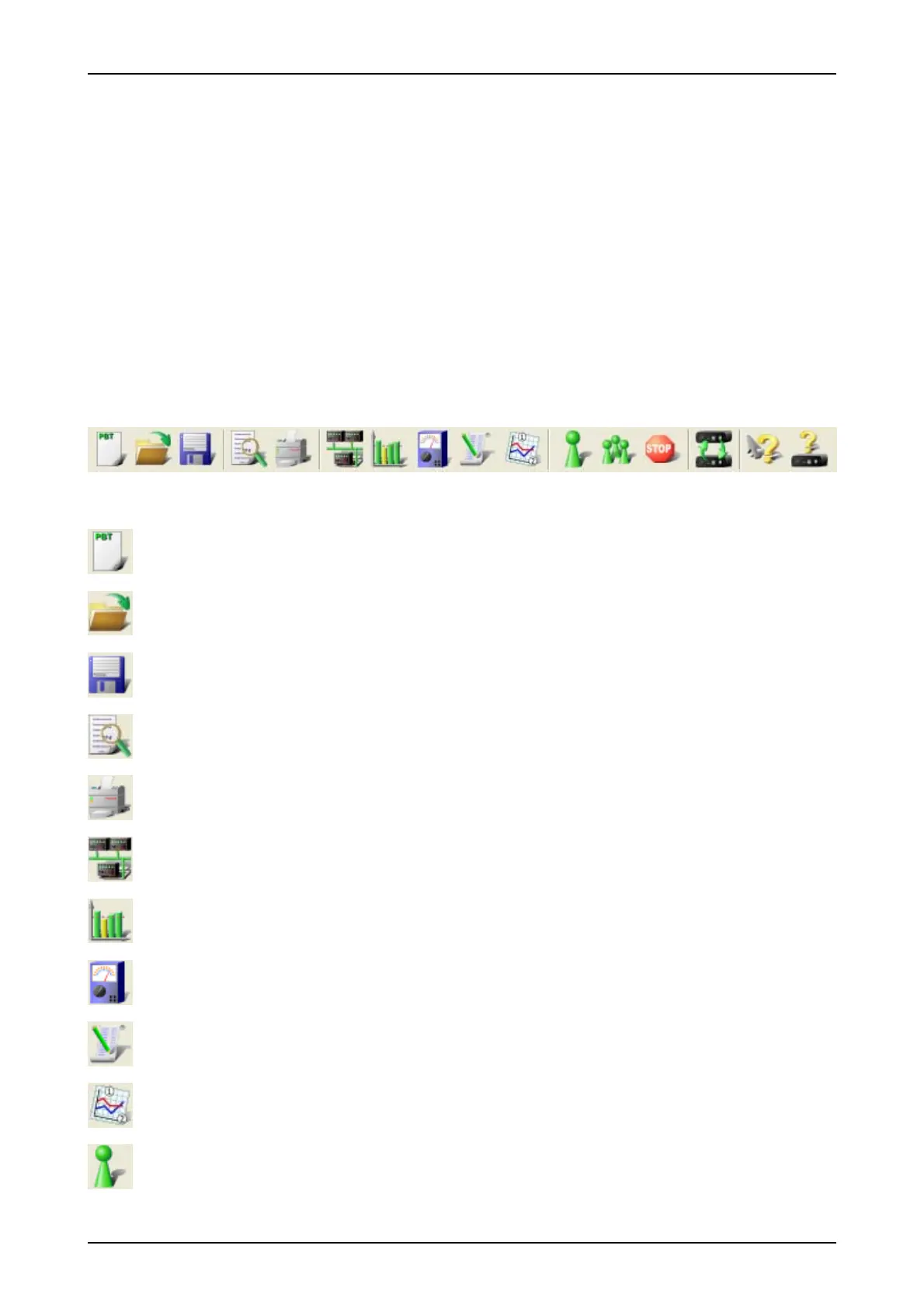
For user-friendly operation and switching between the measuring tasks, a toolbar has been implemented in
the PBT application software; this can be found in the upper part of the program window (Fig. 4). The toolbar
provides quick access to the most important menu functions.
Opens a new document (shortcut: Ctrl + N)
Opens an existing PBT document (shortcut: Ctrl + O)
Saves the active PBT document either with its current name or - if the document has not
been given a name - with a new name (shortcut: Ctrl + S)
Shows how the active document will appear when printed (Print Preview)
Prints the active document (shortcut: Ctrl + P)
Switches to the view "Configure segment
"
(shortcut: Alt + 1)
Switches to the view "Quality Levels All Stations" (shortcut: Alt + 2)
Switches to the view "Measure Stations" (shortcut: Alt + 3)
Switches to the view "Quality Levels Logger" (shortcut: Alt + 4)
Switches to the view "Measuring point statistics" (shortcut: Alt + 5)
Starts a single measurement (shortcut: F5)
14 PROFview XL
Fig. 4: Toolbar



 To Next Page