4 The PROFview XL Application Software User Manual PROFview XL
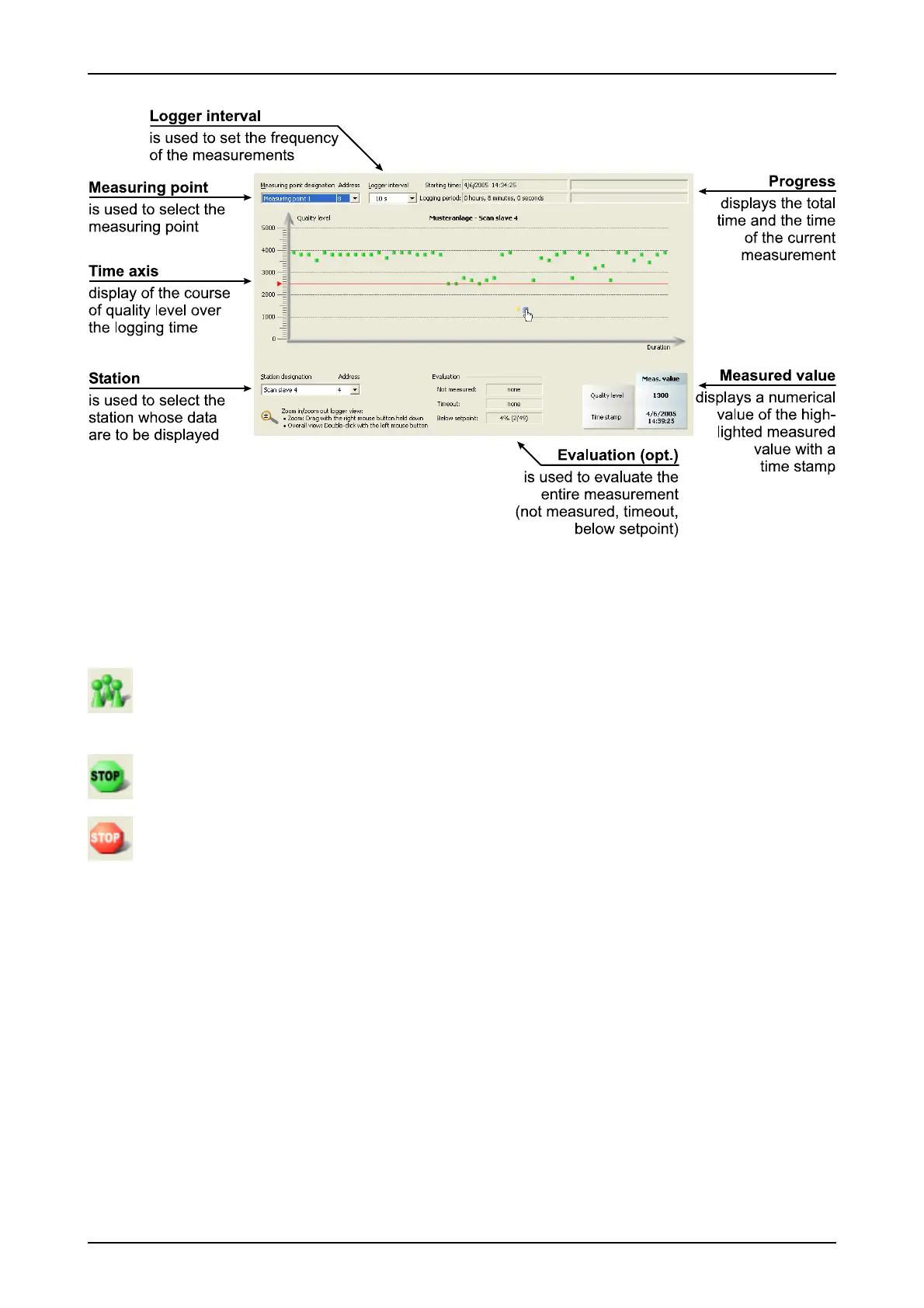
After switching to the "Quality Levels Logger" view ("View" menu or toolbar), you can control the measure-
ment using the following icons or menu functions ("Measure" menu):
Starts a continuous measurement (shortcut: F6)
Starts a continuous logger measurement for all stations highlighted as "to be measured".
The measurement can be ended via "Stop".
End measurement (shortcut: F7)
The current logger interval is measured; thereafter, the measurement is ended.
Cancel measurement (shortcut: F8)
Clicking on this button ends the measurement immediately.
The current measurement data are displayed while the measurement is running. These can already be evalu-
ated during the measurement (to do so, select and zoom the relevant diagram section).
Two progress bars are displayed during the measurement. The upper progress bar indicates the log time al-
ready passed. The lower progress bar displays which station of the segment is currently being measured. If
the time set for the logger interval is too short, in case of station failure or in case of a large number of sta-
tions, it can occur that not all stations can be measured. If the logger interval passes prematurely, i.e. before
all stations of a segment could be measured, the new logger interval starts nevertheless (with the first station
again). The logger interval should be at least long enough for the whole segment to be measured completely.
This time can be determined by experiment using the "Quality Levels All Stations" view.
26 PROFview XL
Fig. 10: "Quality Levels Logger" view



 To Next Page