User Manual PROFview XL 4 The PROFview XL Application Software
Starts a continuous measurement (shortcut: F6)
Green: Ends the measuring process after completion of a single measurement (shortcut: F7)
Red: Ends the measuring process immediately (shortcut: F8)
Opens a dialog box where you can select the PROFview XL to be used (if more than one
PROFview XL is connected to your PC)
Opens the electronic manual. Make sure that a PDF display program is installed on your sys-
tem, e.g. Adobe® Reader® (shortcut: F1).
Displays program and device information and can be used to update the PBT firmware and
FPGA configuration.
4.4.3 Message bar
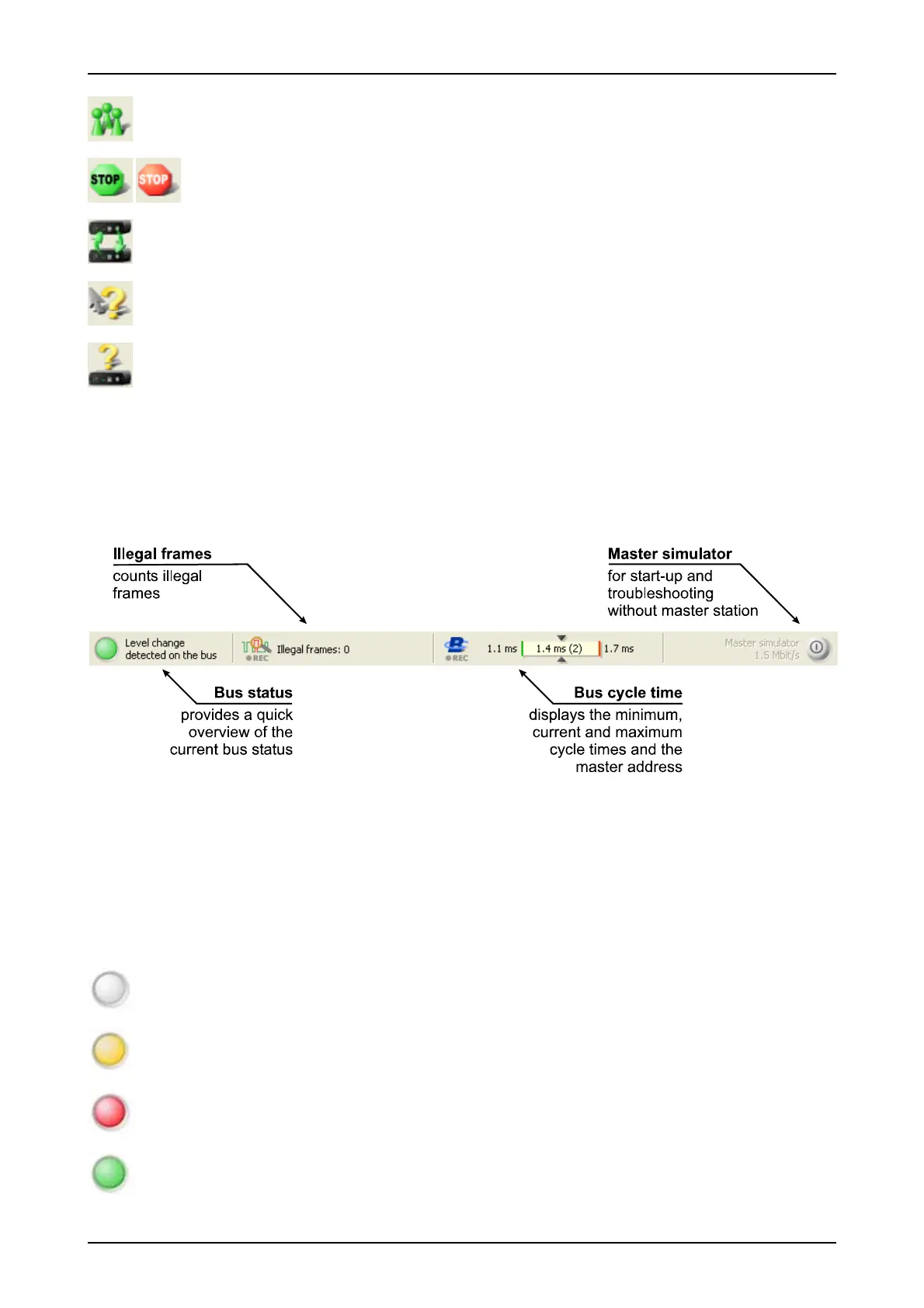
The message bar can be found directly beneath the toolbar and is always visible. It informs you continuously
on the current status of the bus and on continuously running monitoring functions. Fig. 5 provides a screen-
shot of the message bar and its elements.
4.4.3.1 Bus status
The bus status display consists of multicolor LED graphics and a description text. The LED changes its color
depending on the bus status. For a detailed description of the bus status measurement, please refer to Sec-
tion 3.3.1 "Bus status". The following states can occur:
LED = gray: PROFview XL not connected to the power supply and/or to the PC
LED = yellow: Bus static (no level change detected on the bus during the measuring time of one
second); differential voltage between 0.8 and 1.4 V (terminated correctly), bus not running
LED = red: Bus static (no level change detected on the bus within the measuring time of one sec-
ond); differential voltage less than 0.8 V or greater than 1.4 V)
LED = green: Level change detected on the bus
PROFview XL 15
Fig. 5: Elements of the message bar



 To Next Page