4 The PROFview XL Application Software User Manual PROFview XL
4.13 DMF information
Each PROFIBUS device manufacturer delivers a device master file (DMF) together with the product, where
technical data, manufacturer information and device data are stored. These data are required for configuring
a PROFIBUS plant and for certifying the field device.
The PBT application software can access already existing device
master files and assign the information contained therein to the sta-
tions detected by the PBT master simulator. The storage folder for
these files can be set using the "Tools" → "Settings..." menu (see
Section 4.12 "Settings"). Both language-independent device master
files (extension: .gsd) and country-specific device master files (ex-
tension: .gs?) are supported.
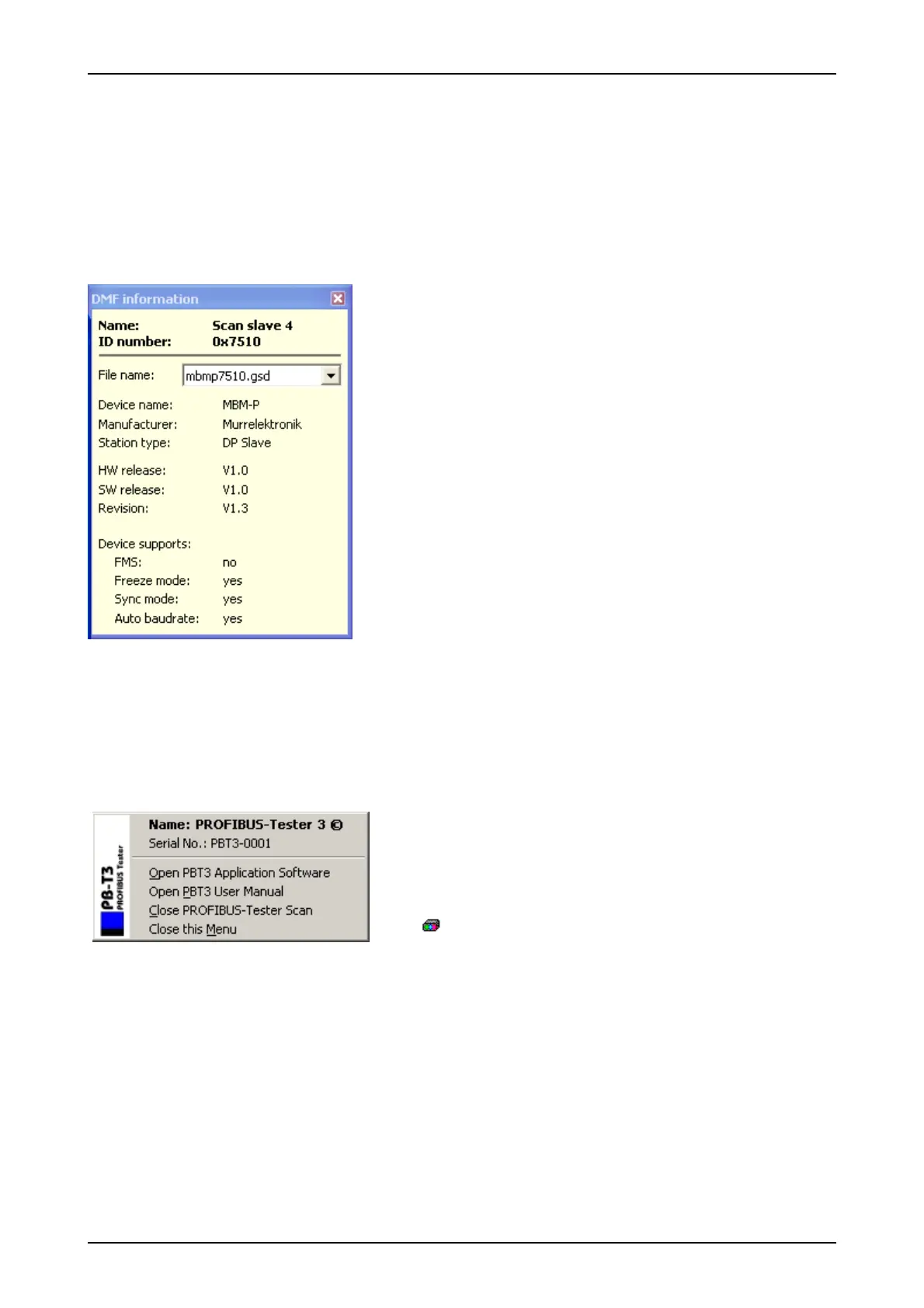
The dialog box with the DMF information can be hidden/unhidden
using the "View" → "Display DMF information" menu (F11 key). Fig.
12 shows a screenshot of this view.
Once a station with determined ID number is selected in the main
window of the PBT application software (e.g. in the station list) and if
the relevant device master file exists, the DMF information window
will display the names of both the device and the manufacturer, the
version information and supported functions.
If several device master files exist for one ID number, these can be selected under "File name".
4.14 The "PROFIBUS Tester Scan" program
The "PROFIBUS Tester Scan" program provides a quick
overview of the type and the serial number of the PROFIBUS
Tester connected. The program is entered in the Autostart folder
and is called automatically with each program start. A symbolic
icon
is displayed in the information area of the task bar for
each PROFIBUS tester detected. If you click on this icon, the
menu shown in Fig. 13 is opened. Use this menu to call the
PROFview XL application software and the Manual directly.
Note:
If you do not need the program, you can remove the link from the Autostart folder.
30 PROFview XL
Fig. 12: DMF information
Fig. 13: "PROFIBUS Tester Scan"



 To Next Page