14
Auto WiFi Connect
When Auto WiFi Connect is selected, the LiteShow application will search out and list all available
wireless networks and automatically switch to the selected network before searching for available
LiteShow modules. (Selecting Skip when Auto WiFi is selected, will not modify the computer’s
existing network connection.)
When Auto WiFi Connect is not selected, the LiteShow application will only search the computer’s
existing network connection for LiteShow modules.
Auto Power Manager
To optimize projection performance, the LiteShow application will automatically turn the
computer’s Windows power management settings to “highest performance” when the LiteShow
Application is enabled. Note: When the LiteShow application is disabled, the computer’s power
management settings are unchanged.
Hide UI
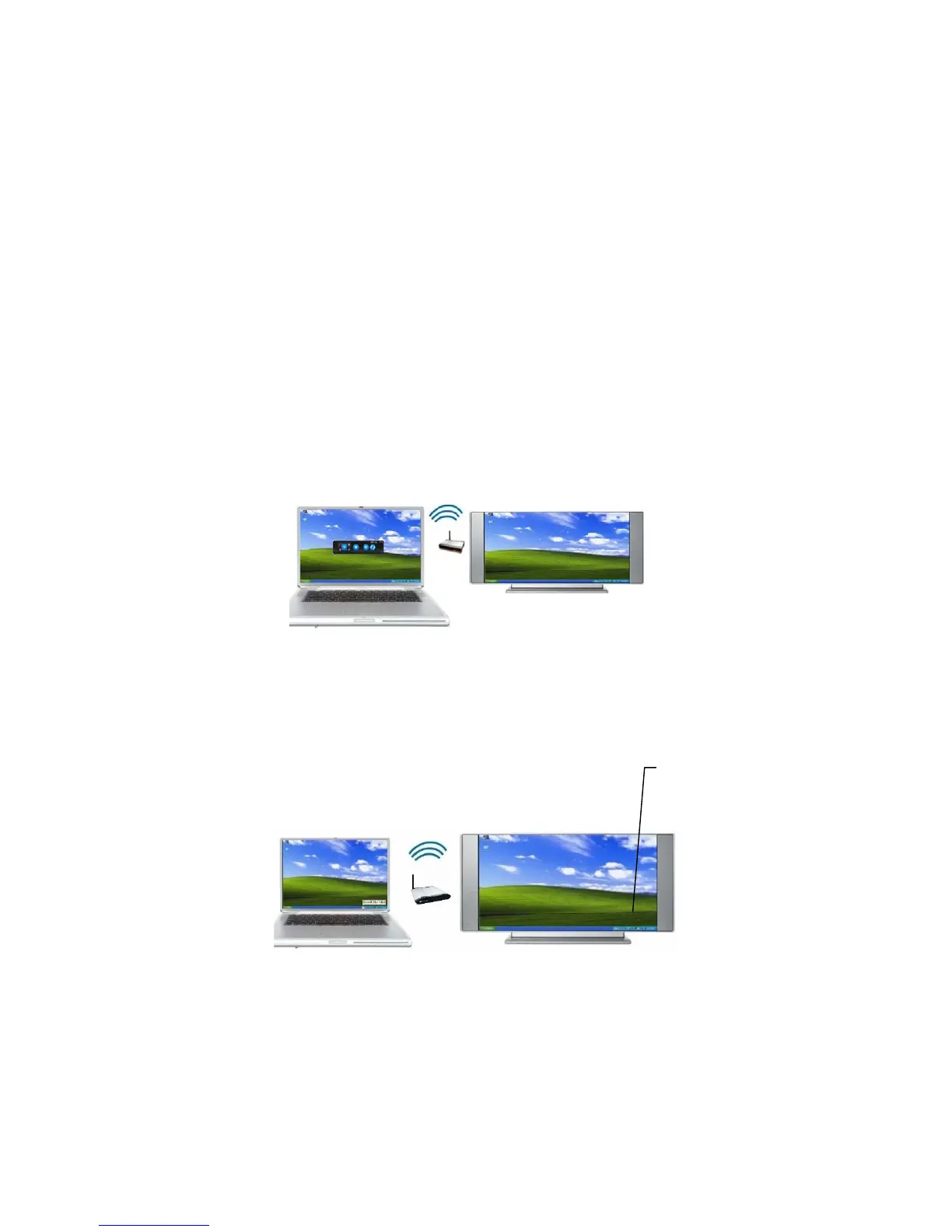
Allows you to choose to hide or display the application control panel on the projection screen.
Advanced Screen Capture
Allows you to see the Tips window and other layered windows (including your desktop) on the
projector. Note: The mouse cursor may blink while projecting.
Repeat
Loops the current video/audio file so that it plays repeatedly.
Tips window is
not projected


 To Next Page