Additional Tests
THE MAIN MENU
61
The left column of the page lists the Drive Cycle Monitors (the
monitors supported by the vehicle), and shows the status of
each monitor (Complete or Incomplete) at the time the scan
was run.
The right column of the page shows the Drive Cycle procedure
for the currently selected monitor.
2. Tap a monitor name to view the Drive Cycle procedure for the
selected monitor.
The page refreshes to display the Drive Cycle procedure for the
selected monitor.
THE MAIN MENU
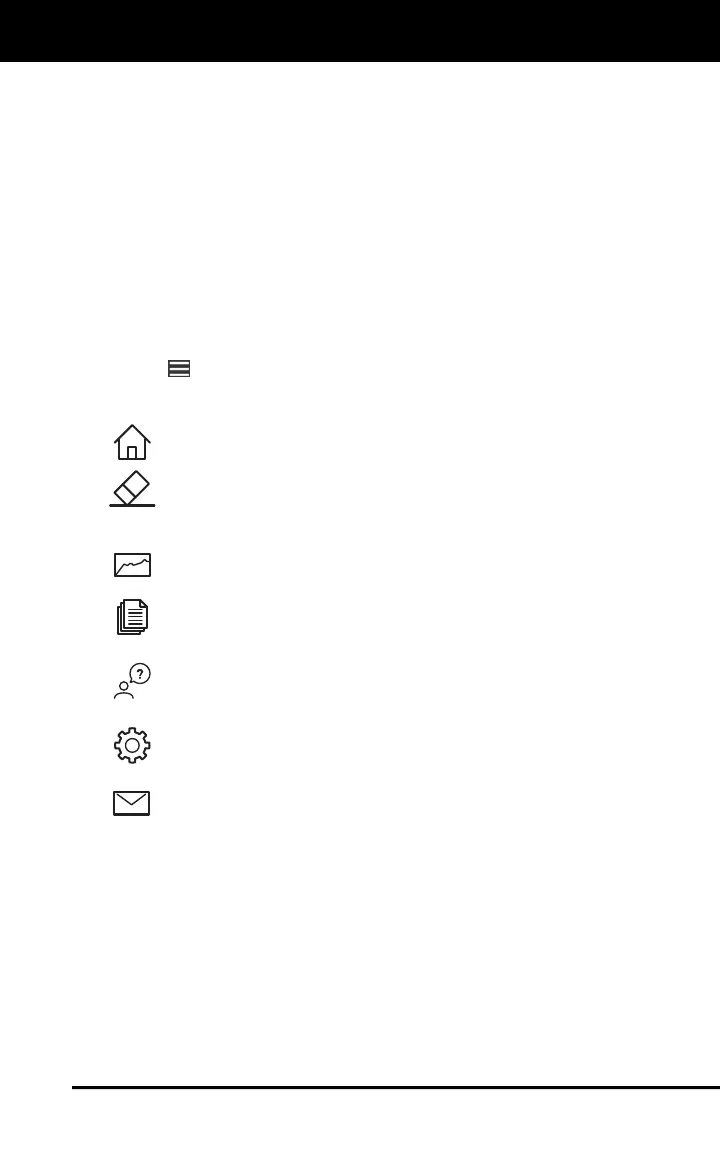
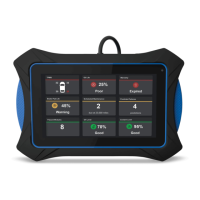
Tap the icon in the upper left corner of the display screen to open
the Main Menu. The Main Menu provides access to the
following features and functions:
Home:
Returns to the Home Page from the currently active
display screen (see THE HOME PAGE on page 4).
Erase DTCs: Erases OBD2 DTCs, Freeze Frame data, and
manufacturer-specific DTCs from the vehicle’s computer, and
resets all monitors to “Incomplete” status (see ERASING
DIAGNOSTIC TROUBLE CODES (DTCs) on page 42).
Live Data: Lets you view Live Data for the vehicle
currently under test (see on page 43).
History: Disp
lays the History Page from which you can view
data stored in the tablet’s memory for previously scanned
vehicles (see THE HISTORY PAGE on page 62).
Sup
port: Lets you contact Innova Technical Support or report
an issue (See CONTACTING TECHNICAL SUPPORT on page
63).
Settings: Lets y
ou make a number of adjustments and settings
to configure the tablet to suit your particular needs (see
SETTINGS on page 64).
E
mail Report: Lets you email report data to yourself, the
customer, or another party (see on page )


 To Next Page