Additional Tests
SETTINGS
69
Scroll the “month,” “day,” and “year” fields to set the current
calendar date, then click DONE.
Click CANCEL to close the Set Date dialog and retain the
previous date.
3. To specify the current time:
Tap the time format field.
- The Set Time dialog displays.
Scroll the “hour,” “minute,” and “am/pm” fields to set the current
time, then click DONE.
Click CANCEL to close the Set Time dialog and retain the
previous time.
4. Tap Set Date and Time to save your changes.
A confirmation message displays. Tap Close to close the message.
Specifying the Retailer
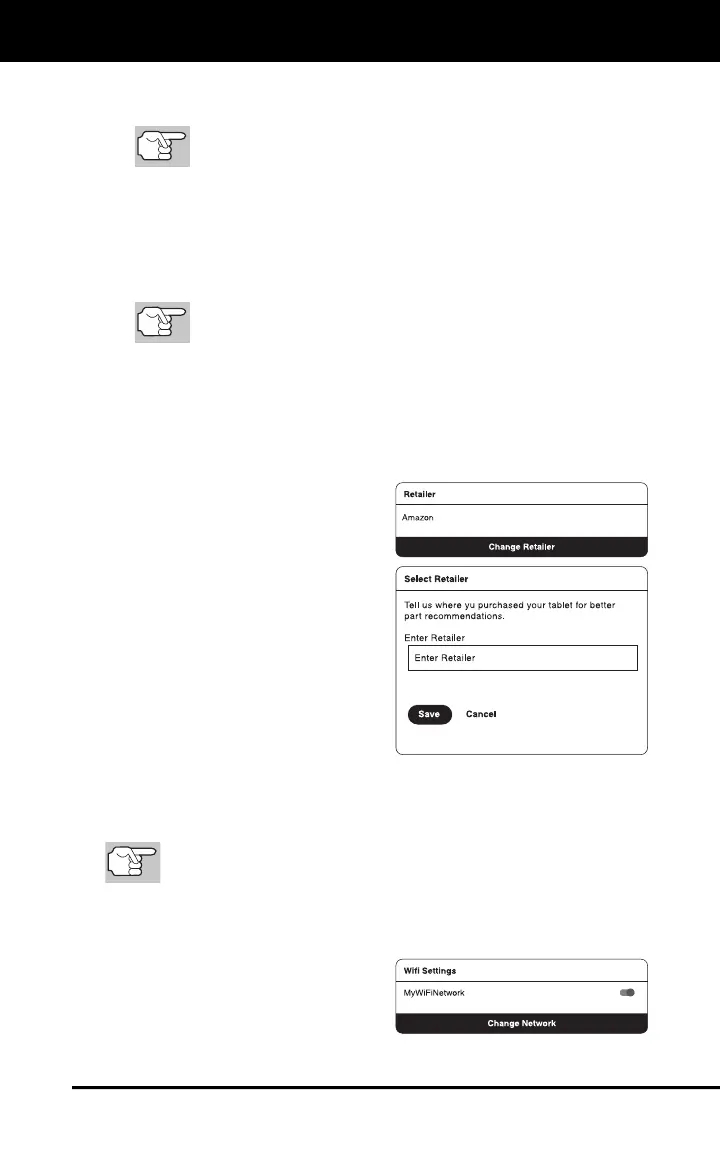
1. Scroll the Settings page to the Retailer field.
If you previously specified a
retailer, the name of the
retailer is shown in the
upper left corner of the
Retailer field.
2. Tap Change Retailer.
The Select Retailer dialog
displays.
3. Tap the Enter Retailer text box,
then enter the name of the
location from which you
purchased your tablet (or other
local retailer, as desired) using
the keyboard (see USING THE
KEYBOARD on page 4).
4. When the desired retailer has been entered, tap the Save button to
save your changes and return to the Retailer field.
To cancel changes and retain the current retailer, tap Cancel to
return to the Retailer field.
Connecting to a Wifi Network
1. Scroll the Settings page to the Wifi Settings field.
If you are currently con-
nected to a Wi-Fi network,
the network name is shown
in the upper left corner of
the Wifi Settings field.


 To Next Page