D-0134090-A – 2022/11
VisualEyes™ - Instructions for Use - EN Page 21
2.5.2 Uninstalling VisualEyes™
Windows® 10 and Windows® 11
VisualEyes™ software removal is possible from Programs and
Features.
1
Open Windows® Control Panel and then select Programs
and Features. If the option Category is used, then select
Uninstall a program in Programs.
2
Select Micromedical VisualEyes™. Click Uninstall.
3
In the installer package, select Uninstall. Once the program is
uninstalled, close both installer and control panel.
Hardware components and installation
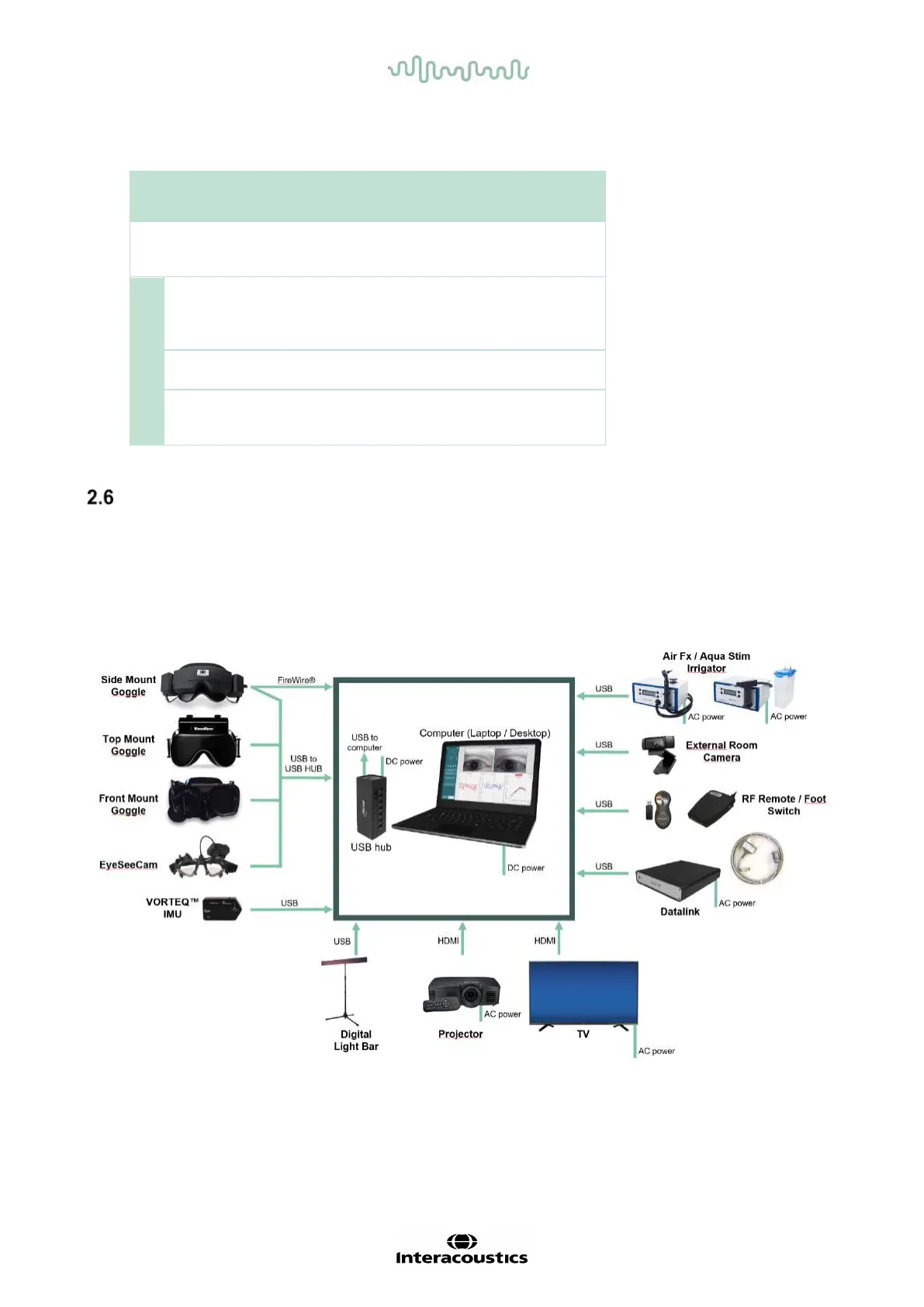
A VisualEyes™ system can, depending on the configuration, contain a lot of hardware components, and it is
important that these are all connected and installed correctly. This section will cover the installation of the
different hardware components. Most components connect to the computer via USB. If the goggles use
FireWire® cameras, the goggles will connect to the FireWire® plug-in card on the computer. The TV or
projector will connect via HDMI.
Please refer to Figure 2.6-1 for all the available configurations without a rotational chair.
Figure 2.6-1: VisualEyes™ system configurations without rotary chairs















 To Next Page