D-0134090-A – 2022/11
VisualEyes™ - Instructions for Use - EN Page 55
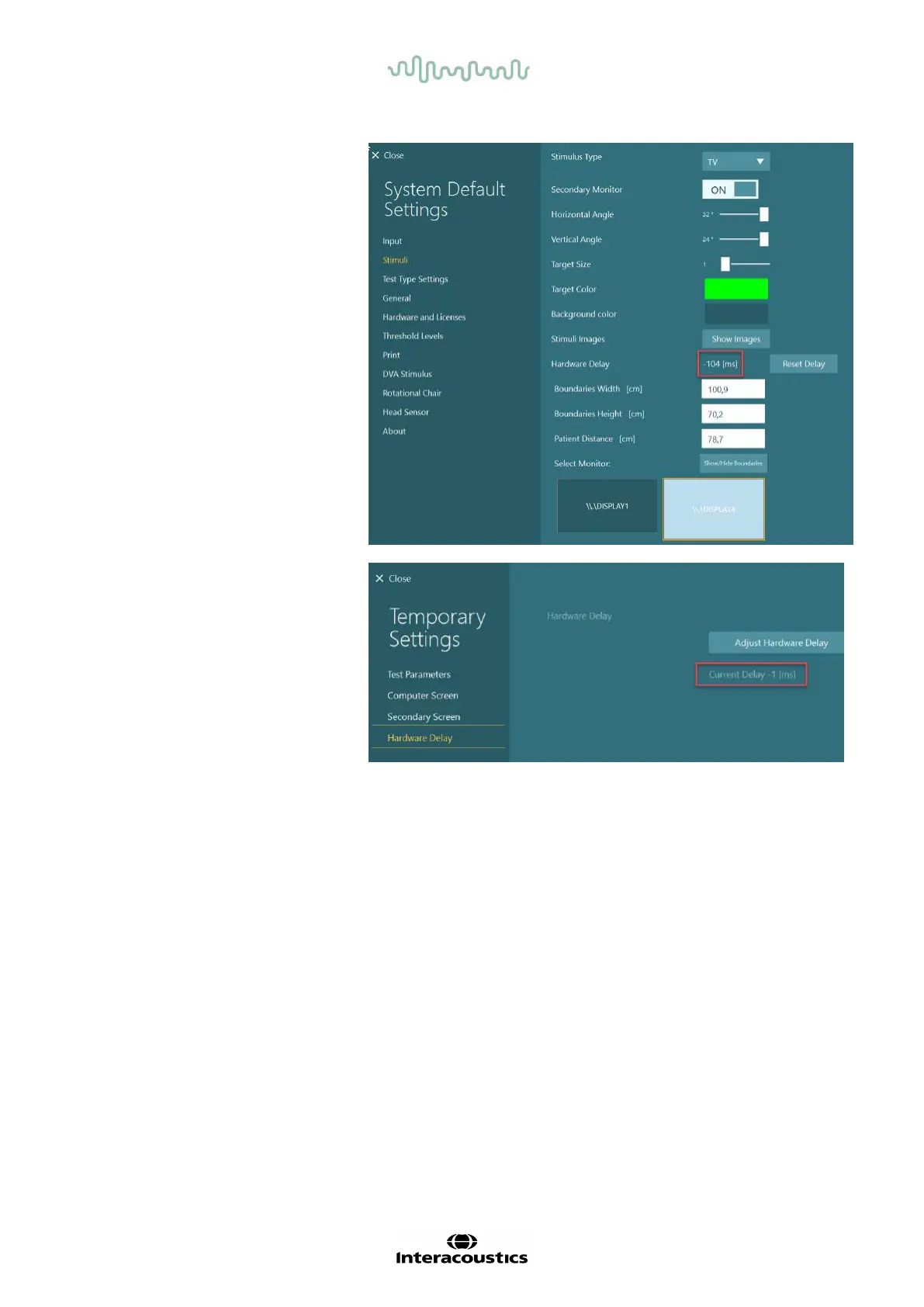
6. After clicking “Adjust
Hardware Delay”, the
adjusted value will be
visible in System Default
Settings > Stimuli.
7. In order to validate the new
value for the hardware
delay, perform another
“Smooth Pursuit” test on a
person known to have a
normal response.
The suggested adjustment,
should then be close to
0 ms.
2.9.3.3 DVA stimulus
If VORTEQ™ Assessment is added to the software, the stimulus must be configured under System Default
Settings > DVA Stimulus. The DVA Stimulus settings screen provides the separate screen measurements for
the stimulus used for the DVA tests. If the TV screen is too large for DVA testing, then the computer monitor
can be selected for the DVA test stimulus. Select the monitor to be used for DVA testing, then confirm the
measurements for the display (as this can be the primary laptop / desktop screen, the boundaries must be
entered for the display selected). If the Patient Distance value is not adequate for displaying on the display
selected, the optotype will be drawn as much as possible, but may not be discernable at the lowest logMAR
values.















 To Next Page