D-0134090-A – 2022/11
VisualEyes™ - Instructions for Use - EN Page 30
2.6.6 VORTEQ™ 2nd eneration IMU (optional)
The VORTEQ™ 2
nd
Generation IMU is delivered with the VORTEQ™
Assessment and VORTEQ™
Diagnostic modules, and is used to measure the patient’s head movement and positioning in space during
testing. The VORTEQ™
Assessment module can be added to VisualEyes™ 505, 515, and 525, and the
VORTEQ™ Diagnostic module can be added to VisualEyes™ 525.
The VORTEQ™ 2
nd
Generation IMU can be connected to the computer either by USB cable or wirelessly
through Bluetooth with the accompanying Bluetooth receiver dongle.
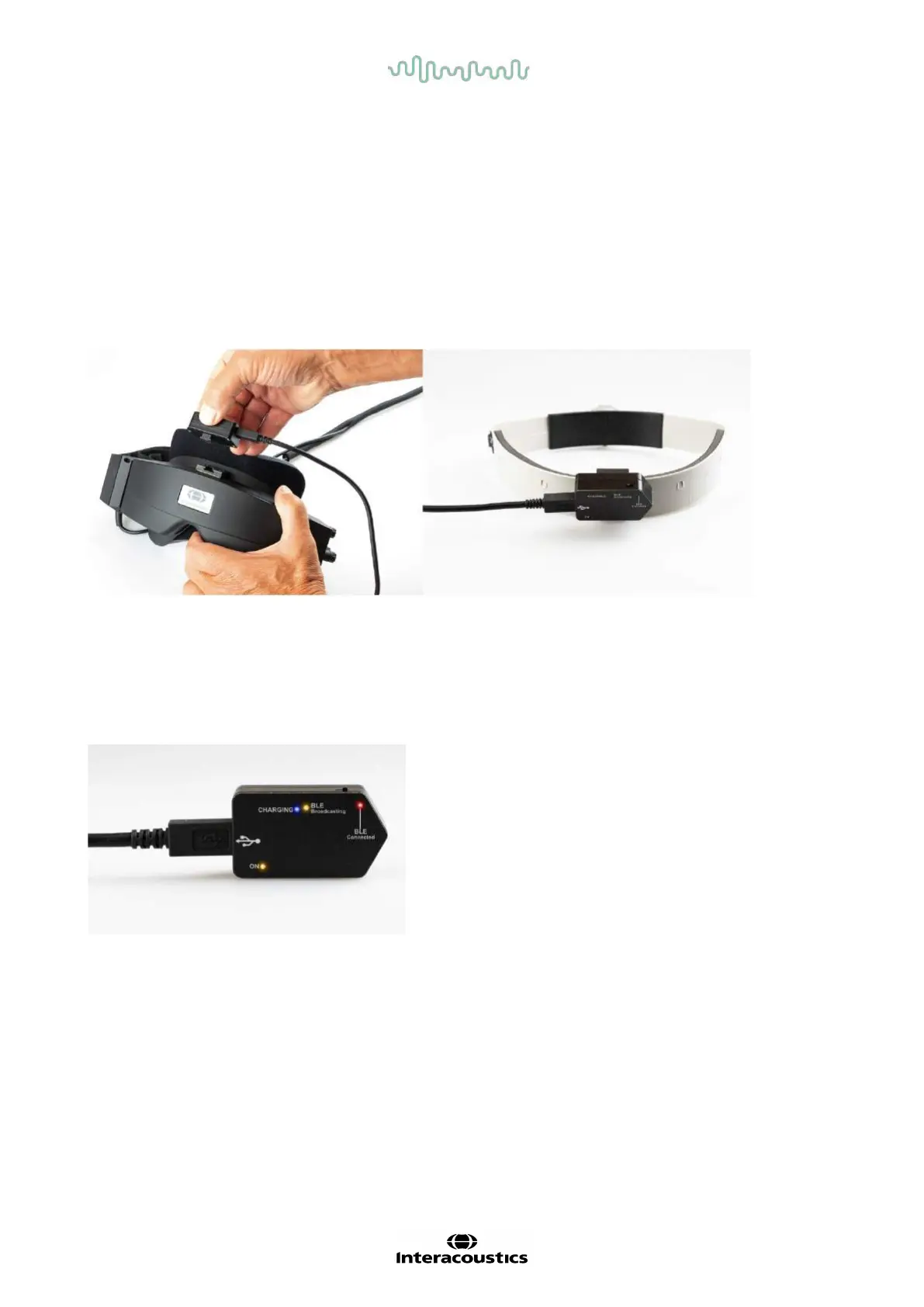
The IMU can be attached to the VNG goggle by sliding the IMU into the goggle mount. The VORTEQ™ 2
nd
Generation IMU is not compatible with the front mount goggle.
VORTEQ™
Assessment also comes with a headband used for Dynamic Visual Acuity testing. This has a
similar mount for the IMU as the one attached to the VNG goggles.
Figure 2.6-17: VORTEQ™ 2
nd
Generation IMU being mounted on a side mount goggle (left), and mounted on the headband for Dynamic
Visual Acuity (right)
The VORTEQ™ 2
nd
Generation IMU has four LEDs that describe the status of the device:
• ON: Flashes yellow when powered on
• CHARGING: Blue light when the battery is charging through the connected USB cable
• BLE Broadcasting: Flashes yellow when bluetooth is broadcasting
• BLE Connected: Flashes red when the computer has successfully connected to the device
Figure 2.6-18: VORTEQ™ 2
nd
Generation IMU with LEDs turned on
Hardware setup:
1. Connect the USB cable to VORTEQ™ 2
nd
Generation IMU.
2. Connect the other end of the USB cable to the computer or the USB hub.
3. Power on the IMU by sliding the power switch.
4. Register the VORTEQ™ 2
nd
Generation IMU as ”VORTEQ™ 2nd Gen” in the the VisualEyes™
software, following the instructions in section 2.8: Hardware registration and licensing.
NOTICE: The VNG goggles must be registered and licensed before the VORTEQ™ 2
nd
Generation
IMU. If prompted for a license when registering the VORTEQ™ 2
nd
Generation IMU, leave this empty
and click ”close”.
5. Go to System Default Settings > Head Sensor, and ensure the Head Sensor Type is set as
”Micromedical VORTEQ™ 2nd Generation IMU”.















 To Next Page