D-0134090-A – 2022/11
VisualEyes™ - Instructions for Use - EN Page 27
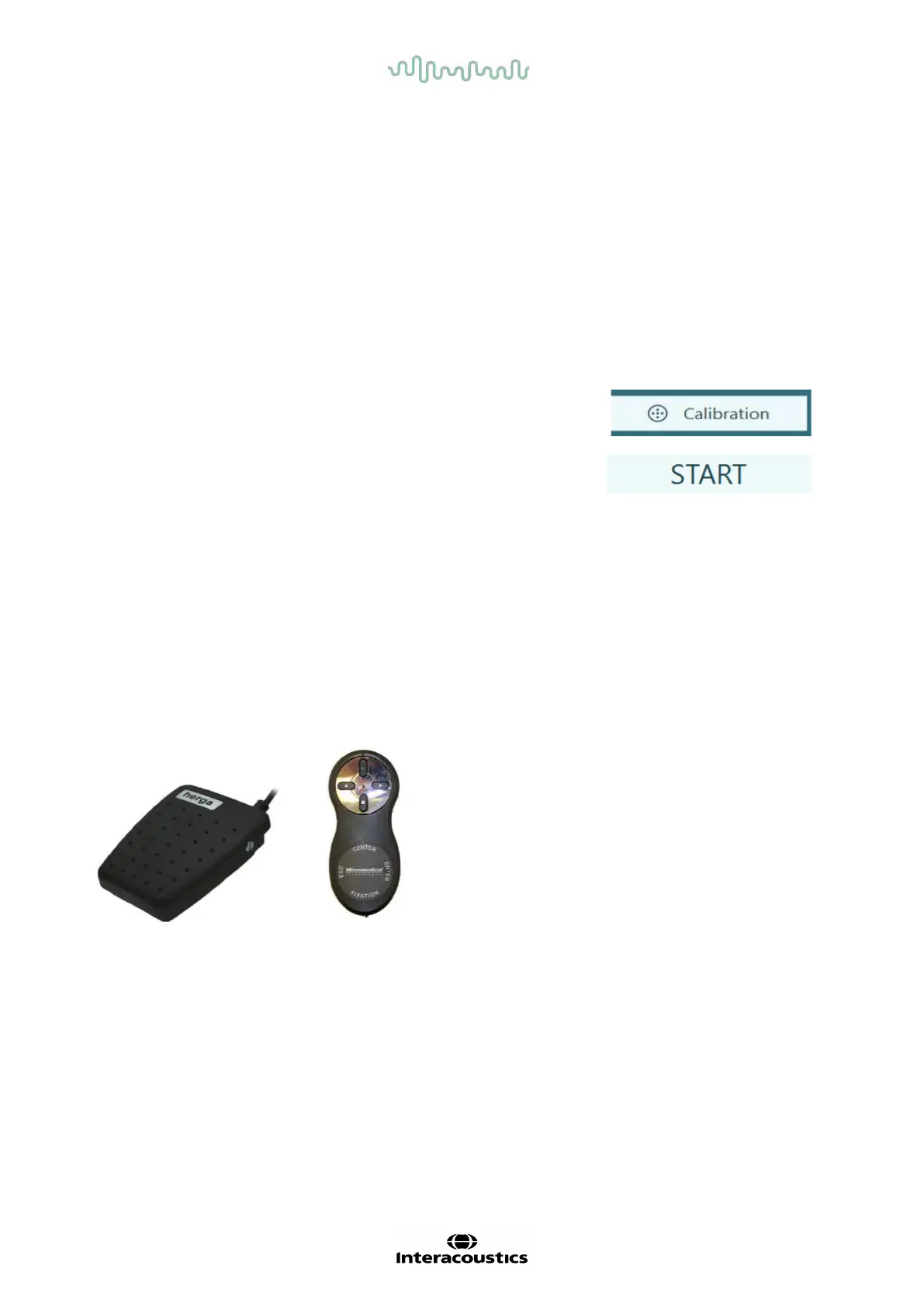
2.6.3 Foot switch and RF remote control
VisualEyes™ 505/515/525, Orion Comprehensive Basic, and Orion Auto-Traverse Basic are all delivered
with either a foot switch or a remote control. These can be used to start/stop the tests away from the
computer. The RF remote can also be used to restart, turn the fixation light on/off, or to center the camera
image (if used with the top mount goggle):
1. Top button:
• Centers eyes (top mount goggle)
• Centers traces (side mount goggle)
2. Right button:
Typically, this can perform any selected command in VisualEyes™ (indicated by white background).
Please find the below example for better explanation:
Before calibration, you can select the ‘Calibration’ option which is
shown with a white background.
After calibration, you can select the ‘START’ option which is shown
with a white background.
This way, the operator can perform the below actions:
• Go forward in the software
• Launch calibration
• Following calibration, button will start the test
• If the test is running, it stops the test
• If in playback mode, the button will advance to the next test in the list
3. Left button:
• Aborts the test
4. Bottom button:
• Turns the fixation light on/off during a test
NOTICE The right and left buttons are not active during rotary chair tests for safety reasons.
Figure 2.6-12: Foot switch (left), and RF remote control (right)
Hardware setup:
1. Connect the USB cable/dongle to a USB port on the computer or on the USB hub.















 To Next Page