EN
computer
radio
control
system
T
r
ainer
Mode with
T
w
o
Jeti
DS/DC-16
R
adios
1. Make sure that the
instruc
t
or
’
s
transmitter is bound to
the
aircraft in the “Default” wireless mode and that all flying
surfaces are functioning
pr
operly
.
2. Change the
instruc
t
or
’
s
transmitter wireless mode
t
o
“
T
eacher
”
and authorize the secondary
TX
module to bind with
the
student
’
s
transmitt
er
.
3. Switch
ON
the
student
’
s
transmitt
er
,
change its wireless
mode
to “Student” and allow the
instruc
t
or
’
s
transmitter to
bind
pr
operly
.
Verify
that all of the
air
craf
t
’
s
surfaces are c
orr
ec
tly
controlled by the
student
’
s
transmitt
er
.
If
they are not c
orr
ec
t,
make the necessary changes
in
the
student
’
s
transmitt
er
.
T
r
ainer
Mode
f
or
Jeti
DS/DC-16
as the
Instruc
tor
R
adio
Other brands of transmitters can be used by the
student
with a
Jeti
Duplex
EX
2.4GHz
radio system by using a special wireless
“
T
rainer
”
communication
module by Jeti.
1. Make sure that the
instruc
t
or
’
s
transmitter is bound to
the
aircraft in the “Default” wireless mode and that all flying
surfaces are functioning
pr
operly
.
2. Change the
instruc
t
or
’
s
transmitter wireless mode
t
o
“
T
eacher
”
and authorize the secondary
TX
module to bind with
the
student
’
s
transmitt
er
.
3. Connect the wireless trainer module to the
student
Tx
“
T
r
ainer
Jack”
(see
Tx
manual) then prepare the module for binding
t
o
the instructor
Tx
by inserting the bind plug into the
“Ext”
por
t
(see the module
guide)
4.
V
erify
that
all
of the
air
craf
t
’
s
surfaces are correctly controlled
b
y
the
student
’
s
transmitt
er
.
If
they are not correct, make
the
necessary changes
in
the
student
’
s
transmitt
er
.
Trainer
Mode for Jeti
DS/DC-16
as Student
R
adio
and
Instruc
tor
R
adio
is Different – Requires Special
T
r
ainer
Module
1. Make sure that the
instruc
t
or
’
s
transmitter is bound to
the
air
craf
t
’
s
transceiver
in
the
“D
ef
ault
”
wireless mode and that all
flying
surfaces are functioning
pr
operly
.
2. Connect the wireless trainer module to the instructor
T
x
“Trainer Jack” (see
Tx
manual) then prepare the module for
binding to the
student
Tx
by inserting the bind plug into
the
“Ex
t
”
port (see the module
guide)
3. Switch
ON
the
student
’
s
transmitt
er
,
change its wireless
mode
to “Student” and allow the
instruc
t
or
’
s
transmitter to
bind
pr
operly
.
4.
Verify
that all of the
air
craf
t
’
s
surfaces are correctly c
ontr
olled
by the
student
’
s
transmitt
er
.
If
they are not correct, make
the
necessary changes
in
the
student
’
s
transmitt
er
.
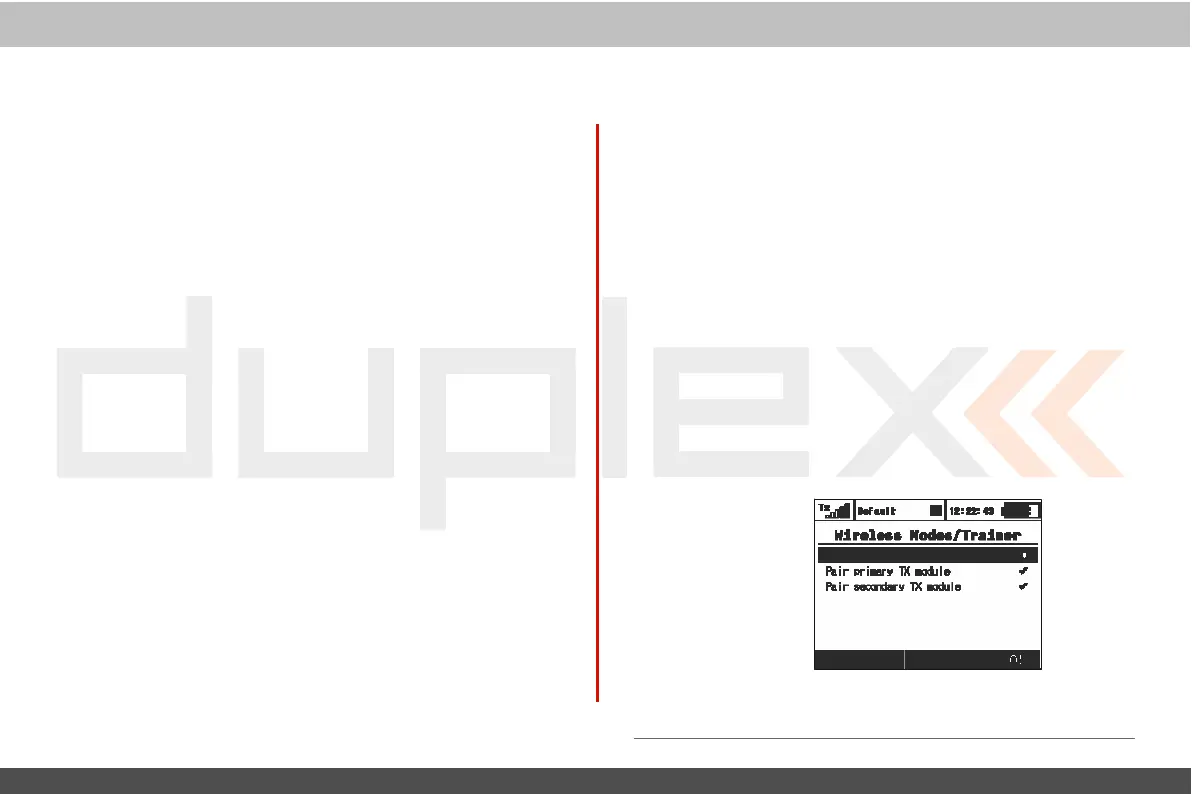
Double
P
a
th
Wireless
Mode
a) Mode
S
elec
tion.
b)
Primary
RF
module bind control menu
line
c) Secondary
RF
module bind control menu
line


 To Next Page