–27–
ADVANCED OPERATION & SPECIAL FEATUR ES
The A–B Button – Repeat Pl ay Of A Sel ecti on Between 2 Specific Points
1. Press the A–B button during pl ayback at t he point where you
wish repeat play to begin.
”Rep A_” will appear on the screen.
2. Press the A–B button again during playback at the point
where you wish repeat play to end.
”Rep A_B” will appear on t he screen. Repeat play of t he
select ion between point s A and B will begin.
3. To ret ur n t o normal pl ay, press the A–B butt on again.
”Off ” will appear on the screen and normal playback will resume.
NOTES
• Repeat Play only works with discs for which the elapsed time appears on the DVD-2 display window.
• Repeat Play may not work correctly with some specially programmed discs.
• Some subtitles recorded close to the selected A & B points may fail to appear on the screen.
The ZO OM Button – Magnifying The Screen
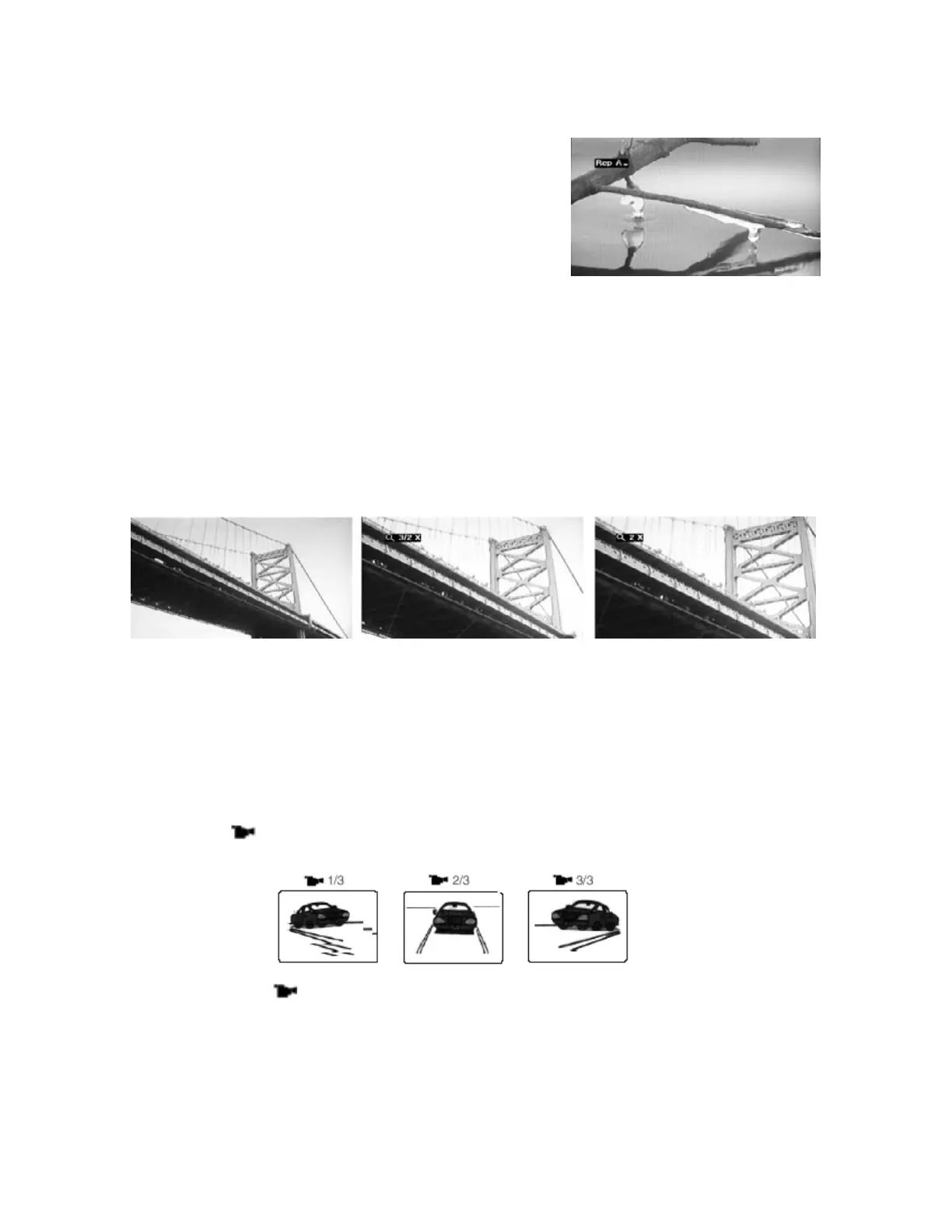
1. Press the ZOOM button when the disc is in Play or Pause mode.
A magnifying glass icon and the screen ratio will be displayed on the screen.
2. Press the ZOOM button repeatedly to enlarge the screen in the sequence: 4/3X – 3/2X – 2X – Off.
3. The ARROW buttons may be used to move to different sections of the magnified screen.
NOTES
• Some discs may not respond to the Zoom feature.
• Zoom will not operate when DVD disc menus are displayed.
The ANGLE Button – Vi ewing Scenes From Differing Angles
Some DVD discs contain scenes which have been filmed simultaneously from a number of different angles.
The angles that can be viewed are dependent on the particular disc used.
Even if a DVD has been recorded wit h t his feature; it is oft en only availabl e f or selected scenes.
1. Press the ANGLE button during playback. A camera icon will be displayed on the screen along with a
fraction indicating the current angle being viewed and the total number of available angles.
For example,
2/3 indicat es that you ar e viewing t he 2
nd
of 3 availabl e angle views.
2. Press the ANGLE button repeatedly until the desired camera angle is displayed.
NOTES
• The angle indicator will appear on the DVD-2’s front panel display whenever scenes recorded at
different angles are playing to indicate that angle switching is available.
• The Angle button may also be used to rotate a JPEG file on the screen. Each time the button is
pressed, the JPEG picture will rotat e 90 degrees.
PBC – PLAYBACK CONTROL
If “PLAYBACK CONTROL” is writ ten on a VCD or Audio CD case, you will be able to select and view
special scenes and related information. “PBC” will appear on the DVD-2’s front panel display.


 To Next Page