70 Keysight 86120D and 86122C Multi-Wavelength Meters User’s Guide
2 Using the 86122C
Main Screen Layout
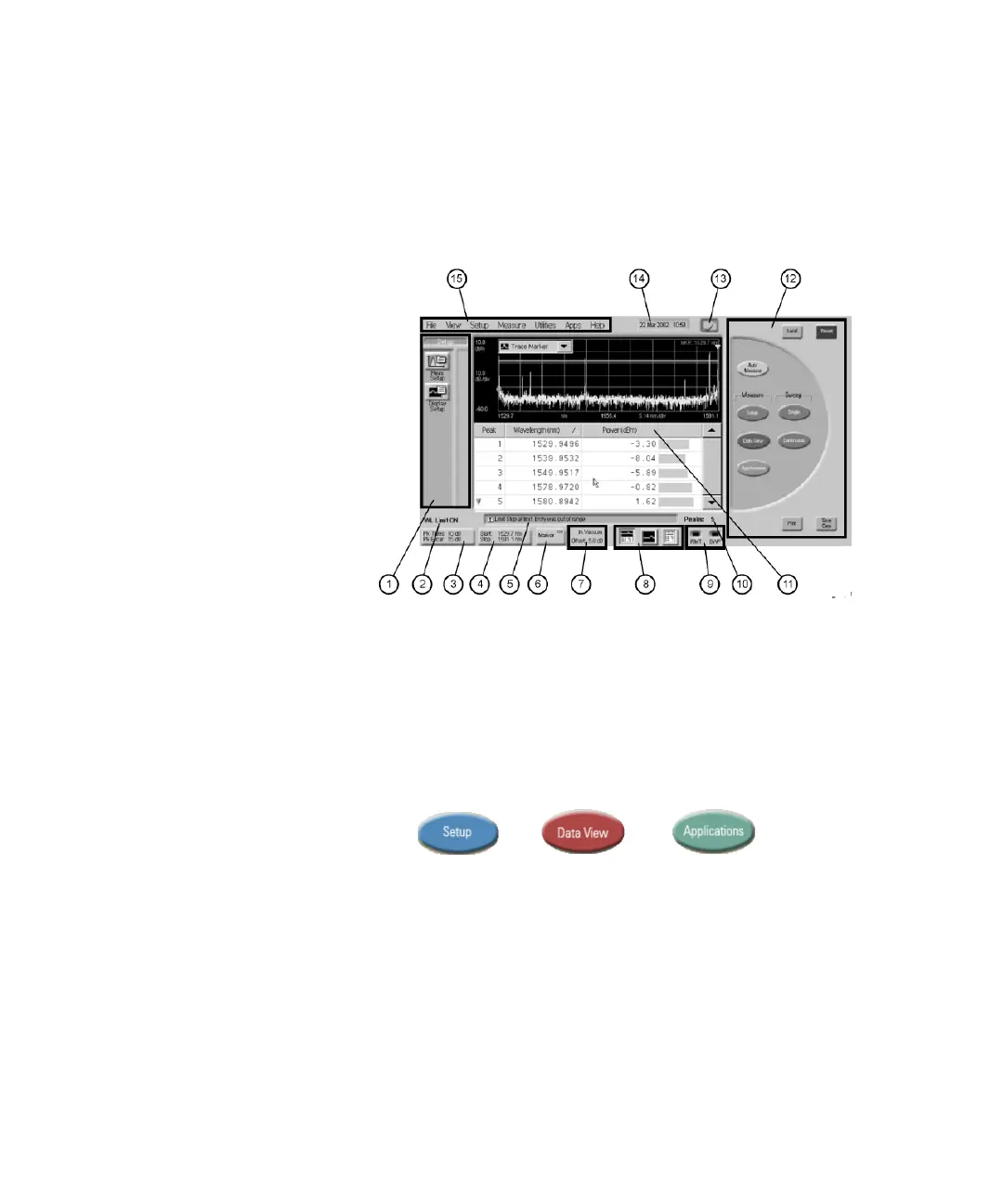
The main screen of the multi-wavelength meter is shown below:
Figure 41
The basic main screen components are described below. For more
detailed information, refer to the Help.
1 Instrument Tool-bars: You can use the graphical toolbar to easily
access measurement setup, data view, and application functions. There
is a dedicated toolbar for each function. To open the desired toolbar,
press the front panel button that corresponds with the functions you
want to perform.
2 Wavelength Limiting Status: Displays the wavelength limiting state.
3 Peak Criteria Button: Click this button to access the peak criteria
settings and change the definition of peak.
4 Graph Limit Button: Click this button access the graph limits settings
and define the x-axis limits of the graphical display.
5 Error Message Display Box: This area displays information about the
status of the instrument or an action that has been performed.
Messages also appear to inform you of errors that may have occurred.
6 Marker Button: Click this button to enable or disable the trace marker.











 To Next Page