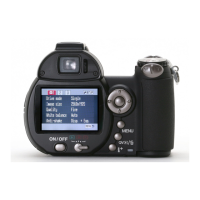
LCDbrightness –
Transfer mode Data storage
Video output NTSC
Language English
Lens acc. None
Date/Time set –
130
To set the camera’s clock and calendar (p. 131).
To specify the lens accessory in use (p. 132).
SETUP MENU
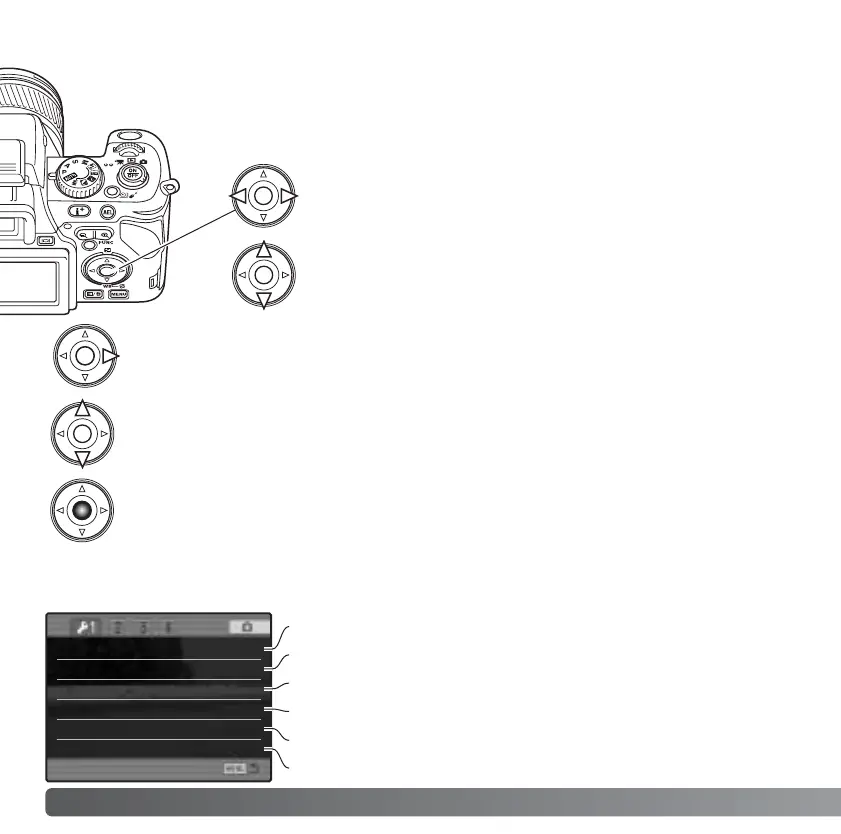
Use the left/right keys of the controller to highlight the
appropriate menu tab; the menus will change as the tabs
are highlighted.
See page 129 on how to open the setup menu. The four-way key of
the controller is used to move the cursor in the menu. Pressing the
central button of the controller will enter a setting.
When the desired menu section is displayed, use the
up/down key to scroll through the menu options. Highlight
the option whose setting needs to be changed.
Press the right controller key to display the settings; the current setting is
indicated by an arrow. To return to the menu options, press the left key.
Use the up/down key to highlight the new setting. If “Enter” is displayed, press
the central button of the controller to open the next screen.
Press the central button of the controller to select the highlighted setting.
Once a setting has been selected, the new setting will be displayed. To return to the
mode set with the mode switch, press the menu button.
NAVIGATING THE SETUP MENU
To set monitor brightness (p. 132).
To specify camera operation with a computer (p. 133).
To switch video output between NTSC and PAL (p. 132).
To set the menu language (p. 134).


 To Next Page
 Loading...