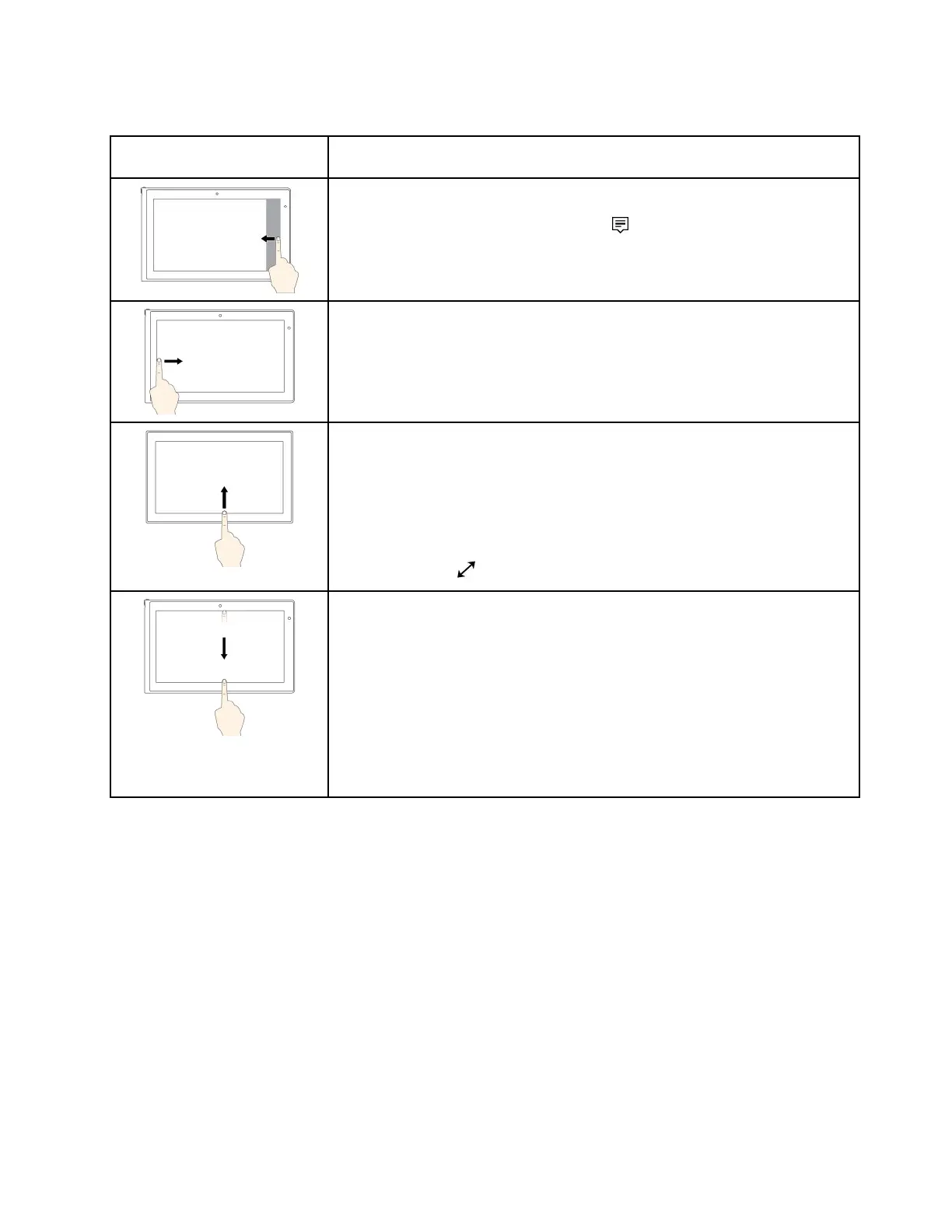
ThefollowingtableintroducessometouchgesturesontheWindows10operatingsystem.
Touchgesture(touchmodels
only)
Description
Touch:Swipeinfromtherightedge.
Mouseaction:Clicktheactioncentericononthetaskbar.
Function:Opentheactioncentertoseeyournotificationsandquickactions.
Touch:Swipeinfromtheleftedge.
Mouseaction:Clickthetask-viewicononthetaskbar.
Function:Viewallyouropenwindowsintaskview.
Touch:Swipeinfromthebottomtotopforfull-screenedapp.
Mouseaction:MoveyourcursortotheWindowsnotificationareaatthebottom
ofthescreen.
Function:Viewthetaskbar.
Note:Thefullscreenfeatureisavailableonlyonsomeapps.Toopenanapp
infullscreen,click
onthetitlebar.
•Shortsnapforfull-screenedapporwhenyourcomputerisintabletmode
Touch:Swipedownwardsshortlyfromthetopedge.
Mouseaction:Moveyourcursortothetopedgeofthescreen.
Function:Showahiddentitlebar.
•Longswipewhenyourcomputerisintabletmode
Touch:Swipeinfromthetopedgetothebottomedge.
Mouseaction:Fromthetopedgeofthescreen,clickandhold,movethe
pointertothebottomofthescreen,andthenrelease.
Function:Closethecurrentapp.
Tipsonusingthemulti-touchscreen
•Themulti-touchscreenisaglasspanelcoveredwithaplasticfilm.Donotapplypressureorplaceany
metallicobjectonthescreen,whichmightdamagethetouchpanelorcauseittomalfunction.
•Donotusefingernails,glovedfingers,orinanimateobjectsforinputonthescreen.
•Regularlycalibratetheaccuracyofthefingerinputtoavoidadiscrepancy.
Tipsoncleaningthemulti-touchscreen
•Turnoffthecomputerbeforecleaningthemulti-touchscreen.
•Useadry,soft,andlint-freeclothorapieceofabsorbentcottontoremovefingerprintsordustfromthe
multi-touchscreen.Donotapplysolventstothecloth.
•Gentlywipethescreenusingatop-downmotion.Donotapplyanypressureonthescreen.
Chapter2.Usingyourcomputer19







 To Next Page