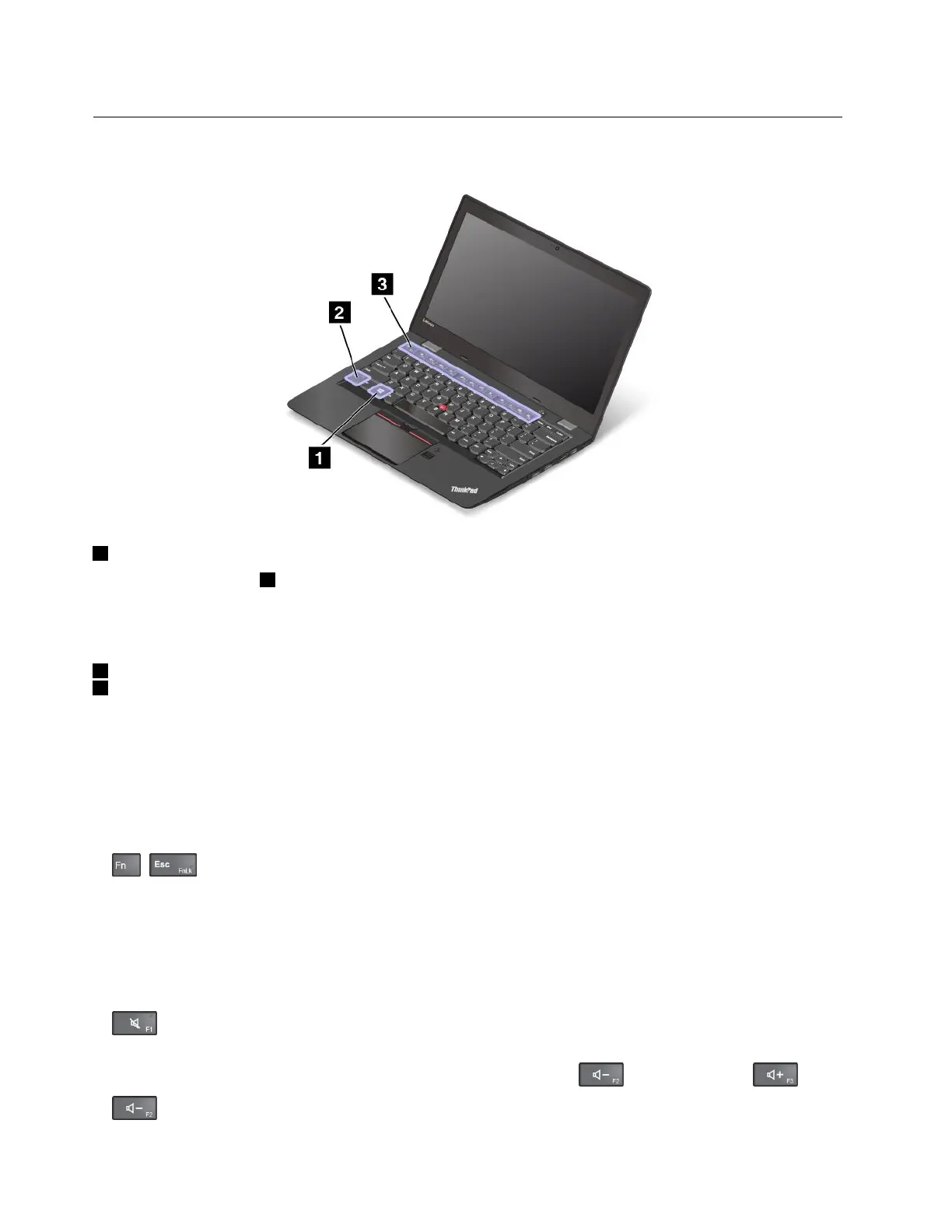
Specialkeys
Thekeyboardhasseveralspecialkeystohelpyouworkmoreeasilyandeffectively.
1Windowskey
PresstheWindowskey1toopentheStartmenu.
YoualsocanusetheWindowskeytogetherwithanotherkeytoachieveotherfunctions.Formore
information,refertothehelpinformationsystemoftheWindowsoperatingsystem.
2Fnkey
3Functionkeys
YoucanconfiguretheFnkeyandfunctionkeysintheKeyboardPropertieswindowbydoingthefollowing:
1.GotoControlPanelandthenchangetheviewofControlPanelfromCategorytoLargeiconsorSmall
icons.
2.ClickKeyboard.InthedisplayedKeyboardPropertieswindow,clicktheFnandfunctionkeysor
ThinkPadF1–F12keystab.
3.Selecttheoptionsofyourpreference.
•+EnablesordisablestheFnLockfunction.
WhentheFnLockfunctionisenabled:TheFnLockindicatorison.ToinputF1–F12,pressthefunction
keysdirectly.Toinitiatethespecialfunctionprintedasanicononeachkey,presstheFnkeyandthe
correspondingfunctionkey.
WhentheFnLockfunctionisdisabled:TheFnLockindicatorisoff.Toinitiatethespecialfunction
printedasanicononeachkey,pressthefunctionkeydirectly.ToinputF1–F12,presstheFnkeyandthe
correspondingfunctionkey.
•Mutesorunmutesthespeakers.Whenthespeakersaremuted,theindicatoronthekeyison.
Ifyoumutethesoundandturnoffyourcomputer,thesoundwillremainmutedwhenyouturnonyour
computeragain.Toturnonthesound,pressthevolume-downkeyorvolume-upkey.
•Decreasesthespeakervolume.
20ThinkPad13UserGuide














 To Next Page