Specialkeysandbuttons
Yourcomputerhasseveralspecialkeysandbuttonstohelpyouworkmoreeasilyandeffectively.Forthe
Windows7operatingsystem,theOnScreenDisplayprogramispreinstalledonyourcomputertoenableyou
totogglebetweenthedefaultandstandardsettingsoftheThinkPadF1-F12keyfunctionality.
TotoggletheF1-F12keyfunctionalityontheWindows7operatingsystem,doeitherofthefollowing:
•FromControlPanel:
1.ClickStart➙ControlPanel.
2.Intheiconsview,clickKeyboardandtheKeyboardPropertieswindowisdisplayed.
3.Congurethekeyfunctionalityasdesired.
•PressingFnforfoursecondsandtheThinkPadKeyboardPropertieswindowisdisplayed.Thencongure
thekeyfunctionalityasdesired.
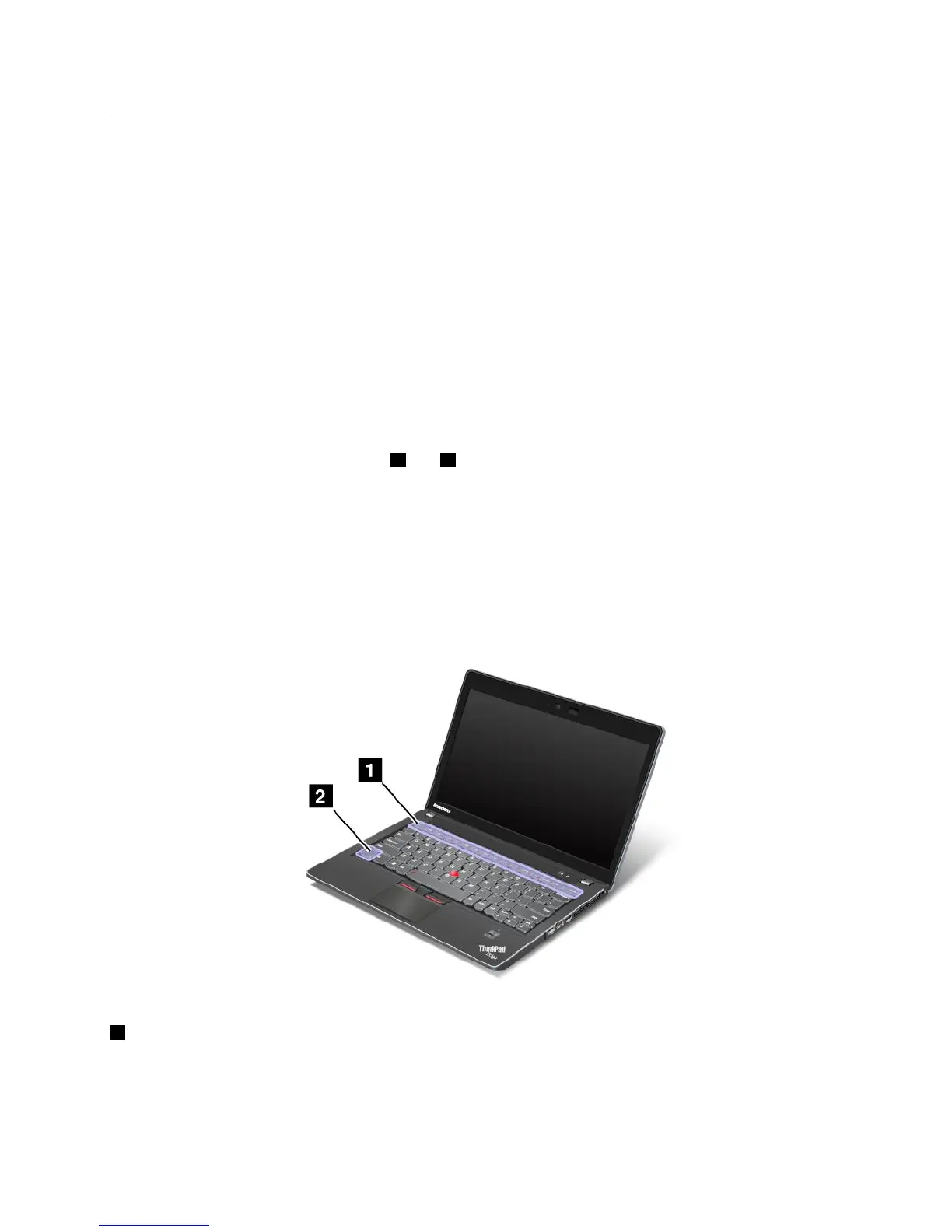
Specialkeys
Yourcomputerhasseveralspecialkeys1and2.Totakeadvantageofeachfunction,directlypress
thedesiredkey.
Notes:TouseF1-F12asstandardfunctionkeys,doeitherofthefollowing:
•Inthekeyboardpropertieswindow,clicktheThinkPadF1-F12keystab,selectLegacy,andthenclick
OK.
•OntheThinkPadSetupprogrammainmenu,selectCong➙Keyboard/Mouse➙ChangetoF1-F12
keys➙Legacy.
1Volumeandmutekeys
Toquicklyadjustthevolumeofthesoundfromyourcomputer,mutethesoundentirely,setthemicrophone
tomute,orcontrolthevideooutputfromtheintegratedcamera,pressoneofthefollowingkeys.
Speakermute(F1)
Chapter2.Usingyourcomputer25













 To Next Page