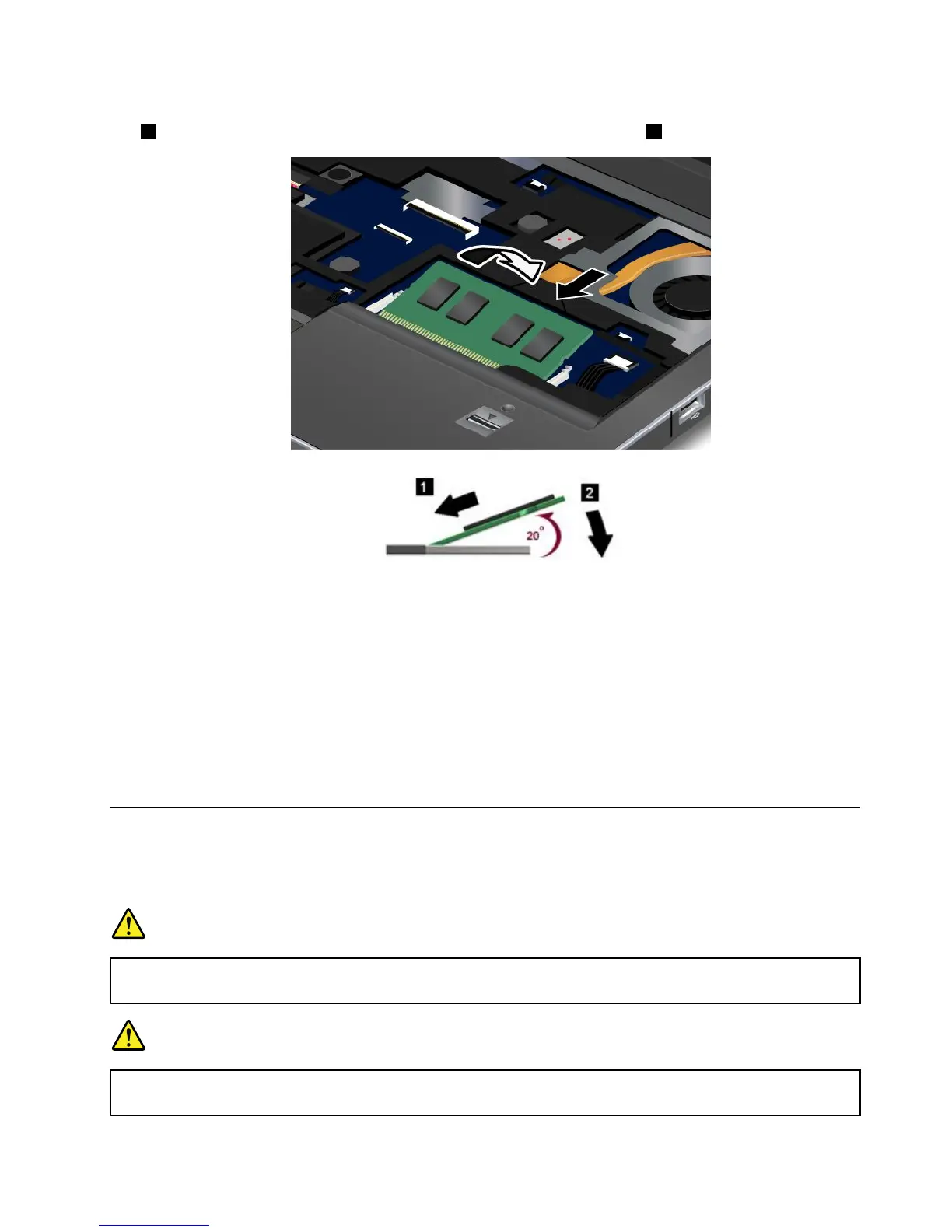
7.WiththenotchedendoftheSO-DIMMtowardthecontactedgesideofthesocket,inserttheSO-DIMM
1intothesocketatanangleofabout20degrees;thenpressitinrmly2.
8.PivottheSO-DIMMdownwarduntilitsnapsintoplace.
9.MakesurethattheSO-DIMMisrmlyxedintheslotandcannotbemovedeasily.
10.Reinstallthekeyboard.Formoredetails,referto“Replacingthekeyboard”onpage81.
11.Turnthecomputeroveragain,andreconnectthecables.
TomakesurethattheSO-DIMMisinstalledcorrectly,doasfollows:
1.Turnthecomputeron.
2.Whenthelogoscreenisdisplayed,pressF1.TheThinkPadSetupopens.The“Installedmemory”item
showsthetotalamountofmemoryinstalledinyourcomputer.
Replacingthekeyboard
Youcanusethefollowingprocedurestoreplacethekeyboardwithanewone,availableasanoption.
Prerequisitesfortheprocedure
DANGER
Duringelectricalstorms,donotconnectthecabletoordisconnectitfromthetelephoneoutlet
onthewall.
DANGER
Electriccurrentfrompower,telephone,andcommunicationcablesishazardous.T oavoidshock
hazard,disconnectthecablesbeforeopeningthecoverofthisslot.
Chapter6.Replacingdevices81












 To Next Page