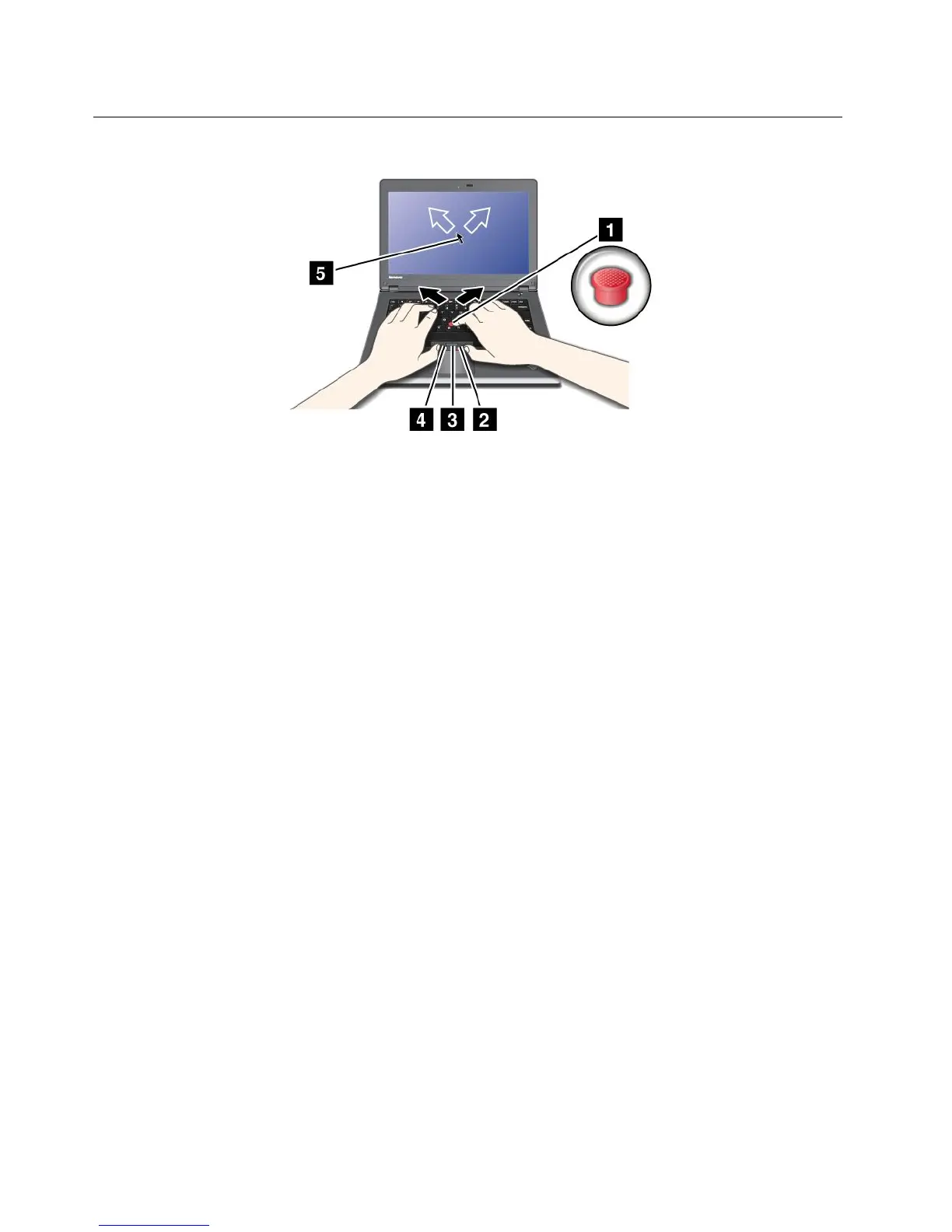
UsingtheUltraNavpointingdevice
YourcomputermaycomewiththeUltraNavpointingdevice.TheUltraNavconsistsoftheTrackPointand
thetouchpad,eachofwhichisitselfapointingdevicewithbothbasicandextendedfunctions.Youcan
congurebothdevicesbychoosingthesettingsyouprefer,asfollows:
•SetboththeTrackPointandthetouchpadaspointingdevices.
ThissettingenablestheuseofallthebasicandextendedfunctionsoftheTrackPointandthetouchpad.
•SettheTrackPointasthemainpointingdeviceandthetouchpadforextendedfunctionsonly.
ThissettingenablestheuseofallbasicandextendedfunctionswiththeTrackPointwhilelimitingtheuse
ofthetouchpadtoscrolling,tapzones,andslow-motionpointerfunctions.
•SetthetouchpadasthemainpointingdeviceandtheTrackPointfortheextendedfunctionsonly.
Thissettingenablestheuseofallbasicandextendedfunctionswiththetouchpadwhilelimitingthe
useoftheTrackPointtoscrollingandMagnifyingGlassfunctions.
•SettheTrackPointasthemainpointingdevice,anddisablethetouchpad.
•Setthetouchpadasthemainpointingdevice,anddisabletheTrackPoint.
ChangingtheUltraNavsettings
YoucanchangeyoursettingsofUltraNavintheUltraNavtaboftheMousePropertieswindow.Toopenit,
useoneofthefollowingmethods:
•UsetheStartmenuofyourcomputerasfollows:
–ForWindows7:ClickStart➙ControlPanel➙HardwareandSound➙Mouse➙UltraNav.
–ForWindowsXP:ClickStart➙ControlPanel➙PrintersandOtherHardware➙Mouse➙UltraNav.
YoucanalsochangetheUltraNavsettingsbyclickingtheUltraNavicononthesystemtray.Todisplaythe
UltraNavicononthesystemtray,see“AddingtheUltraNavicontothesystemtray”onpage31
.
28UserGuide













 To Next Page