Chapter4.Security
Thischapterprovidesinformationabouthowtoprotectyourcomputerfromtheftandunauthorizeduse.
•“Attachingamechanicallock”onpage57
•“Usingpasswords”onpage57
•“Harddisksecurity”onpage63
•“Usingangerprintreader”onpage63
•“Noticeondeletingdatafromyourharddiskdriveorsolidstatedrive”onpage65
•“Usingandunderstandingrewalls”onpage66
•“Protectingdataagainstviruses”onpage66
Attachingamechanicallock
Youcanattachamechanicallocktoyourcomputer,tohelppreventitfrombeingremovedwithoutyour
permission.
Attachamechanicallocktothekeyholeofthecomputer;thensecurethechainonthelocktoastationary
object.Refertotheinstructionsshippedwiththemechanicallock.
Note:Youareresponsibleforevaluating,selecting,andimplementingthelockingdevicesandsecurity
features.Lenovomakesnocomments,judgments,orwarrantiesaboutthefunction,quality,orperformance
oflockingdevicesandsecurityfeatures.
Usingpasswords
Byusingpasswords,youcanhelppreventyourcomputerfrombeingusedbyothers.Onceyouseta
password,apromptappearsonthescreeneachtimeyoupoweronthecomputer.Enteryourpasswordat
theprompt.Youcannotusethecomputerunlessyoutypethecorrectpassword.
Makesurethatonlyauthorizedindividualsaccessyourcomputer.Establishingdifferentkindsofpasswords
requiresthatotherpossibleusersknowtheproperpasswordsinordertoaccessyourcomputeroryourdata.
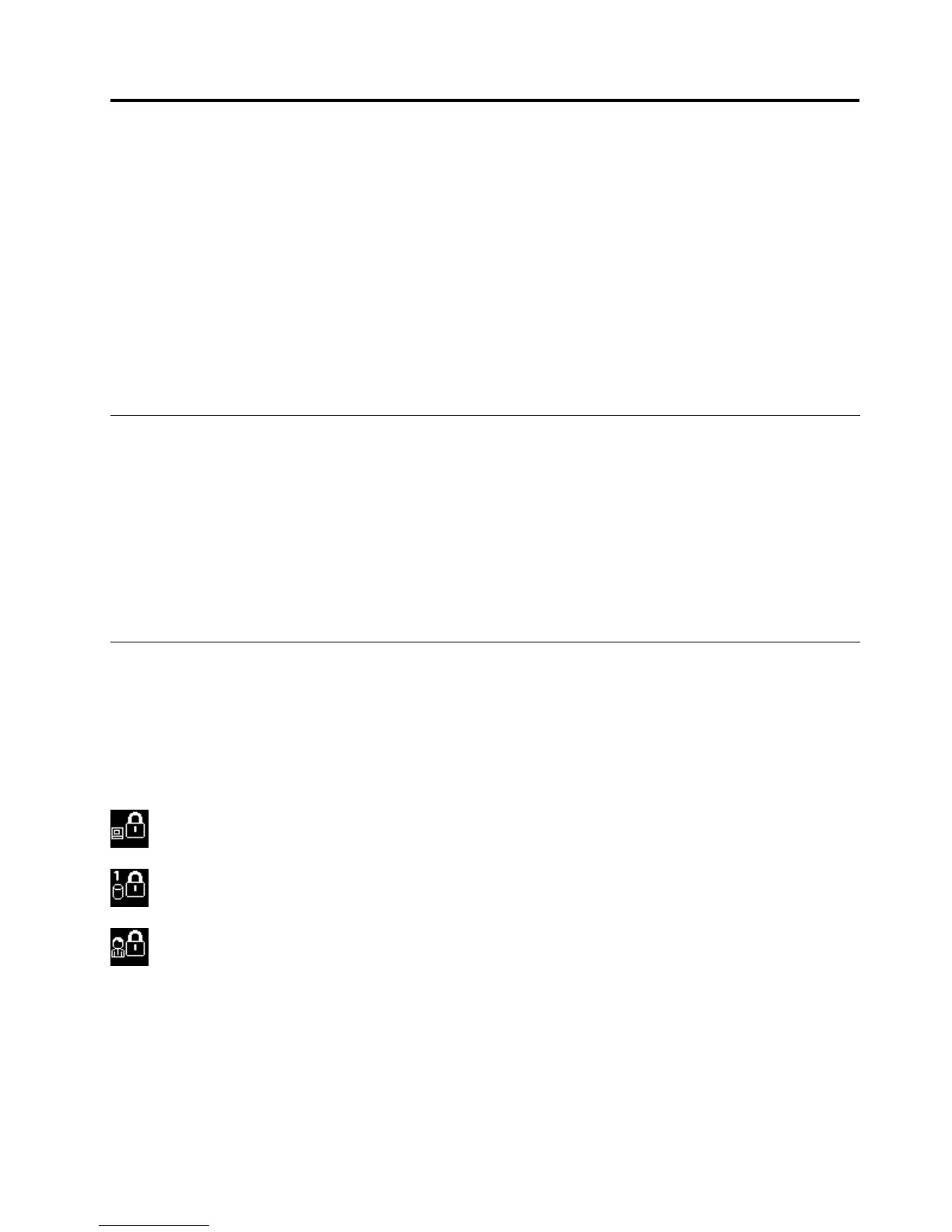
Ifthisiconappears,enterPower-onpasswordorSupervisorpassword.
Ifthisiconappears,enterHarddiskpassword.
Ifthisiconappears,enterSupervisorpassword.
Clickontheitemsbelowtondoutmoreaboutpasswordsandhowtousethemtoprotectyourcomputer.
•Passwordsandsleep(standby)mode
•Power-onpassword
•Harddisksecurity
•Supervisorpassword
©CopyrightLenovo2011
57












 To Next Page