33
SuperSign Manager
1
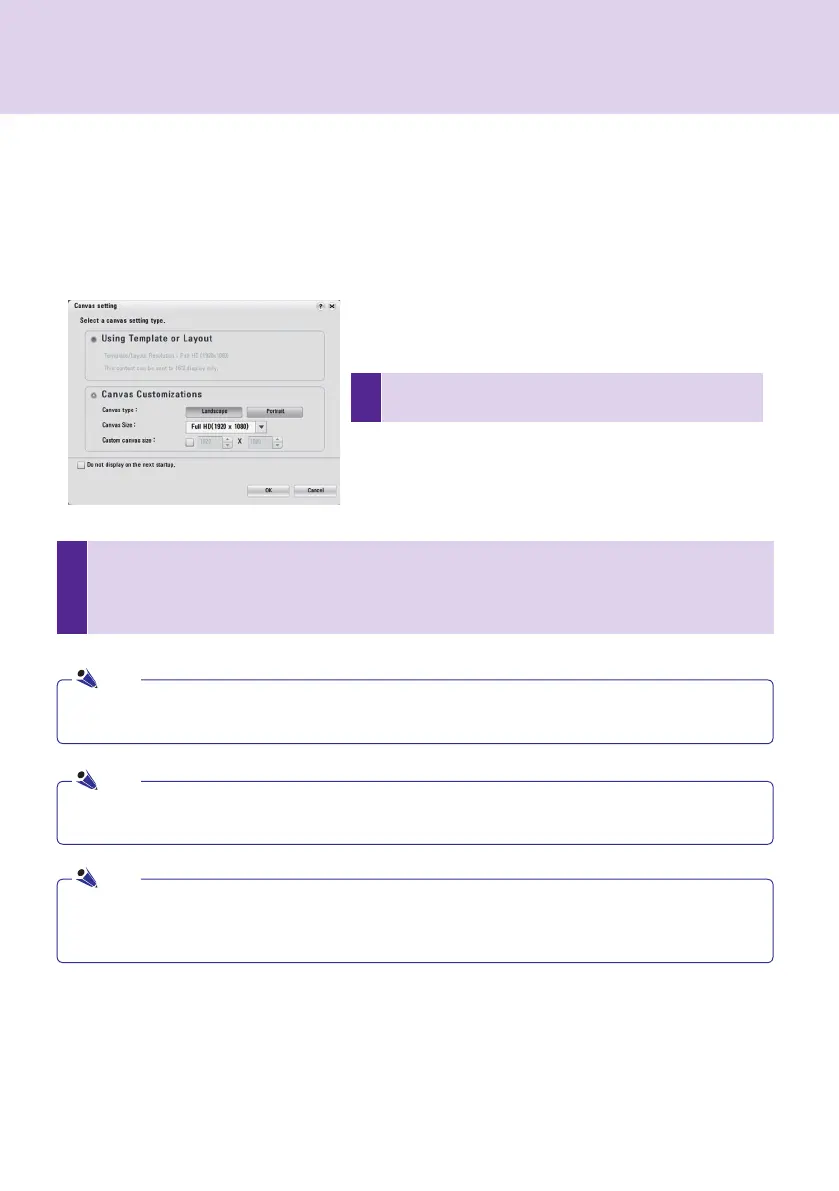
In the <Canvas setting> window, select Canvas
Customizations.
2
Set the orientation and resolution of the canvas to work with.
Canvas type: Sets the canvas orientation to "Landscape" or "Portrait".
Canvas size: Sets the resolution of the canvas.
Custom canvas size: Allows you to set the resolution of the canvas manually.
Customizing the Canvas
You can customize the properties of the canvas, such as the orientation and resolution of the canvas.
The following shows the steps to set the properties of the canvas in the <Canvas Setting> window.
If you set the resolution using [Manual setting], the resolution set for <Canvas size> will be ignored.
The range of resolution for user input is between 200x200 and 8000x8000.
The monitor resolutions supported by SuperSign are 640 x 480, 800 x 600, 1024 x 768, 1152 x 864, 1280 x 768,
1280 x 1024, 1360 x 768, 1400 x 1050, 1600 x 1200, 1680 x 1050, and 1920 x 1080.
If you select Do not display on the next startup., the <Canvas setting> window will not be displayed when
you start SuperSign Manager next time. To open the <Canvas setting> window, select Setting > Canvas
Setting Window from the menu bar.
Note
Note
Note


 To Next Page