32
SuperSign Manager
1
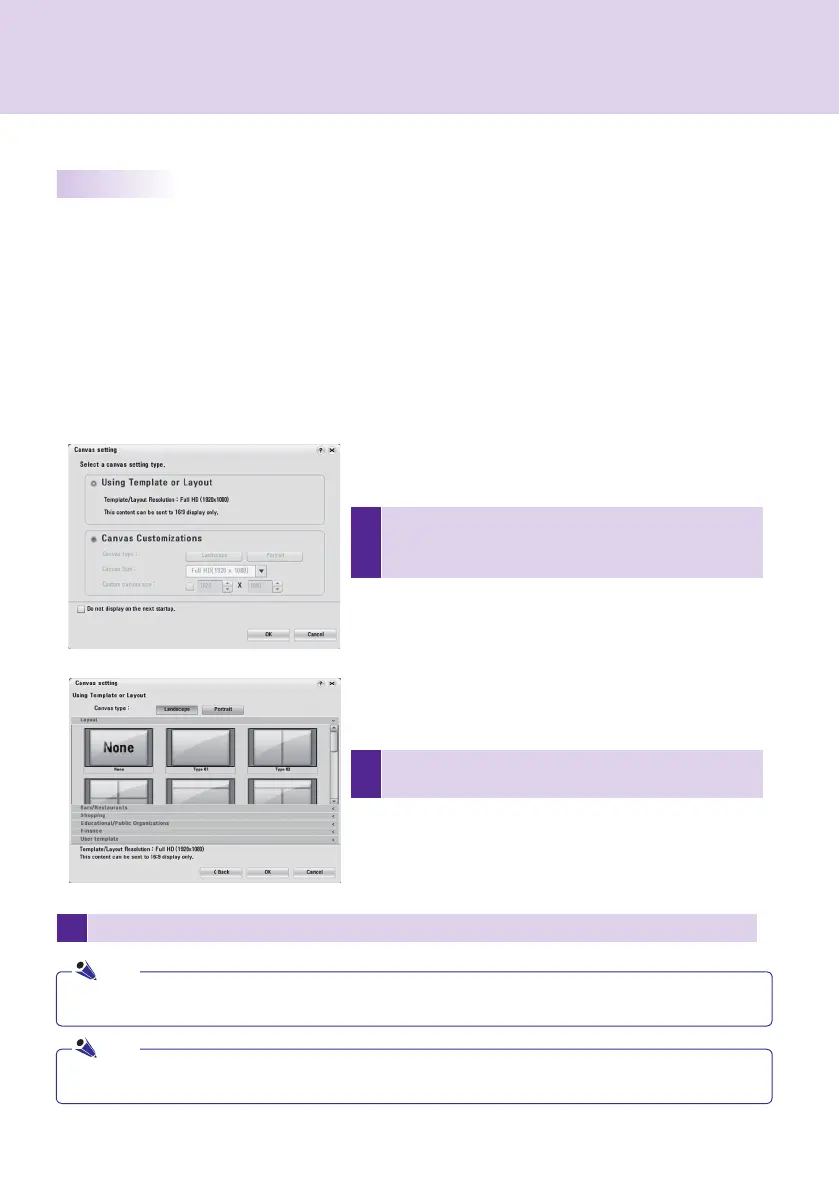
In the <Canvas setting> window, select Using
Template or Layout and click OK. Then, the <Using
Template or Layout> window appears as shown below.
2
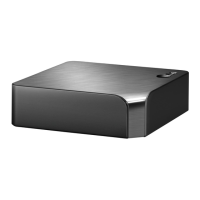
Set the canvas orientation to Landscape or Portrait for
Canvas type.
3
Select the layout or template you want and click OK.
Setting the Canvas
When you start SuperSign Manager for the first time, the <Canvas setting> window appears. The <Canvas
setting> window allows you to set the canvas to work with. The canvas is a work area in which you can import
media files, such as photos, videos and text, to edit and create the desired content.
In the <Canvas setting> window, you can select a canvas template layout or customize the canvas, including the
canvas orientation and resolution.
Using Template or Layout
SuperSign Manager provides a set of templates and layouts to help you create your own content fast and easy.
The following shows the steps to select a template or layout in the <Canvas setting> window.
By default, SuperSign supports Full-HD (1920x1080, 1080x1920) resolution templates and layouts.
Ones with different resolutions are not supported.
The content created using a template or layout provided by SuperSign will be displayed normally only on the monitor;
otherwise, it will not be played correctly.
Note
Note


 To Next Page