71
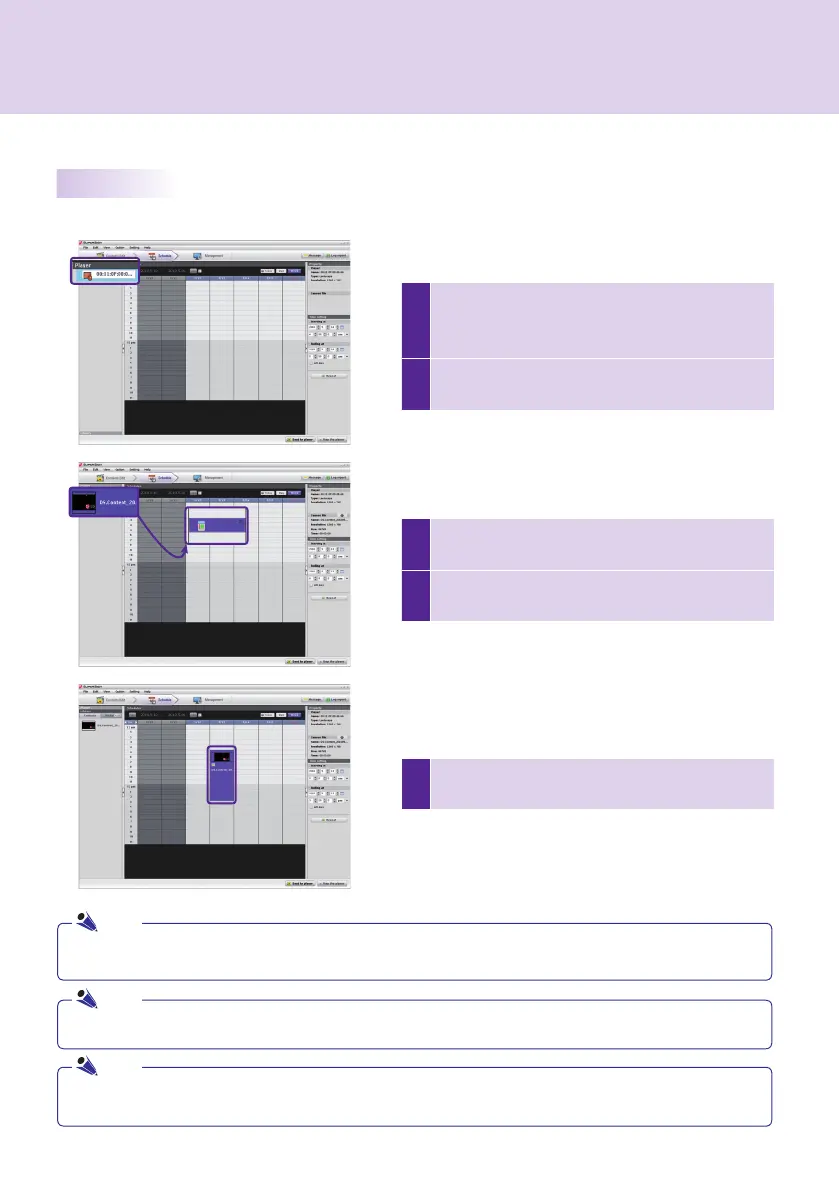
1
Click the Player menu in the media window and
select the SuperSign Player on which to change
schedules.
2
The current schedules of SuperSign Player will be
displayed.
SuperSign Manager
5
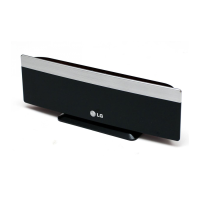
You can adjust the time by dragging a cell down, or
by entering its time directly in the properties.
Setting schedules
Follow these steps to make a schedule:
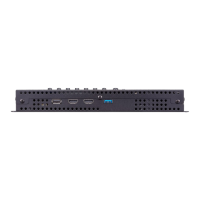
3
To change the schedule, select content or a media
fi le from the Library on the media window.
4
Create the basic schedule by dragging and
dropping the selected content or media fi les.
● The schedule block can be set between 10 seconds and a maximum of 24 hours.
Note
You can only edit the content 10 minutes or longer for the 1-hour and 30-minute view, over 1 minute or
longer for the 10-minute view, and 10 second or longer for the 1-minute view
Note
You can also create the schedule by selecting and dragging the media file from the Windows Explorer directly to
the schedule window.
Note



 To Next Page