20
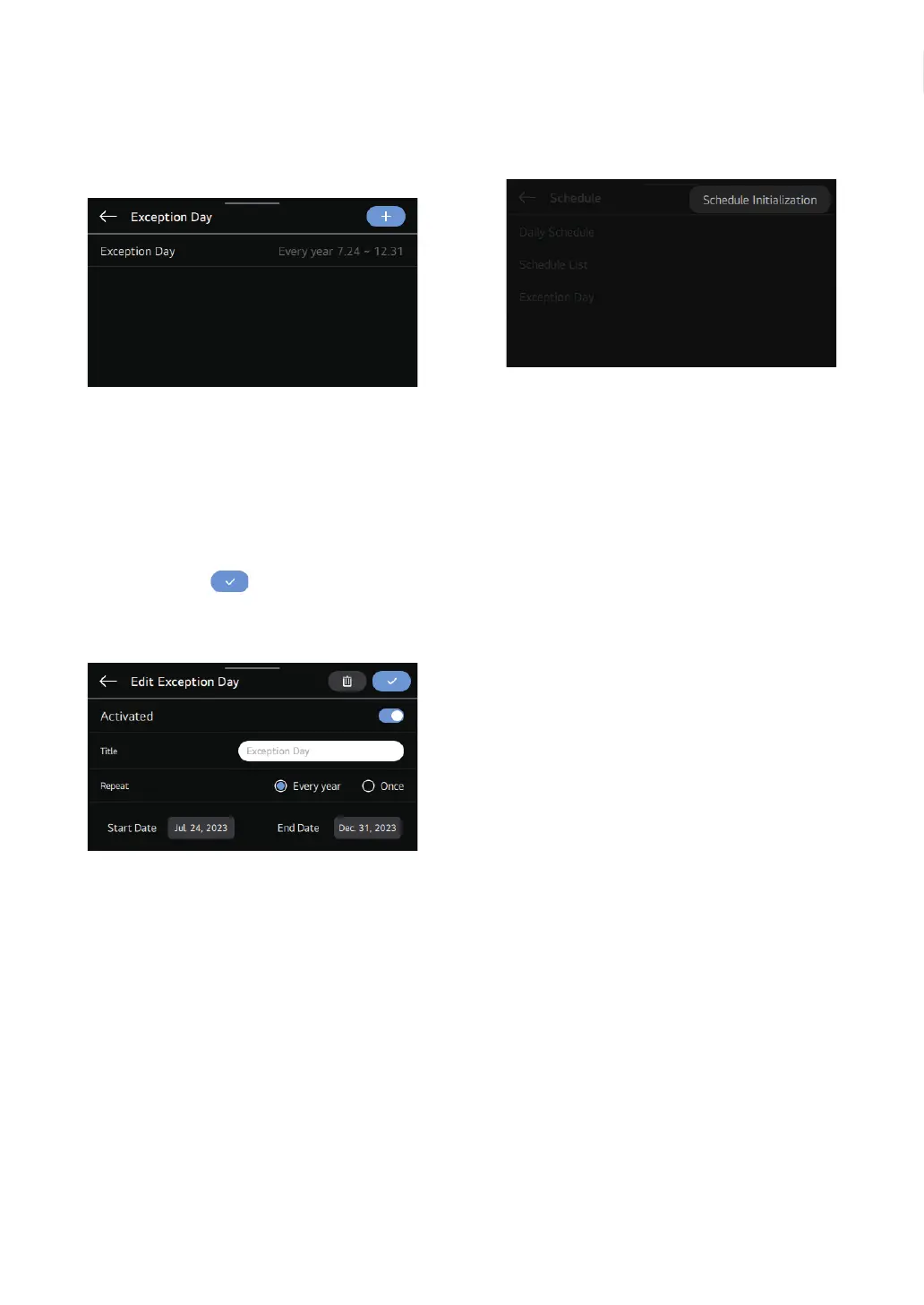
Exception Day
A function to automatically stop operation on the preset
date.
①
Select the Designate Exception Date item in the
schedule list, and you are moved to the details screen
for Designate Exceptional Date.
②
You can check, add, modify, or delete the exceptional
date information stored in the remote controller in the
Designate Exceptional Date.
③
To add an exception date, designate the start / end date
on the details screen for registering the exceptional
date, and press the
button. Then, the exceptional
date is stored.
Press the exceptional date to be edited, and move to the
edit screen.
NOTE
• Activate: Set the activate / inactivate of the selected
exceptional date.
• Title: Change the title of the selected exceptional date.
• Repeat: Modify the repeat or non-repeat of the selected
exceptional date.
• Period: Modify the period of the selected exceptional date.
Schedule Initialization
All the schedule-related information will be initialized.



 To Next Page