-32- v2.9
Software
5.3. Libelium Smart Devices App
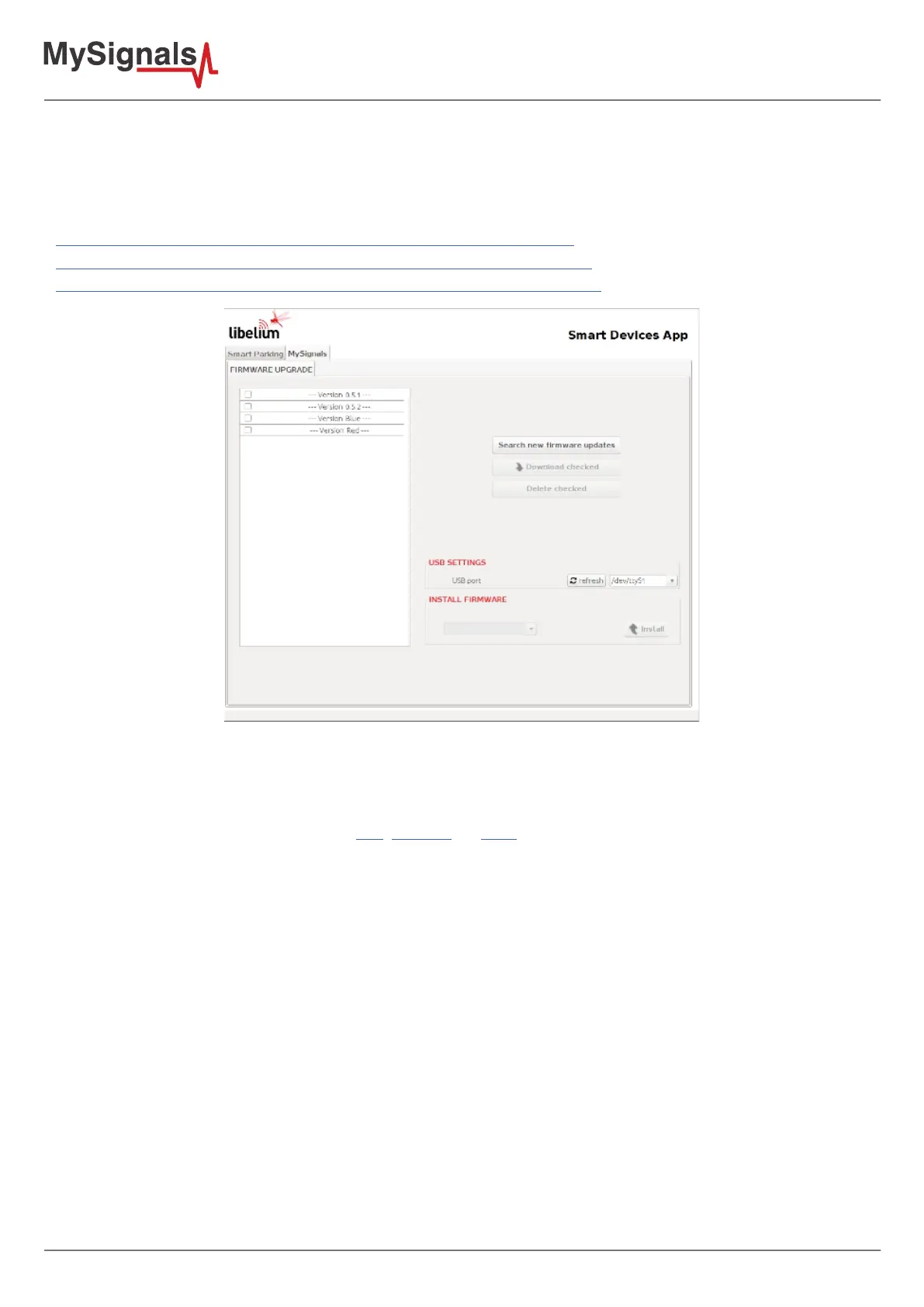
Libelium Smart Devices App is the Java application used to upgrade the FW of MySignals SW.
Download at:
http://downloads.libelium.com/smart_device_app/SmartDeviceApp_linux64.zip
http://downloads.libelium.com/smart_device_app/SmartDeviceApp_macosx64.zip
http://downloads.libelium.com/smart_device_app/SmartDeviceApp_windows32.zip
Figure: Updater Tool Interface
Follow the step-by-step instructions for setting up the Libelium Smart Devices App on your computer and
connecting it to MySignals devices.
Download the application and select the Mac, Windows, or Linux version, depending on what machine you have.
Installation on each machine is straightforward:
• On Windows, you'll have a .zip le. Double-click it, and drag the folder inside to a location on your hard disk.
It could be Program Files or simply the desktop, but the important thing is for the processing folder to be
pulled out of that .zip le. Then double-click Mysignals_Updater.exe to start.
• The Mac OS X version is also a .zip le. Double-click it and drag the Libelium Smart Devices App icon to the
Applications folder. If you're using someone else's machine and can't modify the Applications folder, just
drag the application to the desktop. Then double-click the Libelium Smart Devices App icon to start.
• The Linux version is a .tar.gz le, which should be familiar to most Linux users. Download the le to your
home directory, then open a terminal window, and type: tar xvfz Mysignals_Updater-xxxx.tgz


 To Next Page