-263- v2.9
Updating Firmware
8. Updating Firmware
Libelium Smart Devices App allows users install new rmware versions and program the conguration of new
Libelium products in a few clicks. Download the Java application at:
LINUX:
http://downloads.libelium.com/smart_device_app/SmartDeviceApp_linux64.zip
MAC:
http://downloads.libelium.com/smart_device_app/SmartDeviceApp_macosx64.zip
WINDOWS:
http://downloads.libelium.com/smart_device_app/SmartDeviceApp_windows32.zip
INSTALLATION
First of all and before installing anything, users have to take into account the platform where the application is
going to be installed. To install the Libelium Smart Devices App, it is compulsory to have installed the JDK 1.7 at
least. If it is not installed in the computer, you can follow the steps and download it from this website:
https://docs.oracle.com/javase/8/docs/technotes/guides/install/install_overview.html
Once installed JDK, users have to download Libelium Smart Devices App. Copying and pasting this URL in a web
browser, the le will be downloaded. Once downloaded it, users only have to extract the content of the zip le
in a place with the right permissions, and nally execute the le called “SmarDeviceApp” that will initialize the
application. Please, note that the extension of this le will depend on the operative system the user is using at the
moment (sh for Linux and OSX, and bat for Windows).
IMPORTANT: DO NOT UNPLUG MYSIGNALS WHILE IT IS BEING UPGRADED OR IT MAY BE RENDERED USELESS!
(THIS CASE IS NOT COVERED BY THE WARRANTY).
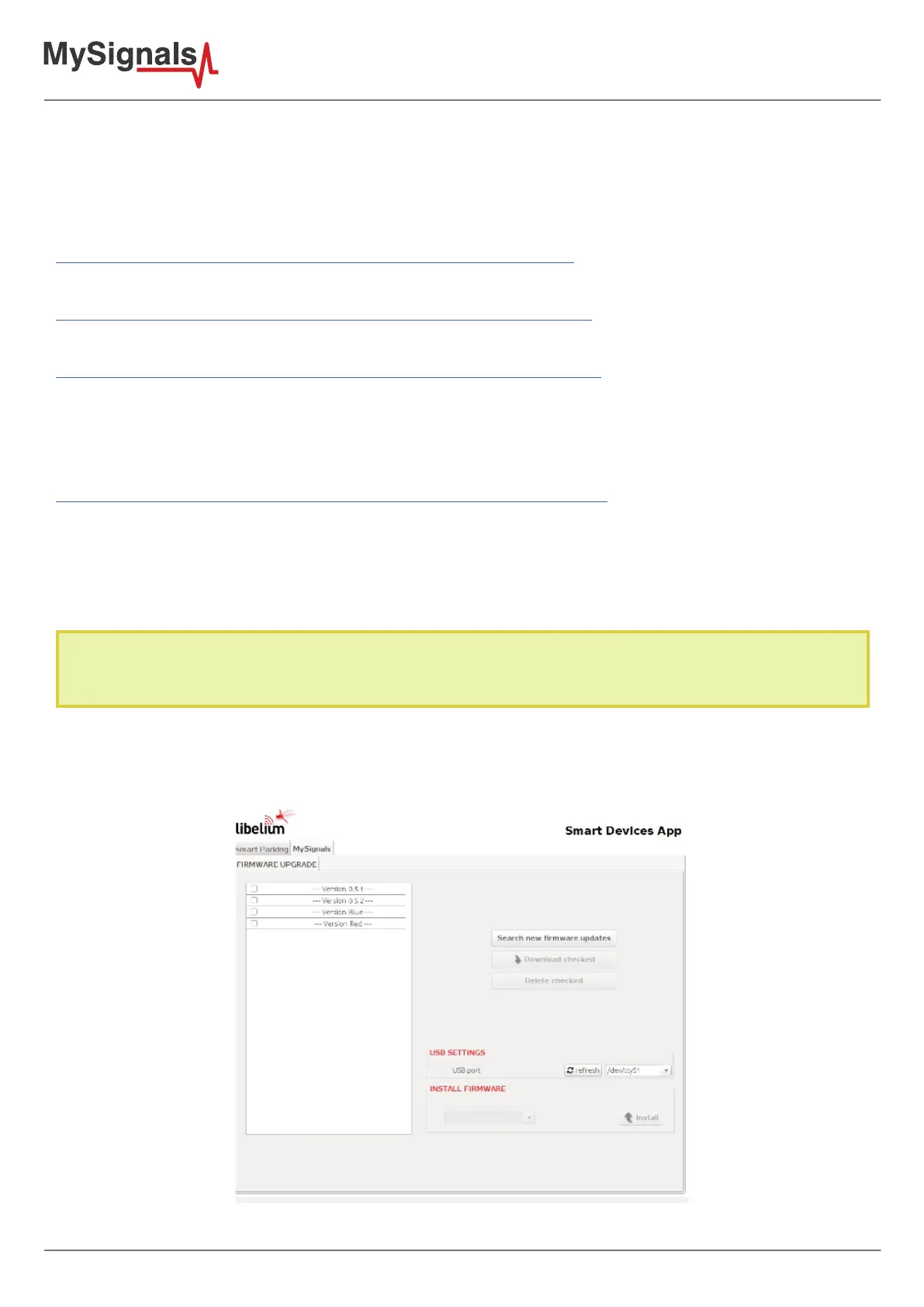
8.1. Libelium Smart Devices App
This section explains every option that the application oer to users with the purpose of updating the device.
Figure: Libelium Smart Devices App


 To Next Page