-41- v2.9
Data Access
6.2.1. Using Bluetooth Connection Mode
Below and to avoid any connection problems we recommend restarting the Bluetooth on your device if you
already had it previously activated. We recommend doing this every time you open the app again. In order to do
this go to Settings in your device, then Bluetooth and turn it o and on.
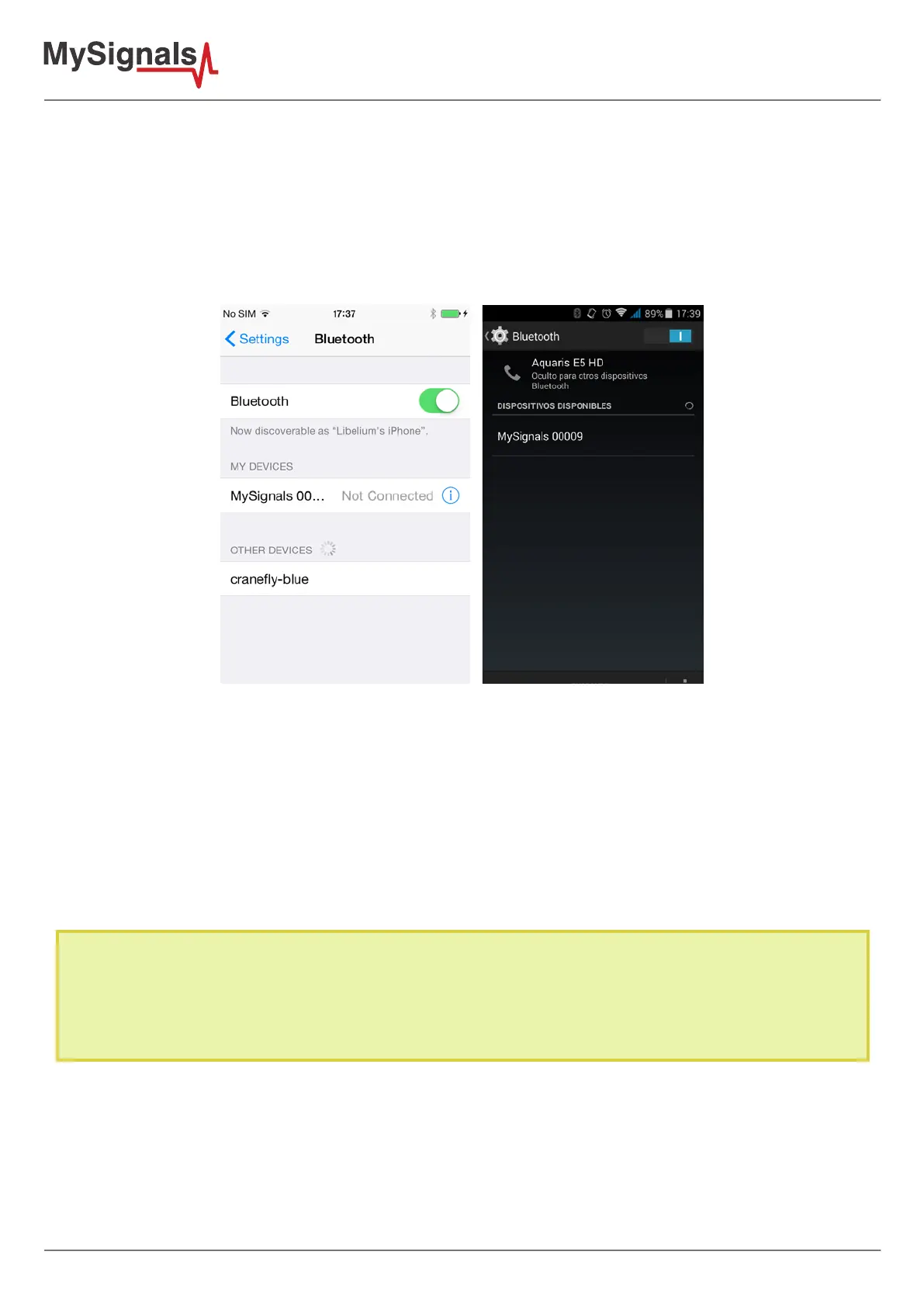
Sometimes you will need to congure the connection with MySignals using the Android or iOS settings.
Figure: Settings BLE conguration
The rst time a user starts MySignals application, it will be needed a setup assistant to congure all aspects related
to MySignals conguration like user name, password (already set in our back end), prole, WiFi settings and
MySignals selection. We will create a setup assistant with straightforward screens with all eld and information to
guide the user through this assistant.
This assistant in needed if you want to use Server Connection Mode and MySignals Web Server Application because
MySignals Mobile APP send all the WiFi network, user account and conguration information using Bluetooth
Connectivity. The maximum number or characters that you can use in this settings are 20.
In order to make the MySignals App send to the Cloud you need:
• Have one Department created.
• Have one user created and linked to one Department.
• In the App to to Users, click on one and press "Select this user".
• Make sure the "Cloud" icon is active (upper right corner of the App).


 To Next Page