-88- v2.9
Sensors
MySignals APP
This is an example of sensor viewing in MySignals APP Mode.
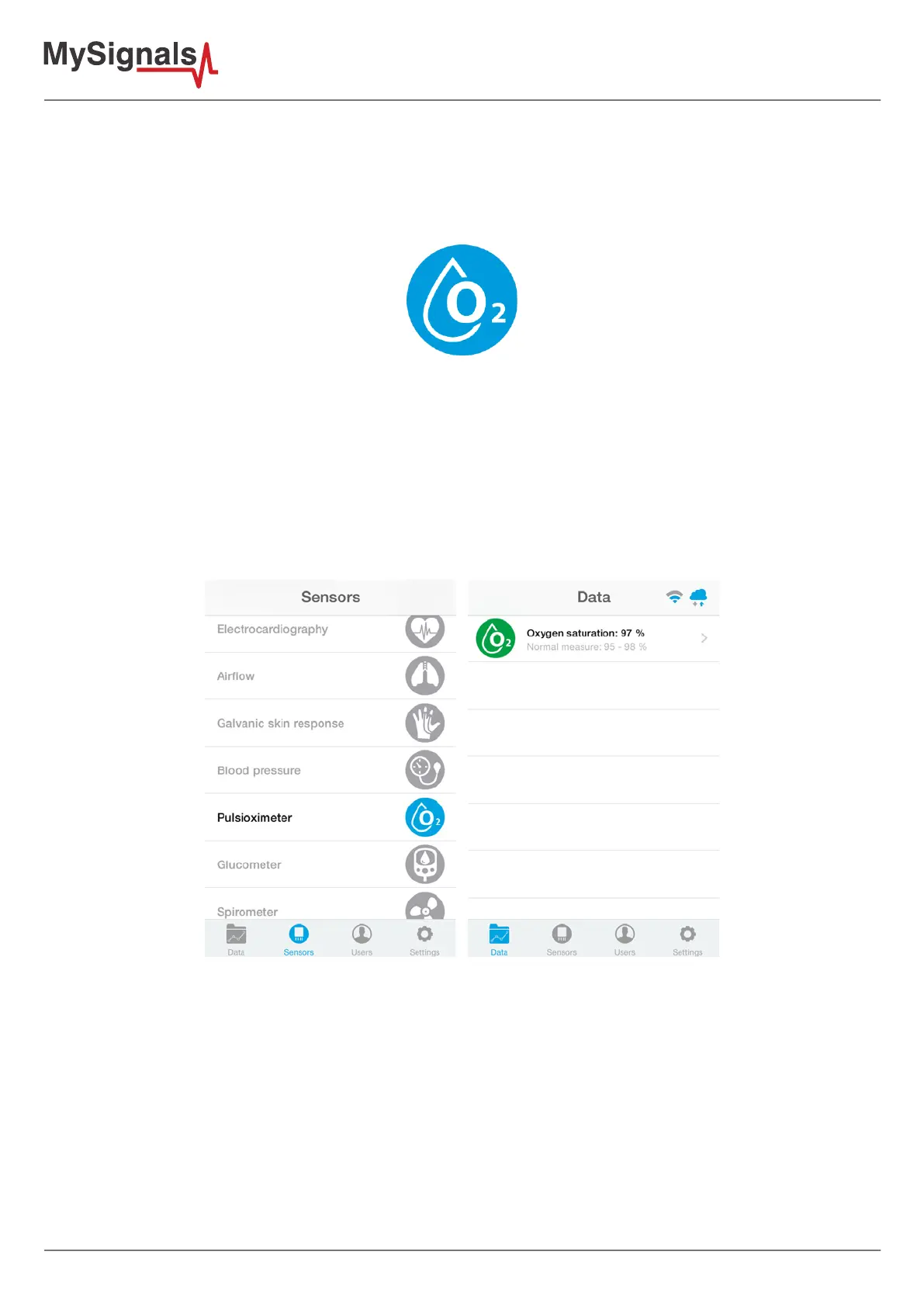
First of all select the sensor that you want to measure in the Select Sensors screen. Use your smartphone
touchscreen pressing in the correct symbol. You can see the selected sensors logos in blue color.
Figure: Selected sensor logo APP
Then you can go to General Sensor screen using the left down corner logo. MySignals will start to monitor all the
parameters in General Mode where it only show numeric values.
You can see in this screen a color code in the sensor logos:
• Green: It is a real- time value measured in MySignals Software
• Orange: It is a old value measured in a previously connection of some time ago.
• Grey: It is that the sensor is not connected.
Figure: General mode and selecting general mode APP
Finally, you can go to detail mode for each sensor selected. Press in the logo of the sensor in General Mode if you
want to see the graphical and numeric values of a specic sensor.


 To Next Page