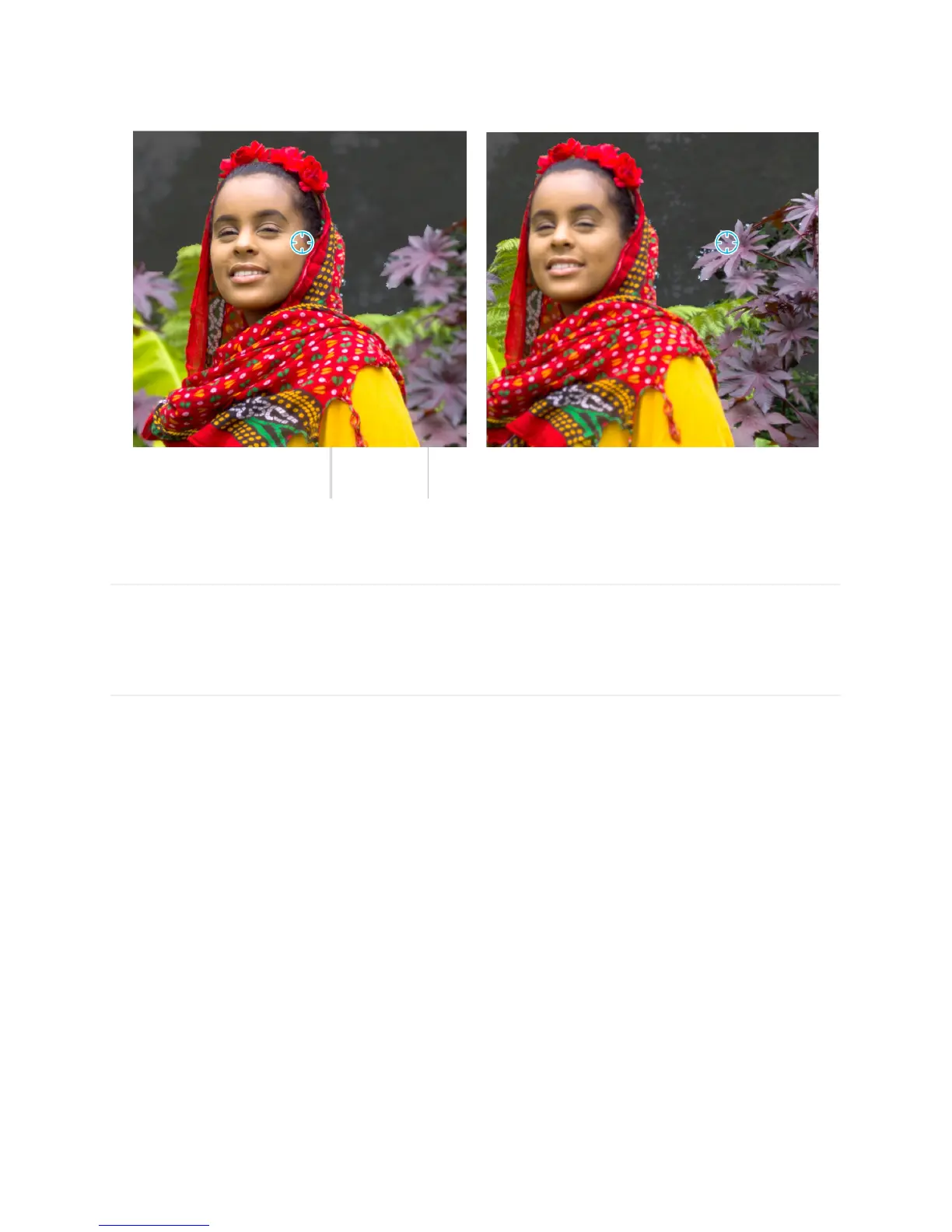
Note: You can disable the grey shaded mask by unchecking "show focal region" below the
focus tool.
Edit depth – refine edge
Adjusting depth effect can occasionally create inconsistent edges on larger, in-focus
objects. The refine edge tool creates a more definitive and accurate difference between two
varying depths along an edge. Use this tool to make jagged boundaries smooth.
Access the refine edge tool. Apply some depth effect to your photo to activate the refine
edge tool. Click “refine edge."
Adjust your brush size. Scroll up or down with your mouse wheel or drag two fingers up or
down on your trackpad to increase or decrease the size of your brush.


 To Next Page