Choose where to save your photos. In the export dialog, click the field next to ‘save to” to
select the folder where you would like to export your photo.
Choose your desired file format. You can choose between 3 options:
jpg – For quick and easy sharing on social media or email, choose jpg.
dng – If you would like to export the maximum quality file and edit your photos in
another application like Adobe Lightroom or Photoshop, choose dng.
jpg + dng – If you prefer to have both, choose jpg + dng.
Choose your jpg file size and quality. For jpg files you can choose how large of an image
you would like and at what quality you would like it:
3mp – Perfect for social sharing.
8mp – Print up to 8” x 10”.
13mp – Print up to 10” x 13”.
full – Print up to 25” x 34”.
Restart, Reset and Update
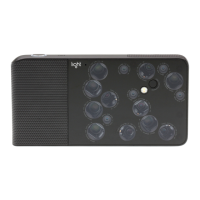
Update Light L16
Light L16 over-the-air (OTA) updates.
The Light L16 camera has the amazing ability to update software over the air. OTA updates
allow the Light L16 to acquire new features, better processing, and increased performance
and speed. When new software updates are released by Light, and when your Light L16 is
connected to Wi-Fi, a notification appears at the top of your screen to let you know that a
software update is available.
Update Light L16. Just tap the update notification at the top of your screen and your Light
L16 will download the latest software. After downloading, you will be asked to install it. To be
safe, we recommend transferring your photos from the camera before installing a new
software package.


 To Next Page