Light raw files – LRI & LRIS
LRI (.lri) files. When transferring your photos to your desktop, you may notice that the file
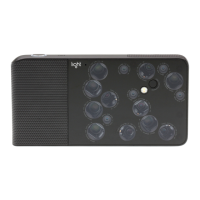
names include ".lri" at the end. Because the Light L16 captures 10+ images at once—and
because we save the fusing of these photos for the desktop—the Light L16 bundles all of
the information about your capture into a Light Raw File (LRI).
.LRIs function similarly to how other RAW files work: any changes you make to the photo in
Lumen doesn't affect the original raw file. This means you can edit and export multiple
copies of your photo without making any changes to the original file.
LRIS (.lris) files. Whenever you edit an LRI file on your desktop, Lumen will create a new
"LRIS" file with an identical name as your original LRI file. This LRIS file contains your depth-
editing information. You can think of this file as a sidecar for your original file that contains all
of the information about how you edited the photo. When you are done editing and decide to
export a photo, Lumen will read your LRIS file and your LRI file together and process a
single JPG or DNG (depending on your preference).
Move LRI files. When you move LRI files around on your computer, or if you move them to
an external hard drive, be sure to keep the LRI and LRIS files together. If you separate them,
you will lose any depth edits you have made to your photos.
Rename LRI files. When you rename LRI files on your computer, or if you rename them on
an external hard drive, be sure to also rename the corresponding LRIS files. If you they have
separate names, Lumen will not recognize the edited LRIS file associated with your LRI.
Curate your work
After transferring your LRI files, Lumen lets you view folders of photos in a gallery for easy
browsing and sorting. Thumbnails displayed in Lumen’s gallery view are based on a quick
fusion of 5 of your 10+ images per photo. You can see full-resolution versions of your photos
by processing or exporting.


 To Next Page