32
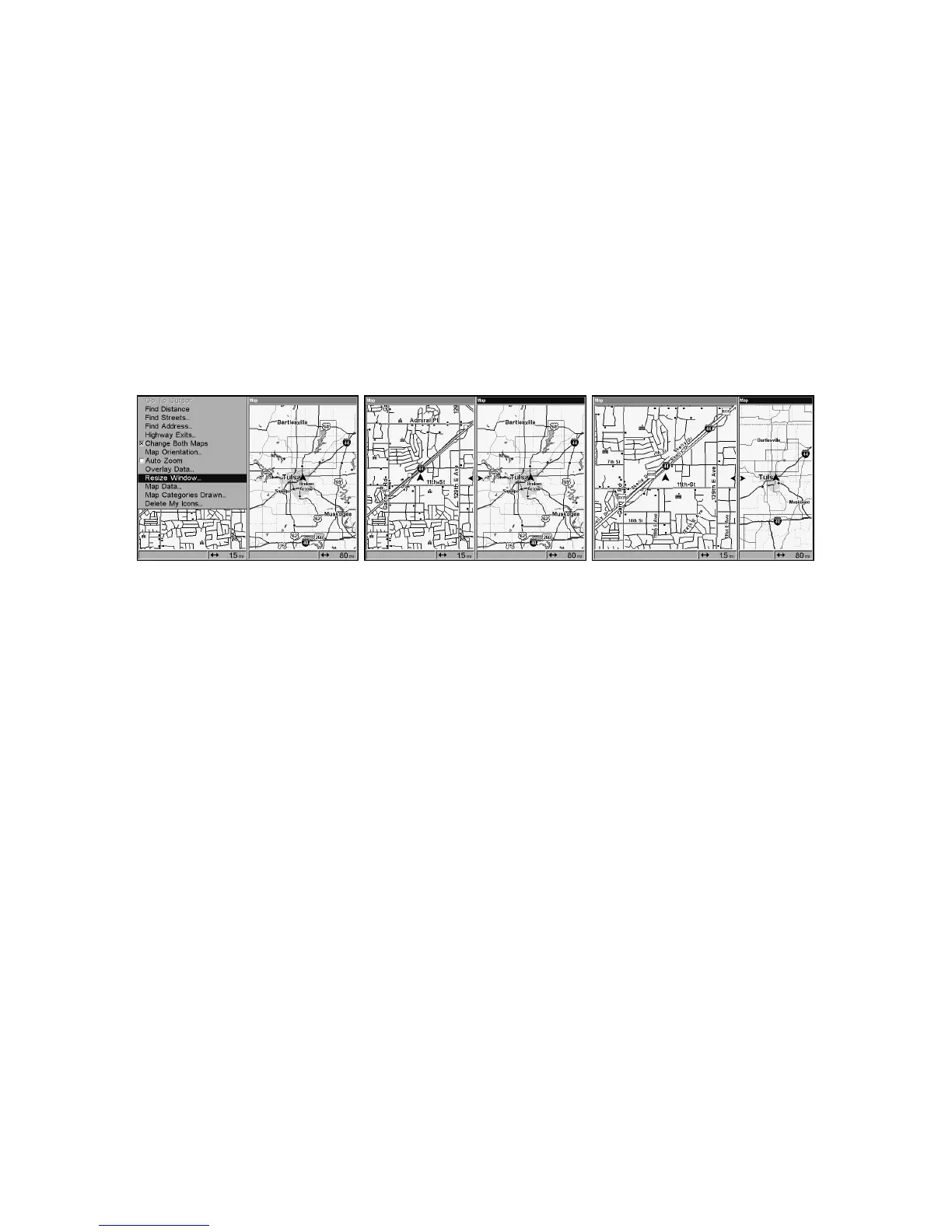
Resize Window is another extremely handy feature for pages that have
two major windows. You can change the horizontal size of the windows
to suit your viewing preference. Here's how:
1. From any two-window display, press
MENU
|↓ to
R
ESIZE
W
INDOW
|
ENT
.
2. Two flashing arrows appear along the centerline dividing the two
windows. Press ← or → to adjust the window widths. Press
EXIT
to
clear the menu.
3. To change the window size again or revert back to the original dis-
play, just follow the steps above. (Most dual-window displays use half
the screen for each window by default.) You can also use the Reset Op-
tions command to revert to the factory default.
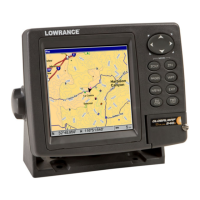
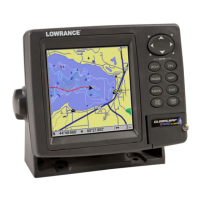
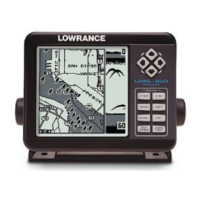
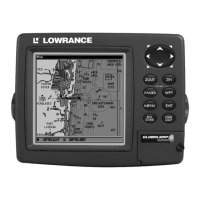
At left, Map Menu with Resize Window command selected. Center,
Resize Window command is active. At right, pressing the → key moves
the centerline to the right and enlarges the left window.
The following page contains a 12-step quick reference for the most basic
GPS operations. If you don't want to carry the manual with you as you
practice with the GlobalMap, you might consider photocopying this
quick reference page and tucking it into your pocket.



 To Next Page