79
Navionics
Charts
Your GlobalMap can display Navionics
electronic charts on MMCs.
They work just like a MapCreate custom map on an MMC.
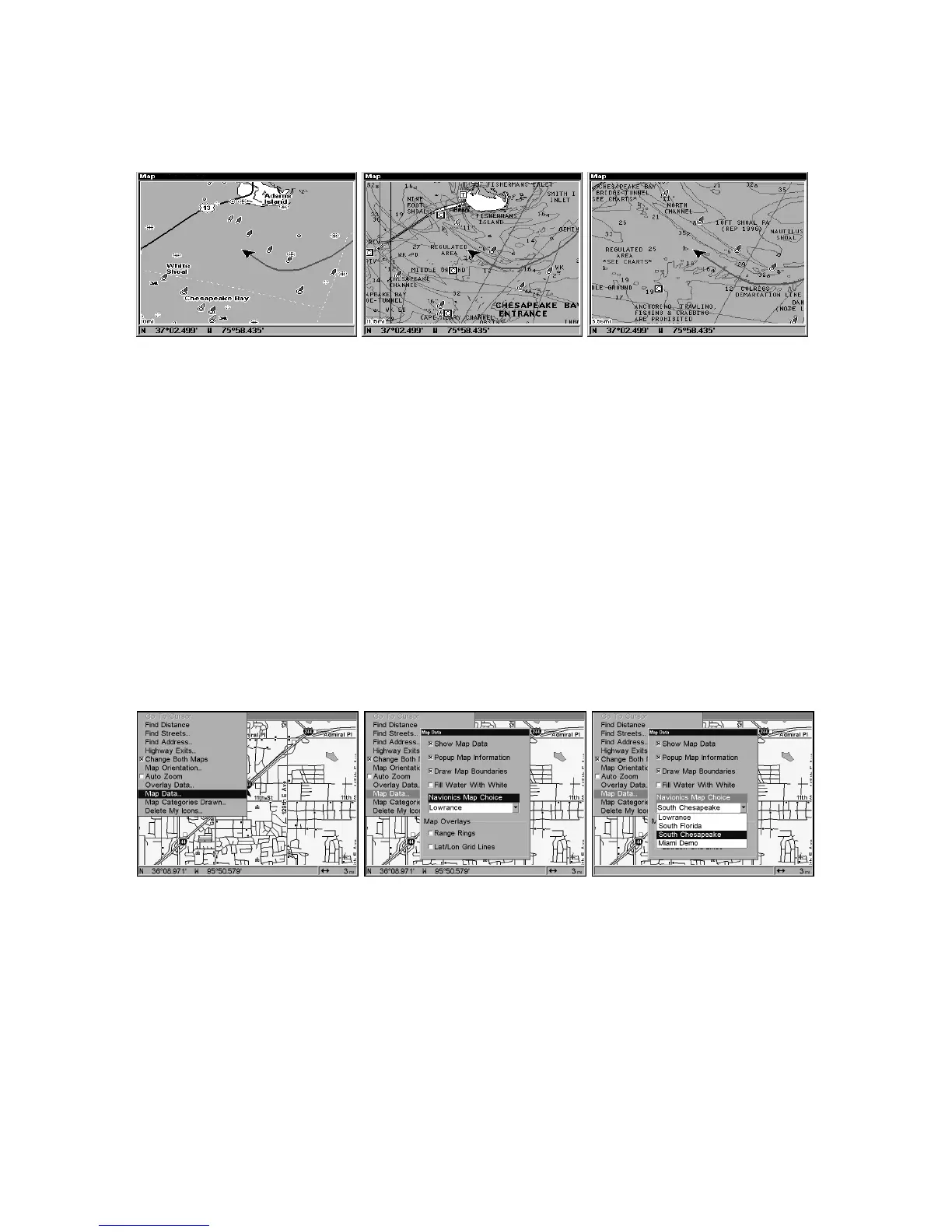
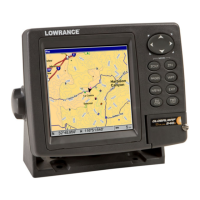
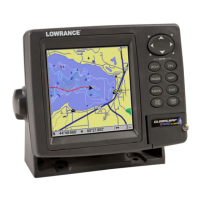
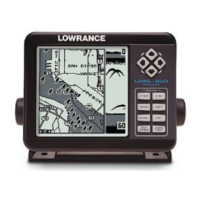
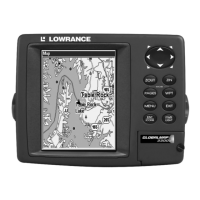
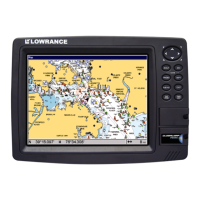
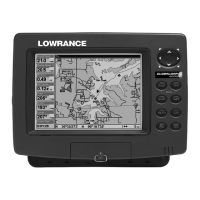
Left, entrance to Chesapeake Bay in a MapCreate 6 custom map,
10 mile zoom. Center, same position on Navionics chart at
11.15 mile zoom and right, 5.56 mile zoom.
To display a Navionics chart:
1. Install the Navionics MMC in the memory card compartment and
turn on the unit. (For full card install instructions, see Sec. 2.)
WARNING:
You should never format the MMC containing your
Navionics chart. Formatting the MMC will permanently
erase the chart from the card.
2. From the Map Page, press
MENU
|↓ to
M
AP
D
ATA
|
ENT
|↓ to
M
AP
C
HOICE
|
ENT
. Use ↑ or ↓ to select the Map Name, then press
ENT
|
EXIT
|
EXIT
.
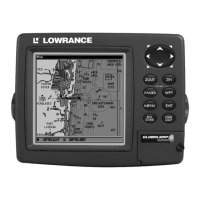
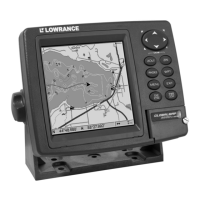
These figures show menu sequence (from left to right) for selecting a
Navionics chart for the South Chesapeake Bay area.
3. To turn off a Navionics chart, From the Map Page, press
MENU
|↓ to
M
AP
D
ATA
|
ENT
|↓ to
M
AP
C
HOICE
|
ENT
. Use ↑ or ↓ to select
L
OWRANCE
, then
press
ENT
|
EXIT
|
EXIT
.
Port Information
Navionics charts contain Port Services information, represented by an-
chor icons on the map display. An example is displayed in the following
figure.



 To Next Page