61
Trails
Delete a Trail
This is the command used to erase or delete a trail:
Press
MENU
|
MENU
|↓ to
M
Y
T
RAILS
|
ENT
|↓ to trail name|
ENT
|→ to
D
ELETE
T
RAIL
|
ENT
|← to
Y
ES
|
ENT
.
Tip:
You can also delete all trails at once:
1. Press
MENU
|
MENU
|↓ to
M
Y
T
RAILS
|
ENT
.
2. Press → to
D
ELETE
A
LL
|
ENT
|← to
Y
ES
|
ENT
.
Edit a Trail Name
To edit a trail name: press
MENU
|
MENU
|↓ to
M
Y
T
RAILS
|
ENT
|↓ to trail
name|
ENT
|
ENT
. Press ↑ or↓ to change the first character, then press
→ to the next character and repeat until the name is correct. Press
ENT
then
EXIT
|
EXIT
|
EXIT
|
EXIT
to return to the previous page display.
Tip:
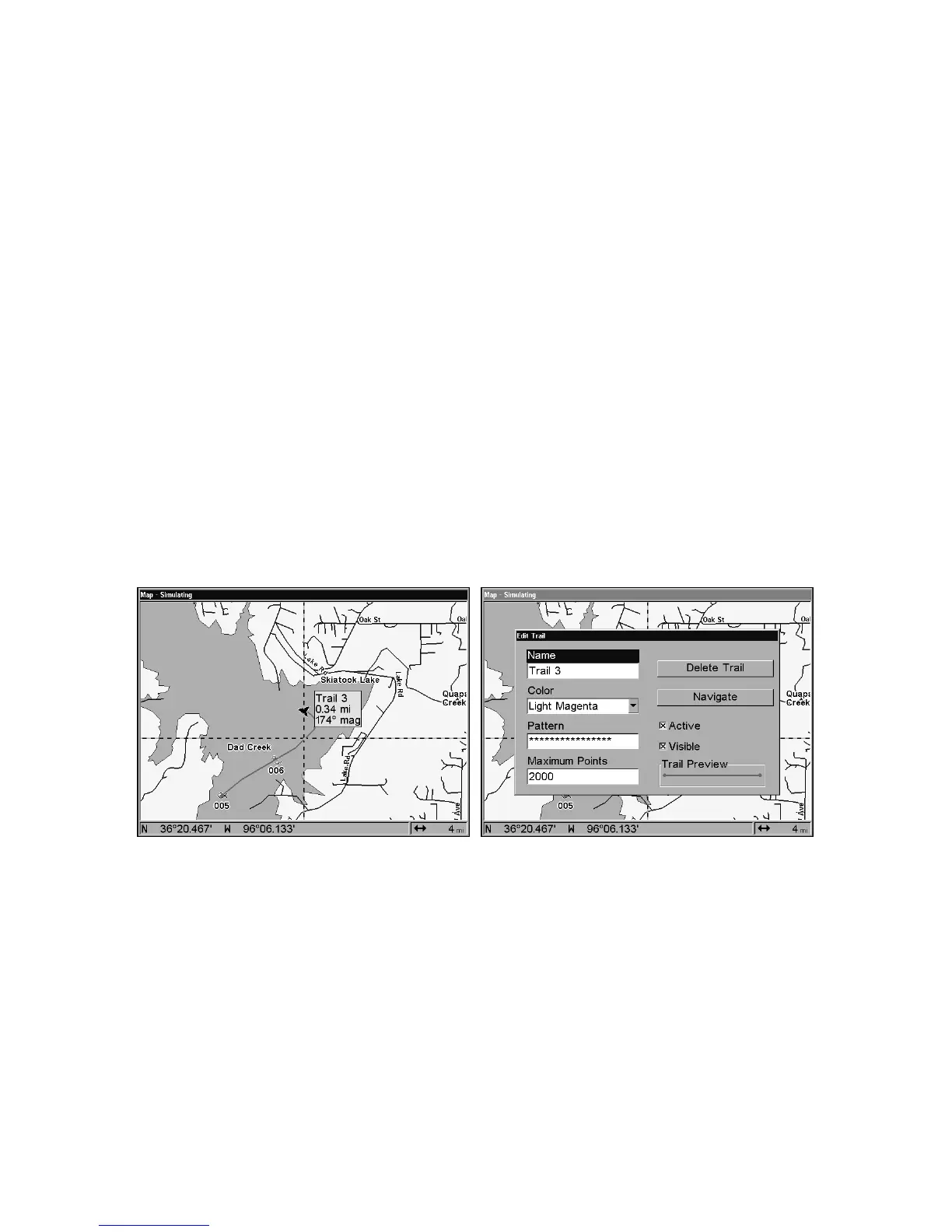
You can quickly call up the Edit Trail menu by selecting a trail on
the map with the cursor. Simply move the cursor over a trail and a
pop-up box appears. Press
WPT
and the Edit Trail menu opens.
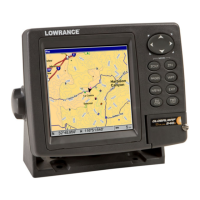
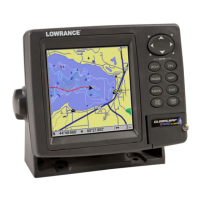
At left, trail selected with map cursor. The pop-up box shows distance
and bearing from current position to the selected point on the trail. At
right, the Edit Trail menu.
Edit a Trail Color
To edit a trail color: press
MENU
|
MENU
|↓ to
M
Y
T
RAILS
|
ENT
|↓ to trail
name|
ENT
|↓ to
C
OLOR
|
ENT
. Press ↑ or ↓ to select a color style, then
press
ENT
. Press
EXIT
|
EXIT
|
EXIT
|
EXIT
to return to the previous page
display.
Edit a Trail Pattern
To edit a trail pattern: press
MENU
|
MENU
|↓ to
M
Y
T
RAILS
|
ENT
|↓ to trail
name|
ENT
|↓ to
P
ATTERN
|
ENT
. Press ↑ or ↓ to change the first character,



 To Next Page