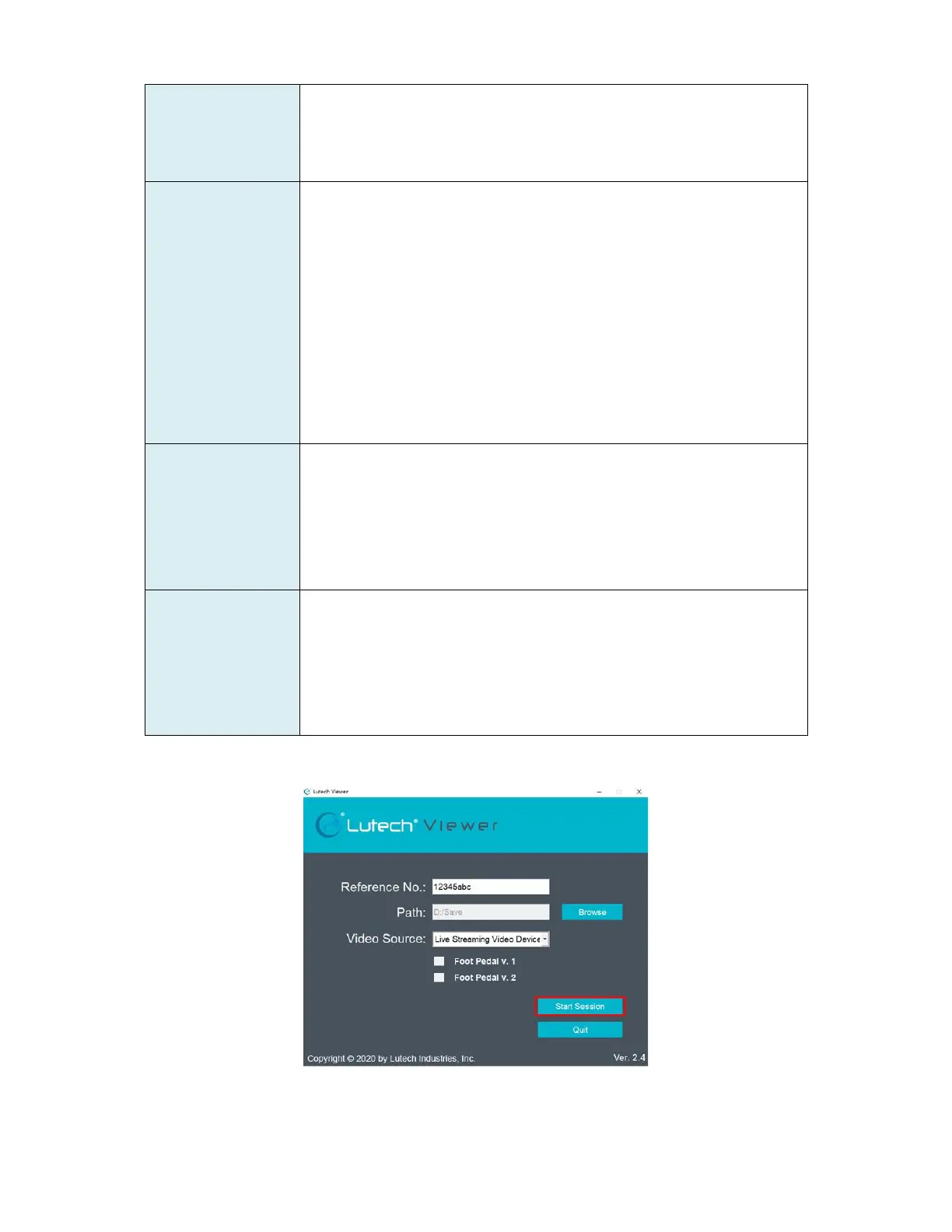
folder containing the reference number within its name will
automatically be generated in the location specified within the Path
field.
NOTE: The path field will remain for all sessions unless manually
changed. Once changed, it will stay the same unless changed again.
The Lutech Viewer will automatically detect video sources within the
Lutech colposcopes. Please connect the colposcope to the computer
first. Then open the software. This field should automatically fill in
with one of the following video source options:
• Lutech
• xVideo card
• JS3330video card
• Live Streaming Video Device card
NOTE: If the colposcope is not connected at the time, the video
source will pick up any other type of video card available to the
computer.
NOTE: Please refer to Section 3.8.1 Video Source Troubleshooting
for assistance.
Select this box if the Lutech foot pedal you received was from July of
2019 and older. (Ex: July 2019, June 2019, 2018, 2017…etc.) Make
sure your caps lock is off.
NOTE: Selecting Foot Pedal V.1 will clear the selection for Foot Pedal
V.2.
NOTE: Please refer to Section 3.8.2 Foot Pedal Troubleshooting for
assistance.
Select this box if the Lutech foot pedal you received was from August
of 2019 and newer. (Ex: August 2019, September 2019, 2020…etc.)
Your V.2 foot pedal should also be noted in the packing list.
NOTE: Selecting Foot Pedal V.2 will clear the selection for Foot Pedal
V.1.
NOTE: Please refer to Section 3.8.2 Foot Pedal Troubleshooting for
assistance.
When all the fields on the Main Screen are filled out, press Start Session to begin.


 To Next Page