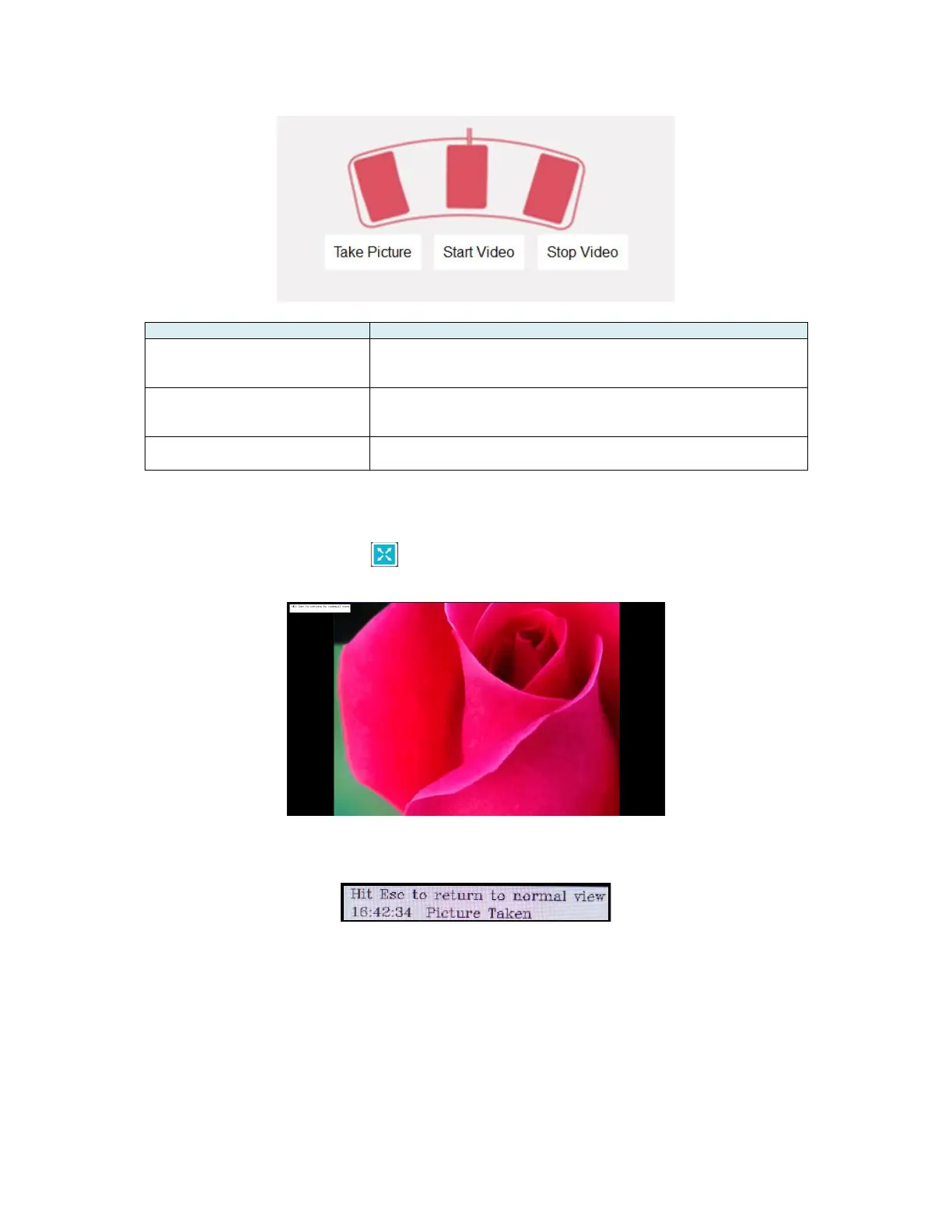
Press this pedal to take a picture of what’s currently in the
live video area. All pictures will be saved in the JPEG
format in 1920 x 1080 resolution.
Press this pedal to start recording what’s in the live video
area. All videos will be saved at max resolution as an AVI
file.
6.3.4 Full Screen Mode
Click on the Full Screen Button located at the bottom left corner of the Session Window to enter Full
Screen Mode.
Pictures and Videos can be taken during Full Screen Mode using the foot pedal. The upper left corner
displays confirmation messages of actions taken while in Full Screen Mode.
To exit Full Screen Mode, press ESC on your keyboard. This will return you to the Session Window.
6.3.5 Picture Review
To review a picture taken during this session, double click on the thumbnail of the picture located in the
picture/video log area. The picture will be displayed in a new larger window. Click on the X on the upper
right corner to close this new window when done.
NOTE: Be careful not to click on the X located on the Session Window. This will close the Lutech Viewer
instead.


 To Next Page